




Table of Contents
You just got handed a spreadsheet with 5,000 contacts, and marketing wants them in Salesforce by the end of the week so they can run an email campaign.
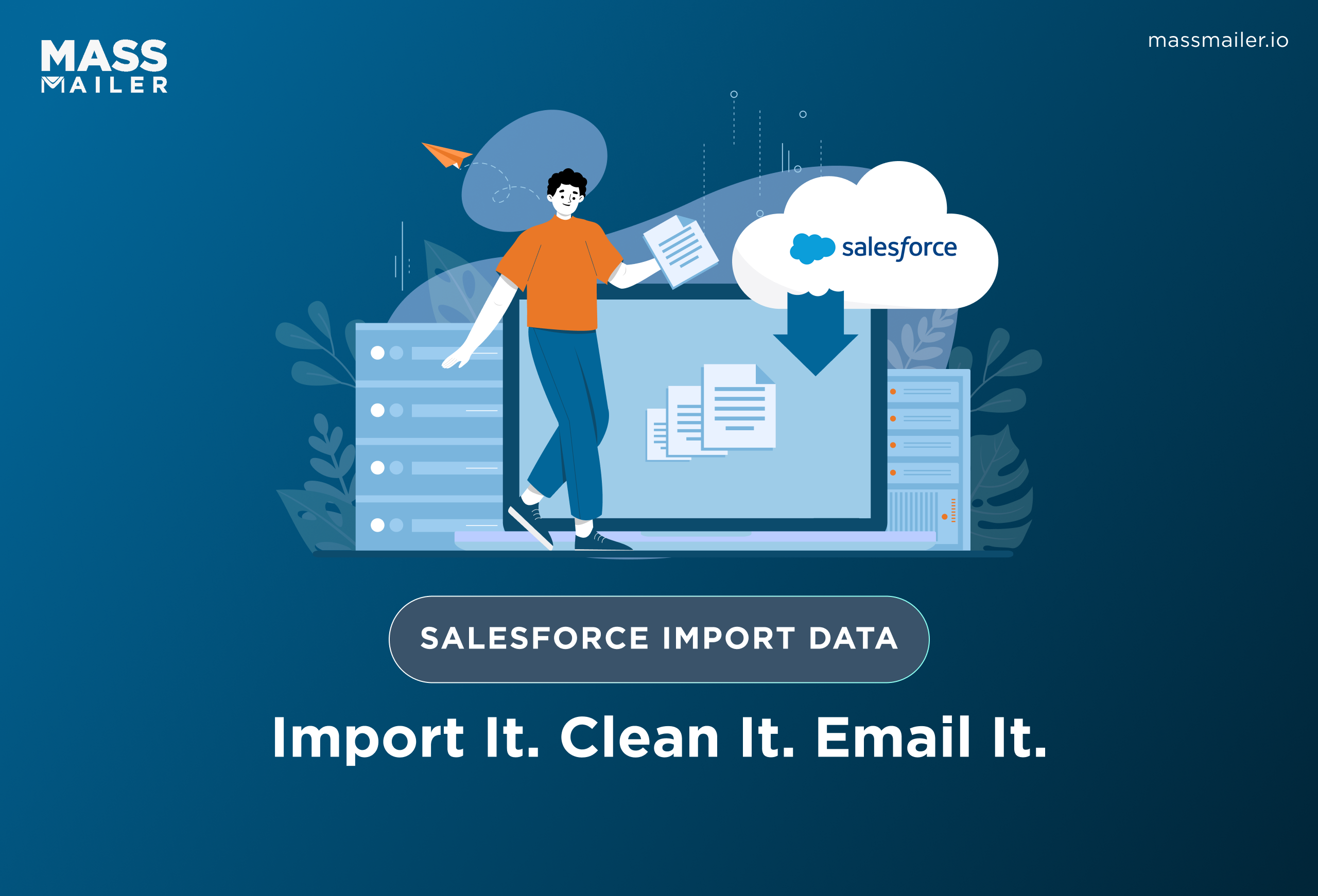
The problem is that most content on Salesforce import data only covers the import itself. It walks you through the Data Import Wizard or Data Loader, confirms your records landed, and stops there. But nobody covers what comes next, and a sloppy import doesn't just create messy records. It causes bounced emails, duplicate sends, and contacts marked as opted-in who never actually opted in.
This post covers the full workflow, from preparing your CSV and picking the right import tool to cleaning up your data and sending your first campaign without ever leaving Salesforce.
How to Prepare Your CSV Before Importing Into Salesforce
To prepare your CSV for a Salesforce import, you need to get four things right: choose the correct object (Lead vs Contact), clean your email data, format the file so Salesforce can read it, and match your column headers to Salesforce field labels. Skip any of these, and you'll spend more time fixing records after import than the import itself takes.
Decide whether to import as Leads or Contacts
Salesforce treats Leads and Contacts as separate objects with different required fields. New prospects who haven't been qualified go in as Leads. Existing customers or people tied to a known company go in as Contacts under an Account. Pick the wrong object and you'll either clutter your Lead queue with existing customers or lose pipeline tracking on new prospects.
For Leads, your CSV needs First Name, Last Name, Company, and Email at a minimum. Leave out Company, and Salesforce rejects the entire row. For Contacts, you need First Name, Last Name, and an Account Name to associate them with.
Clean for email quality, not just missing fields
If you're importing contacts to email them, add an Email Opt Out column and set it to TRUE for anyone who hasn't explicitly opted in. Without this column, Salesforce defaults the field to FALSE on every record, marking everyone as available to email even if they never gave consent.
Check for role-based email addresses like info@, admin@, or support@. Sending campaigns to those addresses tanks your deliverability. Trim trailing whitespace from email fields, too. An extra space after "john@company.com " won't show up in Excel, but Salesforce stores it as a different value, so dedup rules miss it completely.
Sort by email address before uploading. Two rows with the same email but different names create two separate records, and both receive your campaign.
Format the file so Salesforce can read it
Save your CSV as UTF-8 encoded. If you export from Excel without specifying UTF-8, special characters in names like accents or non-English characters get mangled on import. Use YYYY-MM-DD for any date fields. Salesforce won't parse MM/DD/YYYY correctly, and dates either fail or map to wrong values silently.
Match your column headers to Salesforce field labels exactly. The Data Import Wizard auto-maps when headers match and forces manual mapping when they don't.
| CSV Header (Won't Auto-Map) | Salesforce Field Label (Will Auto-Map) |
|---|---|
| Phone Number | Phone |
| Job Title | Title |
| Company Name | Company |
If you're unsure what headers to use, the Data Import Wizard offers a downloadable sample CSV once you select your object. That template gives you the exact column names Salesforce expects.
Test before you import the full file
Run your first import with 10 to 15 records. Verify that fields were mapped correctly, duplicates were caught, and the Email Opt Out value came through as expected. Fixing a mapping error on 15 records takes two minutes. Fixing it on 5,000 takes an afternoon.
How to Use the Salesforce Data Import Wizard
The Salesforce Data Import Wizard lets you import up to 50,000 records directly from Setup without downloading any software. It supports Leads, Contacts, Accounts, Solutions, Campaign Members, and custom objects, but does not handle Opportunities, Cases, or Products. If you need any of those, skip to the Data Loader section.
The basic flow is straightforward: open Setup, search "Data Import Wizard," click Launch Wizard, select your object, upload your CSV, map fields, and start the import. Salesforce documents the same process in theirTrailhead data management module, but neither the official docs nor most guides explain the decisions you need to make at each step. Those decisions are where most imports go wrong.
Choosing the right operation
The Wizard gives you three options: Add New Records, Update Existing Records, or Add New and Update Existing. Most teams pick "Add New Records" without a second thought, and that's exactly how duplicates get created. If your CSV contains contacts who might already exist in Salesforce from a previous import, a manual entry, or a web form submission, choose "Add New and Update Existing." Salesforce will match incoming rows against existing records and only create new ones when no match is found.
Picking the right matching rule for email lists
Salesforce matches incoming records using Name, Email, or Salesforce ID. For campaign-ready imports, always match by Email. Name matching fails in practice because "Mike Smith" and "Michael Smith" produce two separate records for the same person.
Salesforce ID matching only works if your CSV already contains record IDs from a prior export, which is rare when you're importing a fresh list from an external source.
Importing Campaign Members from the Campaign record
If you're importing a list to email through a Salesforce Campaign, don't start from Setup. Go to the Campaign record itself, click Manage Members, and select Add Members via Import.
This associates every imported contact with the Campaign in a single step. Starting from Setup creates the records but skips Campaign association entirely, which means you'll add them manually afterward or rebuild the membership list from scratch.
What to verify after the job completes
A completed job doesn't guarantee clean data. Open five to ten imported records and confirm that values are populated in the correct fields and Email Opt Out is carried over as expected. If you ran "Add New and Update Existing," compare Created Date against Last Modified Date on records you know already existed. When both dates show today, Salesforce created a duplicate instead of updating the original.
For row-level error details that the completion email won't show, check Setup > Bulk Data Load Jobs.
When to Use Salesforce Data Loader Instead
Salesforce Data Loader is a desktop application that handles larger, more complex imports than the Wizard. Use it when your CSV exceeds 50,000 records, when you need to import into objects the Wizard doesn't support (Opportunities, Cases, Products), or when you need to delete or export records in bulk.
Download it from Setup > Data Loader and install it on Windows or Mac.
What Data Loader handles that the Wizard cannot
Beyond record volume, Data Loader supports every standard and custom object in your org, while the Wizard covers only a handful. It also offers a command-line interface, so you can schedule recurring imports without opening the application. Teams that receive a fresh contact list every week or pull records from an external database can automate the entire upload.
Using External IDs to prevent duplicates on large imports
The Wizard matches duplicates using Name, Email, or Salesforce ID. Data Loader adds a fourth option: External ID, a custom field that holds a unique identifier from your source system, like a customer number or database key from your old CRM.
External IDs let you run upserts against a value you control. If you import 20,000 contacts with a "Legacy_CRM_ID" field, Data Loader checks each row against that field before deciding whether to create or update. You don't depend on name or email matching, which breaks whenever your source data has inconsistencies.
Better error handling with success and error files
When the Wizard hits errors, you see a summary count and a vague status message. Data Loader generates two separate CSV files after every job: a success file with every record that imported correctly and its new Salesforce ID, and an error file with every failed row and the specific reason it failed.
You fix the error file and re-import only the failed rows instead of rerunning the entire job.
Data Import Wizard vs Data Loader: Quick Comparison
| Feature | Data Import Wizard | Data Loader |
|---|---|---|
| Record limit | 50,000 per job | 5 million per job |
| Supported objects | Leads, Contacts, Accounts, Solutions, Campaign Members, custom objects | All standard and custom objects |
| Operations | Insert, Update, Upsert | Insert, Update, Upsert, Delete, Hard Delete, Export |
| Interface | Browser-based inside Setup | Desktop application |
| Automation | None | Command-line with scheduled jobs |
| Error output | Summary status page | Row-level success and error CSV files |
| External ID support | No | Yes |
| Best for | Simple imports under 50K with supported objects | Large datasets, complex objects, recurring imports, bulk deletes |
Use the Wizard for straightforward imports of Leads or Contacts under 50,000 records. Use Data Loader when volume, object type, automation, or error granularity requires it.
From Imported Records to Your First Email Campaign
Your data is in Salesforce. Now you need to organize it and get the emails out. This is where most import guides stop, and where teams run into problems they didn't expect.
Organize your imported records before you send
Don't email your entire imported list as one batch. Create a list view filtered by Created Date to isolate the records you just imported, or filter by a custom field like "Import Source" if you added one to your CSV. This gives you a clean working set without mixing in existing records.
For targeted campaigns, add your imported contacts to a Salesforce Campaign as Campaign Members. Campaigns track who received the email, who opened it, and who converted, all tied to the specific import batch. A list view shows you records. A Campaign shows you results.
Run a duplicate check before sending. Go to Setup > Duplicate Rules and confirm your matching rules are active. If two records share the same email address, both receive your campaign, and your recipient sees the same message twice. That damages the sender's reputation fast.
The sending limit you'll hit after import
Salesforce caps native mass email at 5,000 recipients per day on most editions. If you imported 10,000 contacts for a product launch, you can't reach your full list in a single send. You'd split the list manually, send across multiple days, and stitch together engagement data from separate batches.
Salesforce's nativesending options also offer limited tracking: basic delivery confirmation, but minimal open rates, click tracking, and bounce handling.
Sending at scale without leaving Salesforce
MassMailer runs natively inside Salesforce and sends directly from the records you just imported, no export to a separate platform, no data sync to manage. Engagement data writes back to each record automatically.
The workflow from import to send:
- Import your CSV using the Data Import Wizard or Data Loader.
- Add imported records to a Campaign or filtered list view.
- Open MassMailer's Outreach Wizard inside Salesforce.
- Select your audience.
- Choose or build an email template.
- Schedule or send immediately.
Every open, click, bounce, and unsubscribe logs on the Contact or Lead record. No toggling between platforms.
Best Practices for Importing Data Into Salesforce
To keep your Salesforce imports clean and repeatable, follow four practices: test in a sandbox first, restrict import permissions, document your field mappings, and audit your data within a week of every import.
Test in the sandbox before importing to production
If you're importing more than a few thousand records or working with a new data source, run the full import in the sandbox first. A sandbox import reveals validation rule conflicts, workflow triggers that fire unexpectedly on new records, and field mapping issues you can't predict from looking at the CSV alone.
Fixing those in production after 15,000 records exist takes significantly more effort.
Restrict import access to admins or trained ops
A single bad import can overwrite existing field values, create thousands of duplicates, or trigger automation on records that weren't ready. Limit Data Import Wizard and Data Loader access through Salesforce permission sets so only people who understand the data model can run imports.
Save your field mapping for future imports
If you import from the same source regularly, save your field mapping as a reference. Data Loader lets you export mapping files directly. For Wizard imports, screenshot your mapping selections. This eliminates guesswork on repeat imports and keeps results consistent when someone else runs the job.
Audit imported data within the first week
According toSalesforce's own research, the average contact database is made up of 90% incomplete records, with 25% being duplicates. Every unaudited import adds to that problem. Run a report within a few days of import to catch records with missing email addresses, blank required fields, orinactive email activity. Catching these early costs far less than diagnosing bounce spikes after a campaign has already gone out.
Conclusion
Importing data into Salesforce is the easy part. The harder question is what you do with that data once it's in.
Most teams spend hours cleaning CSVs, mapping fields, and running imports only to realize that Salesforce's native sending limits stop them from reaching their full list. That gap between import and email is where campaigns stall.
MassMailer removes that gap. It sends directly from your imported Leads and Contacts inside Salesforce, with no export to another platform, no record limits, and engagement tracking that writes back to each record automatically.
If you're importing contacts to email them,start a free trial orbook a live demo to see the full import-to-send workflow in action.
Frequently Asked Questions
1. Can you undo a data import in Salesforce?
2. Does Salesforce accept Excel files for import?
3. How long does a Salesforce data import take?
4. Can you schedule recurring data imports in Salesforce?
5. Can you import data into Salesforce from Google Sheets?
Start Your Free Trial Today
Experience MassMailer the easiest way to send personalized emails from Salesforce.
Related Blogs

MassMailer Resources




About the Author

Siva Devaki 
Siva Devaki is the founder of MassMailer Inc., a tool that helps Salesforce users optimize email marketing. A passionate advocate for email marketing, Siva writes and hosts podcasts on the topic, sharing insights to help businesses drive revenue and enhance customer engagement through Salesforce email automation and tracking.