




Table of Contents
Most admins set up the Salesforce Microsoft 365 integration and assume their emails are syncing. They are not. The most common reason has nothing to do with Salesforce. It is a permissions step in Microsoft Entra that your M365 admin probably skipped.
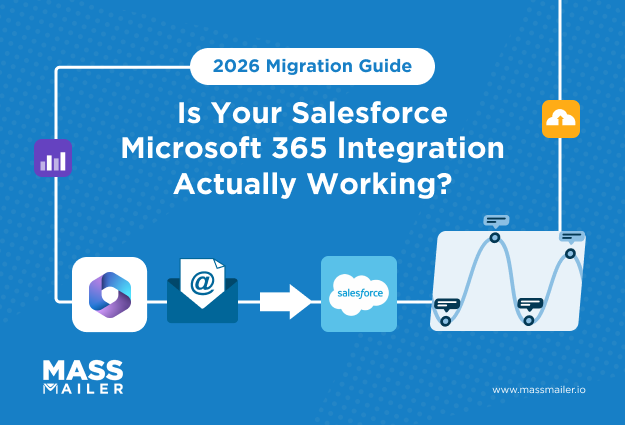
The integration is not one connection. It is four separate tools: the Outlook add-in for manual email logging,Einstein Activity Capture for automatic sync, Teams for CRM data in channels, and Files Connect for SharePoint and OneDrive documents inside Salesforce. Each one is configured separately. Turning on one does not turn on the others.
If your org still runs Lightning Sync, you have until August 2026. After that, Microsoft kills the Exchange Web Services tokens it depends on. Sync breaks. Emails and calendar events stop appearing on Salesforce records until you configure EAC from scratch.
This guide covers what each tool does, how to set up the full Microsoft 365 CRM integration, and where it falls short.
What the Salesforce Microsoft 365 Integration Actually Covers
The Salesforce Microsoft 365 integration covers four tools: the Outlook add-in for manual email logging, Einstein Activity Capture for automatic email and calendar sync, Salesforce for Teams for CRM data in channels, and Files Connect for SharePoint and OneDrive access inside Salesforce. Each one is configured independently, often by different admins.
| Tool | Configured By | Key Detail |
|---|---|---|
| Outlook add-in | Salesforce admin + M365 admin | Does not auto-log emails. Every email needs a manual click. |
| Einstein Activity Capture | Salesforce admin + M365 tenant admin | Silently skips emails where no participant matches a Salesforce Contact or Lead. |
| Salesforce for Teams | Salesforce admin | Secondary. Configure after Outlook and EAC are running. |
| Files Connect | Salesforce admin | Needs separate Azure AD authentication. |
Enabling Outlook Integration in Salesforce Setup turns on the add-in only. EAC needs its own configuration and its own admin consent step in Microsoft Entra.
What Does the Salesforce Outlook Add-In Do?
The Salesforce Outlook add-in loads a sidebar inside Outlook showing Contact, Lead, Account, and Opportunity records tied to the email you have open. Reps log emails, create tasks, and update fields without switching to Salesforce. Without EAC running alongside it, nothing syncs in the background. They work together, not as alternatives.
How Does Einstein Activity Capture Sync Emails?
EAC syncs matched emails and calendar events to Salesforce automatically, no rep action needed. It matches participant email addresses against Contact and Lead records and posts activity to the record timeline. If a contact does not exist in Salesforce, EAC skips the email. No notification. No error. It just never appears.
What About Microsoft Teams, OneDrive, and SharePoint?
The Salesforce for Teams app brings CRM records into Teams channels. Files Connect links OneDrive and SharePoint documents to Account and Opportunity pages. Both are secondary. If your priority isSalesforce email integration, configure these after the core sync is stable.
How Einstein Activity Capture Works with Microsoft 365
Einstein Activity Capture connects Salesforce to Microsoft 365 through Microsoft Graph API and automatically syncs emails and calendar events to Salesforce activity timelines without any action from reps. It matches participant email addresses against existing Contact and Lead records, then posts matched activity to the record timeline, typically within minutes.
EAC works well when configured correctly. It fails silently when it is not, usually because one of three things is missing: admin consent in Microsoft Entra, the right sync settings, or an understanding of what EAC actually captures versus what it skips.
One detail that catches most admins off guard: EAC-captured activity appears on record timelines but does not show up in standard Salesforce reports. Reporting on captured emails requires Einstein Analytics or additional configuration.
What Gets Synced and What Gets Skipped
EAC syncs emails and calendar events where at least one participant's email address matches a Contact or Lead in Salesforce. Everything else is skipped without any notification or error.
A rep's internal emails with their manager will never appear on a Salesforce record because neither party is a Contact or Lead. Emails in spam or admin-designated exclusion folders are also filtered out.
Emails sent from a shared inbox or alias address may not sync unless the connected account matches the sending address configured in Salesforce. Teams using shared sales inboxes often discover this only after reps report missing activity on their email tracking records.
Email Visibility: Who Sees the Captured Activity
A manager opens an opportunity to review a rep's outreach. The activity timeline shows a call and a meeting, but none of the emails. The rep logged them. They are just not visible.
EAC Standard, included in most Sales Cloud editions, applies user-level visibility by default. Captured emails are visible only to the sender and the recipient, not to the record owner, the manager, or anyone else on the account team.
EAC Advanced adds team-level sharing, making captured activity visible across the opportunity or account. It is a separate license. Organizations that roll out the EAC Standard, expecting full pipeline visibility for managers, hit this wall on the first deal review.
Microsoft Graph Authentication: What Changed and Why It Matters
EAC's authentication method for Microsoft 365 changed with Salesforce's Spring '26 release. Organizations still on the older method must upgrade before August 2026. Starting with Spring '26, new EAC connections authenticate via Microsoft Graph automatically.
For older configurations, admins must complete the upgrade manually through an Admin Consent Flow in Microsoft Entra.
If the consent flow is not completed, EAC connections fail with "Authorization failed" or "Token expired" errors. A Salesforce admin alone cannot resolve this. It requires tenant-level access from your M365 admin.
This is the most common reason EAC breaks after a sandbox refresh or org migration, and knowing it requires M365 involvement saves hours of solo troubleshooting.
Setting Up the Salesforce Microsoft 365 Integration: A Step-by-Step Guide
Setting up the Salesforce Microsoft 365 integration takes five steps: confirm requirements, enable the integration in Salesforce, grant Microsoft Graph admin consent in Microsoft Entra, deploy the Outlook add-in, and connect user accounts. Steps 1 and 2 belong to the Salesforce admin. Steps 3 and 4 require your M365 tenant admin. Step 5 is user-level. If those roles sit with different people, identify the handoff points before starting.
If your org uses Google Workspace, you can refer to theSalesforce Gmail integration guide.

Step 1: Confirm Salesforce and Microsoft 365 Requirements
EAC requires a Sales Cloud Professional, Enterprise, or Unlimited edition and a Microsoft 365 plan that includes Exchange Online. Missing either blocks the setup entirely.
- Salesforce edition supports EAC (Professional, Enterprise, or Unlimited)
- Microsoft 365 plan includes Exchange Online
- EAC Advanced is licensed separately if you need team-level email visibility
- Salesforce Inbox is licensed separately if you needemail open rate tracking.
- Both Salesforce admin and M365 tenant admin access confirmed
Skipping this check leads to "why can't my manager see my emails" tickets within the first week of rollout.
Step 2: Enable Outlook Integration and EAC in Salesforce
This step turns on Outlook Integration and sets EAC as the sync engine inside Salesforce Setup. If your org usesEmail to Salesforce for BCC-based logging, it runs independently from EAC.
- Navigate to Setup → Outlook Integration and Sync.
- Toggle Outlook Integration and EAC to Enabled, set EAC as the sync engine
- Create a configuration, select Microsoft Exchange, enable Email Sync, and Event Sync
- Contact sync is optional and two-directional by default
A rep who edits a phone number in Outlook will overwrite the Salesforce record. Disable contact sync if your org enforces strict data governance.
Step 3: Grant Microsoft Graph Admin Consent in Microsoft Entra
Your M365 tenant admin must grant Microsoft Graph consent in Entra before any user can connect to EAC. A Salesforce admin cannot complete this step.
- Navigate to Entra admin center → Enterprise Applications → Salesforce → Permissions.
- Grant admin consent for the tenant
- One-time action, every user can connect without repeating it
Without consent, EAC connections fail with errors that look like a Salesforce bug but trace back to M365 permissions. While your M365 admin handles this, verify yourSalesforce SPF record includes Microsoft 365 as an authorized sender.
Step 4: Deploy the Salesforce Outlook Add-In
The add-in places a Salesforce sidebar inside Outlook so reps can log emails and accessSalesforce email templates without switching apps.
- Deploy from M365 Admin Center → Settings → Integrated apps → search "Salesforce"
- Start with a pilot group to catch custom domain or conditional access conflicts.
- Add custom Outlook domains to the Web App Domain allowlist in Salesforce Setup first.
Once deployed, reps see the sidebar in Outlook web and desktop automatically.
Step 5: Connect User Accounts and Test Sync
Each rep connects their Microsoft 365 account in Salesforce Settings → Connected Accounts and completes OAuth. EAC syncs within minutes.
- Send a test email to an existing Contact, and check the activity timeline within 10 minutes.
- Verifybounce handling is configured so bounced contacts are flagged before follow-up.s
- If a user changes their M365 password, the OAuth token is invalidated, and EAC disconnects.s
In orgs with strict password rotation, prepare a self-service reconnection guide for reps.
The 2026 Migration: What Changes and Who Needs to Act
Two legacy Salesforce email sync tools are either retired or being sunset. If your org runs Salesforce for Outlook or Lightning Sync, both require action.
If your org already runs EAC, verify it shows Microsoft Graph as the connection method under Setup → Einstein Activity Capture → Settings.
Salesforce for Outlook Is Gone
Salesforce for Outlook was a Windows desktop plugin that synced emails, contacts, and calendar events between a local Outlook client and Salesforce. It retired it in June 2024.
- No longer receives security patches, API updates, or support
- Replaced by the modern Outlook add-in paired with EAC
- No extension to its supported life
- Historical email data does not transfer to the modern add-in
Reps may still see it appearing to work. Without patches, the tool carries an increasing risk every month it stays installed. Verify youremail archiving setup before decommissioning to preserve historical records.
Lightning Sync to EAC: The August 2026 Deadline
Lightning Sync is Salesforce's older background sync service for contacts and calendar events. The migration window closes in August 2026.
The move to EAC is not automatic. There is no toggle, no data continuity, and no configuration carryover.
- Disable Lightning Sync in Setup before enabling EAC
- EAC does not inherit user assignments or sync settings
- Plan for a transition window where email and event capture pause
- Test in a sandbox first if your org runs near itsSalesforce email limits
Schedule the cutover during a low-volume week. A capture gap at quarter-end means pipeline activity goes dark when leadership needs it most.
When the Native Integration Is Not Enough
The Outlook add-in and EAC handle email logging and sync. They do not cover email tracking, campaign sends, or high-volume execution. That gap affects sales and marketing teams that need engagement signals or to send at scale from Salesforce.
Email Tracking Is Not Part of EAC
EAC does not tell you whether a prospect opened your email, clicked a link, or forwarded it. It captures send and receive events but does not embed tracking signals in outgoing emails.
- Logs sender, recipient, subject, and timestamp only
- No tracking pixels or click-redirect links added to outgoing emails
- Salesforce Inbox adds open and click tracking for individual emails only
A rep sends a proposal via Outlook. EAC logs the send on the Contact record. Two days later, the rep wants to know if the prospect read it before scheduling a follow-up. EAC has no answer. For teams runningSalesforce email campaigns that depend on engagement signals to time follow-ups, a Salesforce-native tool like MassMailer adds open, click, and bounce tracking directly on Contact and Lead records.
High-Volume Sends and Campaign Email
The M365 integration handles a one-to-one email workflow. It was not designed for prospecting sequences or campaign sends at volume.
- Salesforce caps single emails at 5,000 external addresses per day via API or Apex.
- Mass email and list sends have separate, lower limits
- EAC and the Outlook add-in are not a campaign infrastructure
A 20-rep sales team running personalized sequences with automated follow-ups will push against these caps faster than expected. Some teams work around this by routing campaign sends through personal Outlook accounts.
This creates deliverability risk. Shared IP reputation means one bad campaign from a rep's inbox can affect the entire team. MassMailer sends from its own infrastructure inside Salesforce, keeping reps under org limits and protecting Outlook deliverability.
How MassMailer Works Alongside the M365 Integration
MassMailer is a Salesforce-native email tool that adds what the M365 integration does not: send-time tracking, templates, and high-volume execution.

- Reads live Contact, Lead, and custom object records without sync
- Opens, clicks, and bounces write back to Salesforce records
- Sends use its own infrastructure, not your Outlook account or Apex cap
- User access follows your existing Salesforce roles and permissions
A rep sends a tracked email through MassMailer. The open timestamp appears on the Contact's activity timeline. A follow-up task triggers automatically. None of this requires leaving Salesforce or reconfiguring EAC.
Reps keep the Outlook add-in for sidebar logging and EAC for background sync.MassMailer handles campaign, prospecting, and outbound sends. If your team has the integration running and needs tracking and volume capability, evaluate whether a Salesforce-native tool closes the gap without a Marketing Cloud license.
Conclusion
Your next step depends on where your org stands. If you have not started, begin with the requirements check and get your M365 admin involved early. If you are on legacy tools, plan the migration now.
Once the integration is live, assess whether activity logging alone meets your team's needs. If your reps need open signals or your campaigns need dedicated send infrastructure,. It adds tracking and volume execution to the Salesforce setup you already have.
Frequently Asked Questions
1. Is the Salesforce Microsoft 365 integration free?
2. Does the Salesforce Outlook add-in work on mobile?
3. Can Einstein Activity Capture sync email attachments to Salesforce?
4. What happens to EAC data if a user disconnects their Microsoft 365 account?
5. Can Salesforce connect to both Google Workspace and Microsoft 365 in the same org?
6. Can multiple Salesforce orgs connect to the same Microsoft 365 tenant?
Start Your Free Trial Today
Experience MassMailer the easiest way to send personalized emails from Salesforce.
Related Blogs
MassMailer Resources


MassMailer Glossary
About the Author

Siva Devaki 
Siva Devaki is the founder of MassMailer Inc., a tool that helps Salesforce users optimize email marketing. A passionate advocate for email marketing, Siva writes and hosts podcasts on the topic, sharing insights to help businesses drive revenue and enhance customer engagement through Salesforce email automation and tracking.