




Table of Contents
Ever sent a Marketing Cloud email, watched the contact open it, then found nothing on their Salesforce record to show for it? If you run email through Marketing Cloud Connect, Individual Email Results (IER) are the records meant to capture that open.
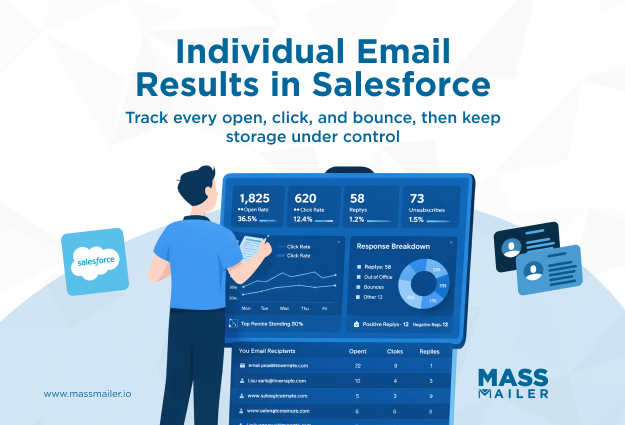
Individual Email Results in Salesforce are records, created through Marketing Cloud Connect, that store recipient-level engagement like opens, clicks, bounces, and unsubscribes on a Contact or Lead. They appear after a tracked send syncs from Marketing Cloud to Sales Cloud, which runs on an hourly schedule rather than instantly.
This guide covers what IER tracks, the setup it needs, how records are created and synced, how to report on them, and how to control storage. It is written for Salesforce admins and revenue operations (RevOps) leads deciding whether to turn IER on, and for which sends.
What Individual Email Results track inside Salesforce
Individual Email Results track recipient-level email engagement inside Salesforce: opens, clicks, hard and soft bounces, unsubscribes, and send times, each recorded against a single Contact or Lead. They are the Sales Cloud records that answer one question for a rep: what did this person do with this send?
Each metric is a field on the Salesforce IER object, pushed from Salesforce Marketing Cloud into Sales Cloud. That puts theSalesforce email tracking signal a rep checks before a follow-up directly on the record.
Click data goes one level deeper. A related object, Individual Link Level Details, stores per-link activity for each IER, including the Link Name and Link URL. The IER tells you a contact clicked; the link-level record tells you which link. That matters when a rep wants to open a call with the offer the contact showed interest in.
One behavior surprises admins at first. Each send produces one IER per recipient, and that record aggregates engagement instead of logging every interaction. A contact who opens the same send four times still has one IER, with the open count and last-open time updated each time. For the full raw event stream, look in Marketing Cloud tracking.
What you need in place before IERs work
Three things must be in place before a single IER appears on a record. Miss anyone, and IER silently fails, even though the email itself goes out fine.

- Subscriber Key: Set the Marketing Cloud Subscriber Key to the 18-digit Salesforce Contact ID. This is the key that matches a tracked send to the right Contact or Lead. If the Subscriber Key is an email address or an internal ID instead, Marketing Cloud has nothing to map the result to, and the IER never lands.
- Related list: Add the Individual Email Results related list to your Contact and Lead page layouts. Without it, the data can write back correctly and still stay invisible, because reps have no place on the record to see it. This is the most common reason an admin thinks tracking is broken when it is actually working.
- Connector: Confirm Marketing Cloud Connect is configured with the data sync running on its hourly schedule, and that your send audiences come from Salesforce data extensions. The connector only writes results back when the audience is sourced from Salesforce, so an audience built anywhere else gets you nothing on the record.
That last point catches teams that build an audience outside the connector, say, from an imported CSV (comma-separated values) file. The send works, but the tracking writes nowhere in Salesforce. Confirm the audience traces back to Salesforce before trusting IER on a campaign.
That setup is the real cost of IER, and it exists because the tracking lives in Marketing Cloud. If you only need opens and clicks on the record, aSalesforce-native sender like MassMailer captures that without the connector, the Subscriber Key mapping, or the hourly sync.
How IERs are created across send types
IERs come from two send origins, and both depend on the same hourly sync to land. The path a send takes determines whether engagement shows up on the record, and when.
| Marketing Cloud sends | Sales Cloud campaign sends | |
|---|---|---|
| Where you start | Email Studio, Journey Builder, triggered sends | Email Send on a Campaign or report |
| What creates the IER | "Send Tracking Results to Sales Cloud" checkbox | Sending the campaign through Marketing Cloud |
| Record it attaches to | Contact or Lead via Subscriber Key | Campaign member via Subscriber Key |
| Most common failure | Checkbox left unchecked, no IER written | Subscriber Key not mapped to 18-digit Contact ID |
Sends from Marketing Cloud (Email Studio, Journey Builder, triggered sends)
To create IERs from a Marketing Cloud send, select the "Send Tracking Results to Sales Cloud" checkbox before you send. This single control tells Marketing Cloud to write engagement back to Salesforce.
The checkbox applies across Email Studio sends, Journey Builder activities, and triggered sends. It is set per send, so it is not a global switch. Either check it on every send, or build it into the send configuration or journey template, so it is never forgotten.
Leave it unchecked, and the email still goes out normally. The recipient gets it, Marketing Cloud tracks the opens and clicks, but no IER is written to the Contact or Lead. There is no error and no warning. The record simply stays empty, which is why per-send tracking decisions are easy to lose at volume.
Sends from Sales Cloud campaigns
You can also create IERs from inside Sales Cloud, using the Email Send option on a Campaign or report. This routes the send through Marketing Cloud while keeping the action in the CRM (customer relationship management), where reps work.
These campaign sends create IERs tied to the campaign members who received the email. That makes them useful when a sales-owned send needs engagement logged directly on the record and the campaign, instead of being buried in a marketing tool. For teams that prefer to run their sends from the Sales Cloud side, this is how you track email engagement in Salesforce without leaving the CRM.
Campaign sends still depend on the same Subscriber Key mapping covered in the prerequisites. Get it wrong, and the results have nothing to attach to.
How long do Individual Email Results take to sync to Salesforce?
Tracking data moves from Marketing Cloud to Sales Cloud on an hourly sync set during connector setup. Engagement lands on the next sync cycle, so it is never instant.
Two identifiers stitch the records together. The JobID identifies the specific send, and the BatchID identifies the batch within it. Together, they let each tracked event attach to the correct IER, even when several sends run close together. A clean Subscriber Key plus the right JobID and BatchID is the matching logic that keeps one contact's open from landing on another send's record.
At high volume, expect the data to take longer than a single hourly window to fully populate. Salesforce Help notes that large sends sync over multiple cycles. That delay is expected, so wait for the sync window to close before troubleshooting. Tell your reps the engagement lands within a sync cycle or two, so nobody opens a case an hour after a 50,000-record send.
How to report on Individual Email Results in Salesforce
To report on IER across your whole team, build a custom report type with Individual Email Result as the primary object. The related list on a single Contact answers a one-record question, while a report answers the team-level ones that a manager actually asks.
In the custom report type, surface the fields reps act on: Date Sent, Opened, Clicked, Hard Bounce, and Soft Bounce. Then group the report by the related Campaign, by record owner, or by a segment field on the Contact, and filter Clicked equals True to pull only the engaged contacts by campaign. That turns the raw IER table into a sortable worklist that a rep can act on.
To see which links drove the clicks, join the Individual Link Level Details object into the report. Now, a rep can pull a list of every contact who clicked the pricing link last week and call them first. That is engagement worth acting on, whether the follow-up is a direct call or a Salesforce drip campaign.
Two reports earn their place for a sales team:
- Engagement worklist. Contacts who clicked in the last seven days, grouped by owner, so each rep starts the day with a warm list.
- No-response check. Contacts that the send reached but who never opened, which tells a rep when to switch channel or rework the subject line.
Both run off the same IER fields, just filtered differently. Then put the report where reps already work:
- Add the engagement report to the sales dashboard that reps open each morning.
- Set up a scheduled report subscription that emails each rep their clickers on a fixed cadence.
Reporting on the IER object also gives you an export path. You can report on and export IER data to archive it outside Salesforce, which matters for the storage problem the next section covers.
IER limitations and how to manage them
IER grows fast and syncs slowly, so it needs active management from day one. Left alone, it becomes one of the largest consumers of your Salesforce data storage.
Check usage at Setup, then Company Information, then Used Data Space. Salesforce counts most records at about 2KB each, so a 50,000-recipient tracked send writes 50,000 IER records and roughly 100MB in a single pass. Every link a recipient clicks adds an Individual Link Level Details record on top. Send weekly to a large list, and IER quickly tops your Used Data Space list.
Two other limits need expectation-setting. The hourly sync lag gets more noticeable at volume, as covered above. AMPScript-heavy emails can also render incompletely in the IER preview, so the stored preview may not match what the contact saw.

For cleanup, you have three real options:
- Use the Tracking Data Cleanup tool in the Marketing Cloud tab to remove old tracking records.
- Schedule an Apex batch job to delete IERs past a retention window you set.
- Archive older records to Salesforce big objects or an external store before deleting them, the route regulated teams like financial services firms use to keep retention without bloating standard storage.
The decision that keeps this manageable sits upstream, on the send itself. Only check "Send Tracking Results to Sales Cloud" when someone will act on the result. If a rep opens the record and does something different because the contact engaged, track it. If no one ever looks at the IER, it just sits there costing you storage.
In practice, track sales-owned and nurture sends where engagement drives a follow-up, and skip high-volume, low-intent blasts. A 12-person prospect nurture journey earns every record it writes.
A 200,000-recipient monthly newsletter rarely justifies 200,000 IERs no rep will read; pull those numbers from Marketing Cloud reporting instead. Storage you never fill is storage you never have to clean.
A lighter option for native Salesforce send tracking
Not every team needs the full Marketing Cloud Connect stack just to know who opened an email. If you send from Salesforce and mainly want to send and open tracking on the record, setting up Marketing Cloud, the connector, and IER management is a lot of overhead for that one goal.
This is where MassMailer fits. It sends mass email directly from Salesforce and records opens, clicks, and bounces on the Contact and Lead records, without Marketing Cloud Connect, hourly syncs, or a Subscriber Key to map. The tracking lives on the record from the send, not after a sync cycle.
To be clear about the boundary: this is an alternative path for teams not on Marketing Cloud. If you already run Marketing Cloud for journeys and segmentation, IER is your tracking layer, and a native send tool is not a replacement for it. Match the tracking method to the send stack you actually run.
Conclusion
IER follows a clear path: define what it tracks, set the three prerequisites, create records across both send types, report on the data, and then manage the storage. Get the setup right, and you get recipient-level engagement on Contact and Lead records that a rep can actually use.
The tradeoff is the part to decide deliberately. IER gives you a real engagement signal, but every tracked recipient costs storage, so weigh the value against the cost before turning it on everywhere. Track the sends that drive sales conversations. Skip the rest.
If you want to send and open tracking on Salesforce records without standing up Marketing Cloud Connect at all, MassMailer gives you that natively. Either way, the goal is the same: engagement your reps can see and act on.
Frequently Asked Questions
1. Is the HTML Email Status related list the same as Individual Email Results?
2. Why do my Individual Email Results show opens but no clicks?
3. What is the difference between Individual Email Results and Campaign member status?
4. Does a repeat send to the same contact create a new Individual Email Result?
5. What permissions does a user need to see Individual Email Results?
6. Can Individual Email Results be created for emails sent before tracking was enabled?
Start Your Free Trial Today
Experience MassMailer the easiest way to send personalized emails from Salesforce.
MassMailer Resources




MassMailer Glossary
About the Author

Siva Devaki 
Siva Devaki is the founder of MassMailer Inc., a tool that helps Salesforce users optimize email marketing. A passionate advocate for email marketing, Siva writes and hosts podcasts on the topic, sharing insights to help businesses drive revenue and enhance customer engagement through Salesforce email automation and tracking.