


Table of Contents
Have you ever added a Send Email Quick Action in Salesforce only to find it missing, tied to the wrong record, or unable to prefill the email the way you need?

Salesforce gives you three practical paths: a global action, an object-specific action, or a custom LWC. Choose based on what Salesforce must know when the user clicks Send Email: a reusable action, the current record, or values calculated at runtime.
In this guide, you’ll learn how to create a Send Email Quick Action in Salesforce, use templates and merge fields, add the action to Lead and other records, and fix a Send Email Quick Action not showing in Lightning.
Start with the native configuration first. Use custom code only when runtime logic makes it necessary.
Which Send Email Quick Action should you use in Salesforce?
Choose the Send Email Quick Action in Salesforce based on how much record context and runtime logic the email needs. Use a global action for reusable email flows, an object-specific action when the current record should shape the email, and an LWC when values must be calculated when the action runs.
| Option | Best fit | Main constraint |
|---|---|---|
| Global Send Email action | Reusable email flows across supported records | Limited object-specific control |
| Object-specific action | Emails tied to a Lead, Contact, Case, or another record | Requires object-level setup |
| Custom LWC action | Dynamic recipients, subjects, or content | Requires development and maintenance |
Global Send Email Quick Action
A global Send Email action in Salesforce works well when users need the same basic composer across supported records.
You can still set predefined field values for fixed items such as recipients or subjects. If Salesforce can determine those values in advance, custom code adds unnecessary complexity.
The main limitation is object-specific behavior. Case email also follows its own configuration path, so a global action should not be treated as the default for Case workflows.
Object-specific Send Email Quick Action
Use an object-specific action when the email should inherit context from the record where the user starts.
For example, when you add a Send Email action to a Lead or Contact, Salesforce can use the current record as the email context. Predefined values can also reference fields from that record or related Salesforce records, which can handle many recipient and relationship requirements without code.
This makes object-specific actions a better fit when the email should behave differently by object while still staying within native Salesforce configuration.
Custom LWC Send Email Quick Action
Use LWC when Salesforce cannot determine the required values until the user launches the action.
A component can receive the current recordId, run JavaScript logic, and open Global.SendEmail and pass dynamic values through encodeDefaultFieldValues. Salesforce still handles the standard composer, so the LWC only adds the logic that native configuration cannot provide.
LWC is useful when you need:
- a recipient chosen at runtime
- A subject calculated from record data
- body content generated dynamically
- User input before the composer opens
One technical dependency matters: fields populated through encodeDefaultFieldValues must stay editable on the Send Email action layout. If the Subject or HTML Body is read-only, Salesforce will not populate the value passed by the component.
Before you create a Send Email Quick Action in Salesforce with custom code, confirm that predefined values and record context cannot meet the requirement.
If your use case grows from one-to-one record emails to personalized bulk campaigns, MassMailer, a Salesforce-native email tool, supportsmass email in Salesforce using CRM data for targeting and personalization while keeping the workflow inside Salesforce.
How to create a Send Email Quick Action in Salesforce Lightning
To create a Send Email Quick Action in Salesforce Lightning, create the action, configure the composer fields, and place it on the Lightning experience users actually receive. Salesforce handles action setup and action placement separately, so completing only one step leaves the configuration incomplete.
Create a global Send Email Quick Action
Use a global action when the same Send Email composer should be available across supported, activity-enabled objects.
Go to:
Setup → Global Actions → New Action
Then:
- Select Send Email as the Action Type.
- Enter a clear label and action name.
- Save the action and open its quick action layout.
- Add the Email Message fields users need, such as To, CC, BCC, Subject, and the email body.
The quick action layout controls which fields appear inside the composer. Salesforce also distinguishes between fields that contain email addresses and recipient fields that reference Salesforce records, so configure them according to how recipients should be identified. Salesforce documents the supported email quick-action fields and their behavior.
If your configuration relies heavily on copied recipients, understandingCC and BCC in Salesforce helps clarify how those fields affect recipient handling and compliance.
Cases require a Case-specific Send Email action rather than the global action.
If users need to send email from Home, Chatter, or the Global Actions menu, add it to the Global Publisher Layout. That layout controls which global actions Salesforce exposes outside individual record pages.
Create an object-specific Send Email Quick Action
Use an object-specific action when the current record should supply the email context.
Go to:
Setup → Object Manager → Target Object → Buttons, Links, and Actions → New Action
Then:
- Select Send Email as the Action Type.
- Give the action a clear label.
- Save it and open the quick action layout.
- Add only the fields users need to view or edit.
When you add a Send Email action to a Lead or Contact, Salesforce can use that record when opening the composer. This reduces manual recipient selection and keeps the sender connected to the CRM record.
For teams using Lead data beyond individual messages,Salesforce email for lead generation covers how CRM fields can also drive nurture and follow-up workflows.
Cases follow their own path under Object Manager → Cases → Buttons, Links, and Actions.
Add the Send Email Quick Action to a Lightning page layout
Creating the action does not make it visible automatically. For a page-layout-driven Salesforce email quick action in Lightning, go to:
Setup → Object Manager → Target Object → Page Layouts → Edit
Then:
- Open Mobile & Lightning Actions.
- Drag Send Email into Salesforce Mobile and Lightning Experience Actions.
- Place the action where users should see it and save the layout.
- Confirm that the intended profile and record type use that layout.
If the record page uses Dynamic Actions, check Lightning App Builder as well. Dynamic Actions can control the action list and apply visibility rules independently of standard page-layout placement.
Test the finished setup as the intended user. Confirm that Send Email appears, opens the expected composer, and leaves the required fields editable.
After that works, move to reusable email content.Salesforce Lightning email templates cover the template layer used to build formatted, reusable messages in Lightning.
How to configure predefined values, email templates, and merge fields
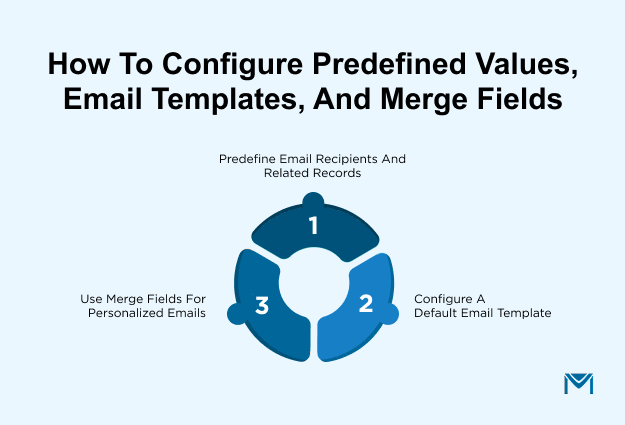
After the Send Email Quick Action in Salesforce works, configure three separate controls: predefined values for composer fields, templates for reusable content, and merge fields for record-level personalization. Each solves a different part of the email setup.
| Configuration | Controls | Best use |
|---|---|---|
| Predefined values | Initial composer fields | Recipients and related records |
| Email template | Subject and body | Repeatable email content |
| Merge fields | CRM values inside a template | Personalized content |
Predefine email recipients and related records
Use predefined values when Salesforce can determine the recipient or related record before the composer opens.
Open the Send Email action in Setup, select Predefined Field Values, and create the required default. Salesforce supports fields such as To Recipients, CC Recipients, and BCC Recipients.
Choose the value type carefully:
- Use an email address string when you only need to address the message.
- Use a supported Lead, Contact, Person Account, or User ID when the email should remain associated with that Salesforce record.
- Use an object-specific action when you need to predefine Related To, because global email actions do not support that field in the same way.
This distinction affects more than convenience. Sending to a CRM record preserves a relationship Salesforce can use for activity history and downstream processes, while a plain address does not provide the same association.
That relationship also matters when evaluating broaderSalesforce email integration options.
Configure a default email template
A Salesforce email quick action template gives users reusable subject and body content instead of making them start from a blank composer.
For Case email, Salesforce lets admins set a Default Email Template directly on the Send Email action:
- Go to Setup → Object Manager → Cases → Buttons, Links, and Actions.
- Open the Send Email action.
- Select the required Default Email Template.
- Save the action and verify the result from a Case record.
Salesforce documents this default-template behavior specifically for Case Send Email actions.
Do not assume the same setting appears on Lead, Contact, or custom-object actions. Where Salesforce does not expose a default-template field, users may need to choose the template from the composer.
For teams managing reusable copy at scale,Salesforce email templates provide the content layer independently of the quick action that opens the composer.
Use merge fields for personalized emails
Merge fields insert Salesforce data into an email template when the message is prepared. The critical dependency is the Recipient and Related To data available in the email.
A merge field can be valid and still return blank if Salesforce cannot resolve its object from those records.
One detail matters when users add several recipients: Recipient merge fields in the Lightning Email Composer use data from the first recipient in the To field. Do not assume one email with several recipients will be personalized separately for each person.
Cross-object merge fields also depend on defined Salesforce relationships. A template cannot simply choose one arbitrary record from a related list containing several child records.
Use Salesforce's merge-field picker and test the exact Recipient and Related To combination users will send from. This is also the foundation of more advancedSalesforce email personalization, where CRM data controls how reusable content changes for each recipient.
How to create a custom Send Email Quick Action using LWC
Use an LWC (Lightning Web Component) for a custom Send Email Quick Action in Salesforce when the email needs values calculated at click time. Native predefined values suit fixed defaults; LWC is useful when recipient selection, subject lines, or message content depend on runtime data or user input. Salesforce documents LWC quick actions for this exact requirement.
The implementation has three parts: expose the component as a record action, navigate to Global.SendEmail and pass runtime values through encodeDefaultFieldValues.
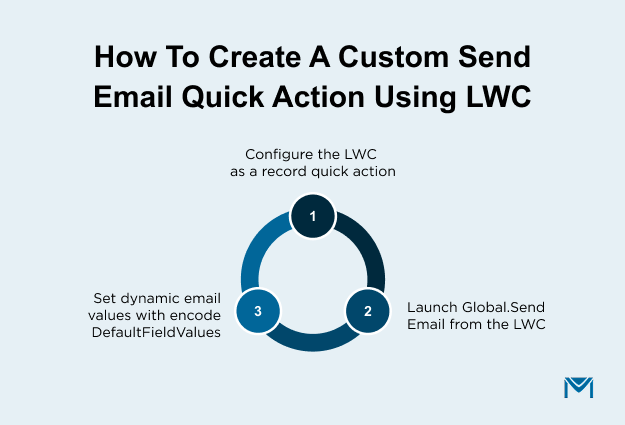
Configure the LWC as a record quick action
Add lightning__RecordAction to the component's .js-meta.xml file:
lightning__RecordAction exposes the component as a record-page quick action. Action creates a headless action that executes code without opening its own modal, while ScreenAction is appropriate when users must enter or select something first. Salesforce does not allow the action type to be changed after the component is deployed.
For a headless action, expose invoke() with @api. Salesforce calls this method when the user triggers the action. The component can also expose recordId so its logic knows which Salesforce record launched it.
Launch Global.SendEmail from the LWC
Use NavigationMixin with a standard__quickAction page reference and point apiName to Global.SendEmail. The component then opens Salesforce's existing email composer instead of creating a separate email interface.
Set dynamic email values with encodeDefaultFieldValues
You can combine navigation and runtime defaults in one method:
| import { LightningElement, api } from 'lwc'; import { NavigationMixin } from 'lightning/navigation'; import { encodeDefaultFieldValues } from 'lightning/pageReferenceUtils'; export default class SendRecordEmail extends NavigationMixin(LightningElement) { @api recordId; @api invoke() { const defaults = encodeDefaultFieldValues({ Subject: calculatedSubject, HTMLBody: generatedBody, RelatedToId: this.recordId }); this[NavigationMixin.Navigate]({ type: 'standard__quickAction', attributes: { apiName: 'Global.SendEmail' }, state: { recordId: this.recordId, defaultFieldValues: defaults } }); } } |
encodeDefaultFieldValues supports ValidatedFromAddress, ToAddress, CcAddress, BccAddress, Subject, HTMLBody, and RelatedToId. Attachments cannot be passed through this mechanism because attachment fields are not part of the email quick-action layout.
One dependency causes many silent failures: a field passed through encodeDefaultFieldValues must remain editable on the Send Email action layout. If Subject or HTMLBody is read-only, Salesforce can open the draft while dropping the value supplied by the LWC. Also, check ToAddress carefully because Salesforce already prepopulates the recipient when the action starts from a Lead or Contact with an email address.
If your code needs to send email directly without presenting a composer, that is a different architecture. ASalesforce Email API approach handles programmatic sending, while a quick-action LWC remains user-initiated.
Likewise, when a record event should send the message automatically with no user click,Salesforce transactional emails are the more relevant pattern than extending the quick action with more JavaScript.
Salesforce Send Email Quick Action not showing: how to troubleshoot it
If your Salesforce Send Email Quick Action is not showing, diagnose the symptom before changing the configuration. Check action exposure first, user and org email access second, object-specific requirements third, and LWC code last.
This order matters because Salesforce spreads these controls across Page Layouts, Lightning App Builder, Deliverability, object settings, and component metadata. A missing action and an action that opens with missing defaults are different failures.
| Symptom | Start here |
|---|---|
| Missing for one user or record type | Layout assignment or Dynamic Actions |
| Missing across one object | Action placement and object requirements |
| Visible but sending fails | Permissions and Deliverability |
| Missing from Case | Case Send Email and Email-to-Case settings |
| Composer opens, but defaults are blank | LWC state and action-layout fields |
Test each issue as the affected user. Admin visibility does not prove that the user's assigned layout, permissions, or visibility rules are correct.
Check the page layout and action placement
First, confirm that Send Email is on the layout assigned to the affected user's profile and record type. Finding the action somewhere in Setup is not enough.
If the Lightning page uses Dynamic Actions, inspect the Highlights Panel in Lightning App Builder. Its action list and visibility filters can determine whether Send Email appears even when the page layout is configured correctly. Salesforce specifically recommends checking action placement when an Email action is missing.
When the action appears for some records but not others, compare record types, page assignments, and Dynamic Action filters before rebuilding it.
Check Send Email permissions and email deliverability
If the action appears but users cannot send, move from UI configuration to email access.
Check the user's Send Email access and then open:
Setup → Deliverability → Access to Send Email
For Case Feed, Salesforce documents Deliverability as a direct cause of a missing Email quick action. Setting Access to Send Email below. All emails can remove the action in that experience.
This symptom distinction is useful: if Send Email is visible but delivery fails, investigate sender configuration and outbound email behavior rather than repeatedly editing the page layout.
For teams that need to diagnose what happens after Salesforce accepts the send,Salesforce email deliverability monitoring covers bounce, authentication, complaint, and reputation signals that UI troubleshooting cannot reveal.
Check object-specific requirements
Next, confirm that the action matches the object where it is being used.
Salesforce uses a Case-specific Send Email action, and Email-to-Case configuration can affect whether the Email publisher action is available. Salesforce also notes that enabling Email-to-Case can create and configure parts of the Case Send Email setup automatically.
For Lead or Contact, verify that you are troubleshooting the action configured for that record experience rather than applying Case-specific fixes.
This explains why the same Send Email Quick Action in Salesforce can work on one object while appearing to fail on another: the object can introduce its own action type and dependencies.
Check LWC quick action configuration
Only inspect custom code after native visibility and access checks pass.
For an LWC-based Salesforce email quick action in Lightning, verify that:
- The component exposes lightning__RecordAction in its metadata.
- The quick action references the deployed component and receives the expected recordId.
- Navigation uses type: 'standard__quickAction' with apiName: 'Global.SendEmail'.
- defaultFieldValues contains the encoded values you expect.
If Global.SendEmail opens, but the Subject or HTML Body stays blank; the navigation is already working. Check the Send Email action layout instead. Salesforce requires fields populated through encodeDefaultFieldValues to remain editable; read-only fields cause the composer to ignore those supplied values.
That gives you a faster fault boundary: missing action means exposure or access; missing LWC defaults mean state or field configuration.
MassMailer does not replace these Salesforce configuration checks. As a 100% native Salesforce AppExchange email application, it becomes useful after the send path works, especially when teams need Salesforce-record-level visibility into delivery, bounces, unsubscribes, and engagement rather than relying only on the composer. MassMailer keeps that email activity inside Salesforce, which makes downstream email problems easier to investigate alongside the CRM data that triggered the send.
Send Email Quick Action in Salesforce: Final Steps and Next Actions
Start with the least complex Send Email Quick Action in Salesforce that solves the job: global for reusable sends, object-specific for record-driven email, and LWC only when values must be calculated at runtime.
Before rollout, verify the action in this order: placement → user and email access → object requirements → LWC configuration. Then test recipients, templates, and merge fields on a real record as the intended user.
If your team needs to move beyond one-to-one sends, MassMailer is a Salesforce-native email solution for higher-volume, personalized outreach using CRM data.
Ready to see how that works in your Salesforce setup?Book a live demo with MassMailer.
Frequently Asked Questions
1. Can a Send Email Quick Action in Salesforce work on custom objects?
2. Can users schedule a Salesforce email from a record to send later?
3. Does the Send Email Quick Action work in the Salesforce mobile app?
4. Does a Send Email Quick Action in Salesforce log the sent email?
5. Does a Send Email Quick Action count against Salesforce email limits?
6. Can Salesforce Flow send email instead of using a Send Email Quick Action?
Related Blogs

MassMailer Resources



MassMailer Glossary
About the Author

Siva Devaki 
Siva Devaki is the founder of MassMailer Inc., a tool that helps Salesforce users optimize email marketing. A passionate advocate for email marketing, Siva writes and hosts podcasts on the topic, sharing insights to help businesses drive revenue and enhance customer engagement through Salesforce email automation and tracking.