




Table of Contents
You send an email from Salesforce, the dashboard confirms it went through, and the recipient never sees it. That gap between a "sent" status and an actual inbox is where email delivery failure lives.
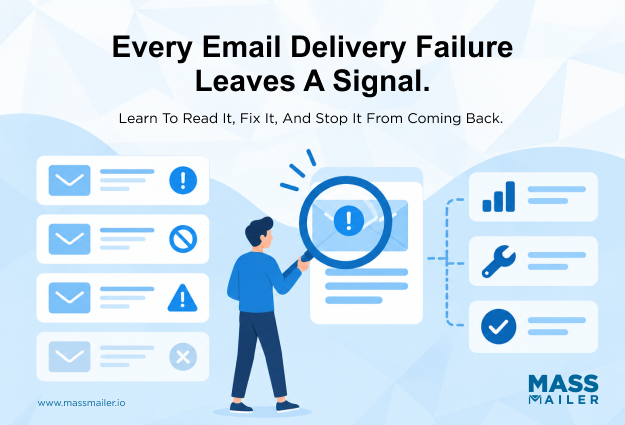
The message might bounce silently, land in the spam folder, or fail against a receiving server's filter. Salesforce's standard reporting rarely flags any of it. Before you fix anything, you have to know which type of failure you are chasing.
This guide covers the five common causes of email delivery failure, how to troubleshoot an active one, how to prevent them from recurring, and how Salesforce-specific gaps make the problem harder to spot.
Common Causes of Email Delivery Failure
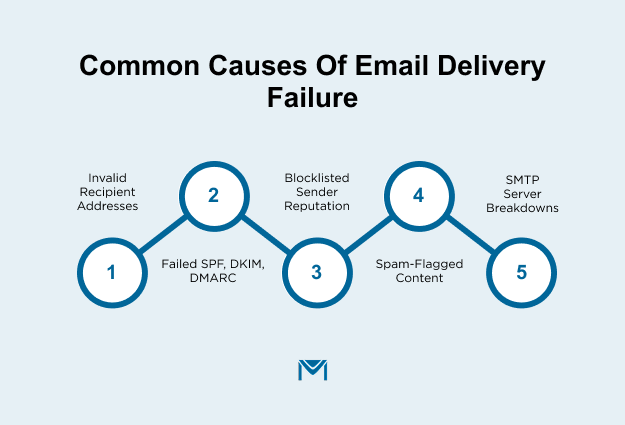
Email delivery failure comes from five root causes: invalid or blocked recipient addresses, failed SPF/DKIM/DMARC authentication, poor sender reputation or blocklisting, spam-triggering content and formatting, and SMTP or infrastructure breakdowns. Each has its own signal shape. Some hit one recipient, some drag down thousands. Some fail immediately, others degrade over weeks. Sort your failure into the right category before you touch a fix.
Recipient-side causes: invalid address, full mailbox, recipient blocking
Signal shape: single message, immediate bounce. If the failure names one recipient, start here.
Invalid or nonexistent addresses (typos, former employees, spam traps) produce hard bounces. Route them throughbounce management so they're suppressed after the first failure and retries don't compound the damage to your sender reputation. Full mailboxes soft-bounce and often clear on their own. Recipient-side blocking, where an admin has blacklisted your domain, needs an out-of-band conversation to lift.
Not every failure notice is real, either. Spoofed bounces from phishing campaigns arrive with no matching send in your Sent folder, and clicking anything inside them is the actual attack.
Authentication failures: SPF, DKIM, and DMARC
Signal shape: consistent rejection across recipients at the same provider, usually Gmail or Yahoo first.
SPF names authorized sending servers, DKIM signs the message so receivers can verify it, and DMARC dictates what happens when either fails. Since 2024, Gmail and Yahoo require all three for bulk senders. Missing or misconfigured records now trigger outright rejection, not spam-folder delivery.
The usual breaks: a duplicateSPF record on one domain, DKIM CNAMEs never published, DMARC left at p=none.
Sender reputation and IP or domain blocklisting
Signal shape: slow-onset degradation across recipients. Inbox rates drop over days or weeks, not overnight.
Mailbox providers score your sending IP and your domain separately. A drop in either sends more mail to spam or blocks it entirely. Blocklisting is the sharper version: Spamhaus, SORBS, or a provider-specific list flags your IP or domain, and delivery on that path collapses until you request delisting.
Check status through Google Postmaster Tools and MXToolbox. Reputation heals slowly, and continuing to send heavily during recovery extends the timeline.
Content and formatting that trip spam filters
Signal shape: inconsistent placement. The same send lands in the inbox for some recipients, spam or quarantine for others.
Spam scores rise on subject lines with excessive punctuation, high image-to-text ratios, missing plain-text alternative, shortened URLs, and cloaked links. Formatting problems are sharper: messages over the provider's size cap (SMTP 5.3.4) and blocked attachment types get rejected outright.
Content rarely fails alone. A borderline send from a domain with strong auth and reputation gets through. The same send from a weaker sender doesn't.
SMTP server and infrastructure issues
Signal shape: many recipients hit at once, same technical error text, often 4xx codes.
Sending-side failures include SMTP misconfiguration, wrong port (25 versus 587 or 465), expired TLS certificates, and server downtime. Receiving-side infrastructure produces 421 or 4.4.x codes for temporary unavailability or greylisting; a retry usually clears these.
The tell: infrastructure failures hit the whole outbound queue at once, not scattered recipients over time. If your entire send window returns the same 5xx code, your platform or the receiving server changed, not your list.
How to Troubleshoot Email Delivery Failure Step by Step
Troubleshooting runs in four steps: read the bounce, verify authentication actually passed, check list quality and recipient status, then seed-test content and sending patterns. Each step confirms or rules out one category from earlier. One bounced transactional email deserves a different first move than a rising bounce rate across a campaign send. Note which you're dealing with before Step 1.
Start with the bounce message and the headers
Pull the SMTP reply code and the enhanced status code together, then read the header triage in this order:
- Authentication-Results: SPF, DKIM, and DMARC verdicts for this specific send
- Received chain: the sending IP and the receiving server
- Diagnostic-Code: the receiver's own explanation, often more specific than the SMTP code
In Salesforce, the bounce lands on the Activity History or the Email Message record tied to the Lead or Contact, not in an inbox. Open that record to see the full response. An auth-fail verdict sends you to Step 2. A pass rules that category out. For an unfamiliar code, look it up against a bounce code reference before guessing at meaning.
Validate your authentication records
Check whether authentication passed for the send, not whether the records exist in DNS.
Records can be published, syntactically correct, and still fail alignment because the domain in the From header doesn't match the domain the SPF or DKIM record covers. This is the most common Salesforce-specific auth failure: mail sent through a third-party sender against a Salesforce-owned domain, or through Salesforce infrastructure against a marketing subdomain, without alignment configured on both sides.
Run the failing send through MXToolbox, Google Postmaster, or mail-tester. Read the alignment result, not just the published-record result. If alignment fails, the fix is in DNS or in the sending platform's From-address setup, not in the campaign.
Check list quality and recipient status
Look at how the bounces cluster before you touch the list.
- Clustering by domain (all @acme.com bounces): the recipient's mail server changed; check MX records and reach out
- Clustering by import batch date: one list source has decayed; segment-verify that batch
- Scattered across the whole send: runSalesforce email verification across the full list
Clustering changes the fix. A domain-level cluster is a five-minute check, not a full re-verification. A batch cluster is a segment problem, not a list problem. Getting this wrong burns hours and doesn't fix the underlying issue.
Review content, sending patterns, and volume
Run a seed test across Gmail, Outlook, Yahoo, and Apple Mail with the exact message that failed. Below 90% inbox placement loops you back to reputation, authentication, or content.
Then check three things:
- Has send volume spiked in the last 7 days beyond your normal range?
- Are subject lines and body copy consistent with prior sends?
- Has anything changed in the template, new links, new images, larger attachments?
Sudden divergence on any of these, paired with weaker inbox placement, points to content or reputation. Neither shows up cleanly in the headers, which is why this step is last, not first.
How to Prevent Recurring Email Delivery Failures
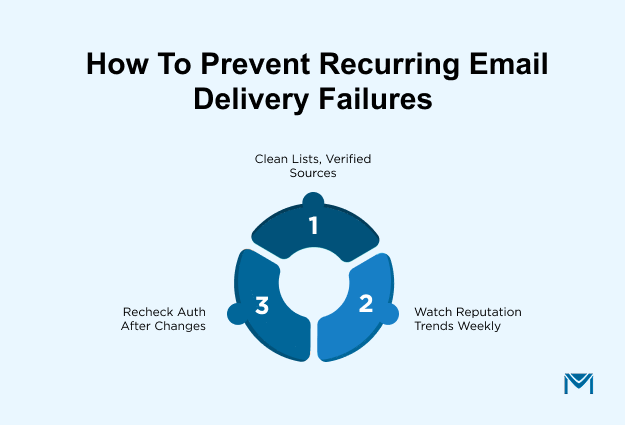
Prevention works on two clocks. One is a light routine you run on a schedule to catch slow decay. The other kicks in whenever something changes in your Salesforce setup, because that is where silent breaks happen between routine checks. Both matter. Most guides only cover the first, and that is why the same failures keep coming back after every audit.
List hygiene and email verification
A clean list needs both a schedule and a trigger, not just a quarter-end cleanup.
Standing: Re-verify the full list every quarter. Also use double opt-in for new signups so old or fake addresses never make it onto the list. And suppress hard bounces on the first failure, not the third.
Change-triggered: Re-verify any list segment from a new source before its first send, not after. Also re-verify after a data migration or a mass update to Lead or Contact records. Bulk changes to the Email field are the single most common way a clean list turns dirty overnight in Salesforce.
Double opt-in matters more than most admins realise, because high complaint rates and hard bounce rates hurt your reputation on their own. So every bad address you send to costs you twice.
Sender reputation monitoring
Reputation slips before bounces show up, so your monitoring has to catch the trend, not the incident.
Standing: Check Google Postmaster Tools every week for Gmail traffic, and Microsoft SNDS for Outlook. Also track your spam complaint rate against the 0.3% ceiling. Anything above that, and mailbox providers start slowing you down. Look at the weekly trend, not the single-day number.
Change-triggered: Re-baseline after any volume change of 25% or more, after you add a new sending user in Salesforce, and after a template redesign that shifts engagement patterns. New sending users often inherit default profile settings that route mail through the wrong path, and that quietly damages reputation without a single visible bounce.
Ongoing authentication and infrastructure checks
Authentication drifts quietly as your Salesforce setup changes around it, so a calendar alone is not enough.
Standing: Confirm SPF stays under the 10 DNS lookup limit, because the count creeps up every time a new sending platform gets added. Also rotateDKIM authentication keys once a year. Then tighten DMARC from p=none to p=quarantine to p=reject as your confidence grows.
Change-triggered: Re-verify SPF and DKIM after any domain migration, subdomain change, or managed package update in Salesforce. Managed package updates sometimes shift From-address behaviour, and that breaks DKIM alignment without touching a single DNS record. The failure is silent because the records still exist and still pass on their own.
Even with both clocks running, Salesforce brings its own visibility gaps that generic prevention does not cover. So the next section walks through what changes when the sending platform is Salesforce itself.
Handling Email Delivery Failures in Salesforce
Salesforce handles email delivery failures with basic bounce logging and no built-in visibility into what happens after a message leaves its servers. That means silent drops, spam folder delivery, and reputation-driven throttling all sit outside standard Salesforce reporting. That gap is where most delivery failures hide in a Salesforce-native workflow. A message marked "sent" in Salesforce only confirms it left Salesforce infrastructure. It does not confirm the inbox.
Where native Salesforce sending falls short
Native Salesforce sending has three specific limits that matter for delivery diagnosis. First, transactional email and marketing email often share the same sending infrastructure. So a reputation dip from one bleeds into the other. But no single Salesforce view shows you that connection.
Second, per-message deliverability data is thin. You can see that an email was sent. You cannot see whether it landed in the inbox, the spam folder, or nowhere at all.
Third, bounce categorization and suppression at scale are not built in. So hard bounces, soft bounces, and complaints often need manual handling or a separate tool.
How MassMailer closes the gap inside Salesforce
MassMailer runs inside Salesforce and ties every delivery signal back to the same Lead or Contact record the send originated from. That covers the bounce, the reputation trend, and the suppression event. So when a campaign starts underperforming, theSalesforce email deliverability picture, the affected records, and the fix all live in one place. You are not toggling between an external ESP dashboard and a manual export.
That is the practical difference between a Salesforce-native tool and a bolt-on ESP. It is not what gets reported. It is where the signals land.
One honest limit. MassMailer surfaces the failure and points to the affected records. It does not rewrite spam-triggering subject lines, re-verify a decayed list, or rebuild a broken template on its own. Those still need a human to act on what the tool has surfaced.
Treat every email delivery failure as a signal, not a crisis
Email delivery failure is not one problem you solve once. It is a routine signal to interpret. Read the shape of the failure, sort it into the right category (recipient, authentication, reputation, content, or infrastructure), then apply the fix that category calls for. The teams that stay ahead treat every failure as a diagnostic prompt, not a crisis.
If your team sends in volume from Salesforce, spotting where delivery actually breaks down should not require a manual audit every time. Book a demo to see how MassMailer surfaces delivery failures inside Salesforce as they happen.
Frequently Asked Questions
1. What does "email delivery failed" mean in a bounce notification?
2. Why did my email fail without any bounce message?
3. How long before an email is considered undeliverable?
4. Does the recipient see anything when an email fails to deliver?
5. Can email delivery fail because of the sender's internet or device?
6. What is the difference between a delivery failure and a "message blocked" notice?
Related Blogs
MassMailer Resources




MassMailer Glossary