


Table of Contents
One contact, one account. That's how Salesforce is built, and for most businesses, it works. But if you sell to staffing firms, consultancies, or partner networks, the same person shows up in three, five, sometimes ten accounts. The default breaks the moment a recruiter switches agencies, a partner rep covers multiple resellers, or a consultant runs projects across your client base.
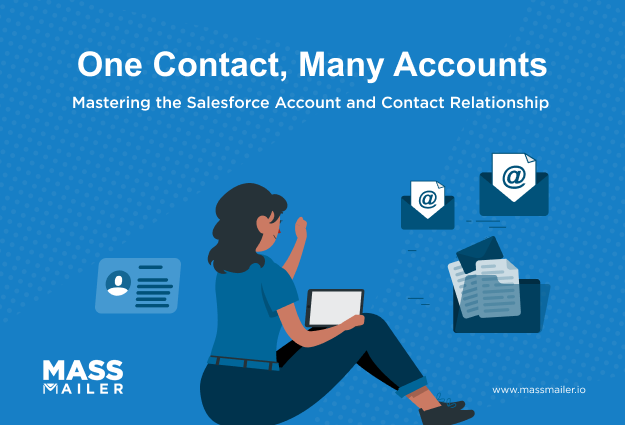
The Salesforce account and contact relationship is a one-to-many link. One account can have many contacts, but each contact belongs to a single account unless you change how the objects connect. There are three ways to fix this: turn on the AccountContactRelation object, deliberately duplicate a contact when the accounts are genuinely separate, or use the Individual object when privacy compliance is the driver.
This guide covers how the default relationship works under the hood, how the three options compare, how to enable Contacts to Multiple Accounts, and how to report on cross-account relationships without breaking your dashboards.
How the default account and contact relationship works in Salesforce
Every contact in Salesforce points to one account through a field called AccountId. That single field is the entire relationship. It's a lookup field on the Contact object, which makes the default one-to-many: one account holds many contacts, but each contact belongs to a single account.
For teamssending email from Salesforce, this default is the invisible foundation of every campaign list you build. Filter a campaign by account, and Salesforce is filtering by AccountId. Segment by industry, region, or account tier, and every contact rolls up through this one field. When the model matches your business, campaigns target the right people, and reporting stays clean.

The AccountId field and how the link is stored
AccountId is a standard field on every Contact record. Assign a contact to an account, and Salesforce writes that account's ID into AccountId. That's the entire link.
There's no bridge table, no join object. Just a foreign key on the Contact side pointing up to Account. Move a contact to a different account, and you overwrite the AccountId, wiping the previous relationship with no history. For email teams, that overwrite is wherecampaign lists start getting stale: the contact is now filed under a new account, but the previous account's segments, campaign memberships, and engagement history all still reference the old link.
Is it a lookup or a master-detail relationship?
Neither, exactly. AccountId on Contact looks like a lookup but behaves like a hybrid. Salesforce calls it a "special" lookup, and the special part matters when you're troubleshooting deletes, ownership, or why a contact stopped receiving emails.
| Behavior | Standard lookup | Standard master-detail | Contact the Account |
|---|---|---|---|
| Cascade delete | No | Yes | Configurable |
| Owner cascading (UI) | No | Yes | No |
| Owner cascading (Apex) | No | Yes | Possible |
| Contact can exist without a parent | Yes | No | Yes (private contact) |
| Contact record type | Standard | Detail | Standard |
Three behaviors explain most of the "why did this happen?" questions email teams ask when campaigns misfire.
Cascade delete
Delete an account in the UI, and its contacts move to the Recycle Bin with it, which quietly removes them from every active campaign they were in. API-level deletes and restores don't always cascade cleanly, which bites teams during data migrations and cleanup jobs. Rule of thumb: trust cascade in the UI; test it in code before running any bulk operation against a production list.
Owner cascading
Contacts have their own OwnerId, separate from the account owner. Change the account owner, and contact owners stay put. This matters for email routing rules that use the contact owner as the sender, or for teams that segment campaigns by rep. Ownership drift is a real problem in accounts with team turnover, and it shows up as emails going out with the wrong "from" name months after the actual handoff.
Private contacts
Salesforce allows a contact with no AccountId, called a private contact. Common uses include personal referrals, individual donors not tied to a household record, or consumers in a B2C setup. Private contacts don't show up in account-based campaign filters. Miss this, and your "email all contacts in tier-1 accounts" campaign quietly excludes anyone in a private state.
Account and contact relationship vs. account hierarchy
The account and contact relationship connects people to accounts. Account hierarchy connects accounts to other accounts. Use the first when one person works with multiple companies. Use the second when one company is structured as a parent with subsidiaries. Account hierarchy relies on the ParentId field on child accounts to roll them up under a parent. Account and contact relationship uses the Contacts to Multiple Accounts feature and the AccountContactRelation object to link a single contact to more than one account.
When you need both
Both often show up in the same customer. A university system uses a hierarchy for its campuses. A student who transfers between campuses is a contact tied to two accounts. Hierarchy solves the first. Contacts to Multiple Accounts solves the second.
The wrong move is forcing a hierarchy to solve the contact problem. File a shared contact under the parent account, and campaigns targeted at a specific campus miss it.
Quick test
| You need to link... | Use |
|---|---|
| Parent company to its subsidiaries | Account hierarchy |
| One contact to multiple accounts | Contacts to Multiple Accounts (AccountContactRelation) |
| Both are in the same customer | Both, together |
Set up hierarchy first, then enable Contacts to Multiple Accounts. Doing it the other way around means rebuilding AccountContactRelation records after any hierarchy cleanup.
Three ways to model a contact who works across accounts
Salesforce gives you three options when the default one-to-one link doesn't fit: turn on the AccountContactRelation object to link one contact to many accounts, duplicate the contact when the accounts are separate businesses, or use the Individual object when privacy law is the driver. Each option changes how campaigns target the person, how opt-outs behave, and how reports count them.
The three options, side by side
| Duplicate the contact | AccountContactRelation | Individual object | |
|---|---|---|---|
| What it does | Separate contact record under each account | Links one contact to multiple accounts through a junction object | Stores consent and preferences at a person level, separate from accounts |
| Best for | Accounts are truly separate, and each rep needs their own record | One person works with, donates to, studies at, or is placed at multiple accounts | Privacy compliance (GDPR, CCPA) requires consent to be tracked per person |
| Campaign lists | Person appears once per account | Person appears once, with account context attached | Person appears once, consent governs every send |
| Opt-out handling | Local to each record, no cascade | Central to the contact, respected everywhere | Central to the individual, overrides account preferences |
| Reporting | The same person in multiple rows inflates counts | Single contact rolls up across all linked accounts | Person-level view, decoupled from accounts |
| Setup effort | Low | Medium | High |
Option 1: Deliberate duplication
Use duplication when the accounts genuinely have no relationship, and each one needs to own the person's engagement separately. A consultant who works with three clients who shouldn't see each other's history. A staffing candidate was placed at three companies, each managed by a different rep.
The catch: opt-outs stay local, so an unsubscribe on one record doesn't cover the others. Unique-contact counts inflate.
Option 2: AccountContactRelation
The right answer for most teams. Turn on Contacts to Multiple Accounts, and Salesforce activates the AccountContactRelation junction object, which lets one contact link to any number of accounts. Campaigns target the person once. Opt-outs cover every linked account. Custom report types built on AccountContactRelation show engagement across every account the person touches.
Fits higher ed (a student who's also an alumnus), nonprofits (a donor active with two chapters), financial services (an advisor across household accounts), and any B2B where partners or consultants overlap accounts.
The mechanics of the junction object (primary account handling, roles, private contacts) are covered next.
Option 3: The Individual object
Use it when privacy compliance is the primary driver. GDPR and CCPA require consent to be tracked per person, independent of any account link. Consent on the Individual record governs every send, no matter how many contact records reference the person.
Setup is heavy: fields mapped between Contact and Individual, consent capture built into every intake surface, reporting redesigned around the Individual. Worth it when compliance is non-negotiable. Overkill for most operational contact management.
How to pick
- Is privacy compliance the main driver? Use the Individual object.
- Do the accounts need to stay isolated for this person? Duplicate.
- Any other reason? Use AccountContactRelation.
AccountContactRelation: the junction object behind related contacts
AccountContactRelation is a standard Salesforce object that stores the many-to-many link between contacts and accounts. Turn on Contacts to Multiple Accounts, and Salesforce creates one AccountContactRelation record for every contact-account pair. Each record holds the account ID, contact ID, a Roles field, an active flag, and IsDirect, which marks the primary relationship.
The contact record still uses AccountId to point to its primary account. Every additional account link lives as a separate AccountContactRelation record.
How the primary account works
Every contact has one primary account, stored in the AccountId field on the Contact. That primary account gets an AccountContactRelation record with IsDirect = true. Every other linked account gets an AccountContactRelation record with IsDirect = false, called an indirect relationship.
The consequence for email teams: filtering a campaign by AccountId returns only contacts whose primary account matches. Every indirect relationship is silently excluded. Filter through AccountContactRelation instead to catch both.
Contact vs. Related Contact: What's actually different
Related Contact is not a separate object. It's the term Salesforce uses in the UI for a contact whose relationship to the current account is indirect (IsDirect = false). Same contact record, different view.
| Contact | Related Contact | |
|---|---|---|
| Meaning | Contact filed under this account as its primary | Contact whose primary account is a different account |
| AccountId | Points to this account | Points to a different account |
| IsDirect on AccountContactRelation | True | False |
| Shows up in | Contacts related list | Related Contacts related list |
| Campaign filter by AccountId | Included | Excluded |
| Campaign filter through AccountContactRelation | Included | Included |
Campaign lists built the traditional way (filter by account, add all contacts) silently miss every Related Contact. A partner rep who works with three of your accounts but is filed under a fourth gets excluded from every account-based campaign at the first three.
Private contacts and AccountContactRelation
A private contact (no AccountId) can still hold AccountContactRelation records linking it to specific accounts. This creates a common list-building gap: the contact is excluded from any AccountId-based filter (AccountId is blank) but included in AccountContactRelation-based filters.
Rule of thumb: if your database has any private contacts, run segmented sends through AccountContactRelation filters, not AccountId.
How to enable Contacts to Multiple Accounts
Contacts to Multiple Accounts is enabled from Salesforce Setup in three steps: turn it on in Account Settings, add the Related Contacts and Related Accounts lists to your page layouts, and start creating relationships from either side. The feature is available onall Salesforce editions that include the standard Contact object and takes about ten minutes to configure. Existing contact records are not affected until you actively add relationships.

Step 1: Turn it on in account settings
Go to Setup, search for Account Settings, and open it. Check the box for Allow users to relate a contact to multiple accounts and save. The AccountContactRelation object becomes available immediately across the org.
Nothing else happens automatically. No existing contact records get new relationships, no campaign lists change, and no reports break. The feature is on, but the org still behaves exactly as before until you use it.
Step 2: Add the related lists to page layouts
Two related lists need to be added:
- Related Contacts on the Account page layout shows every contact linked to this account, direct or indirect.
- Related Accounts on the Contact page layout show every account this contact is linked to, directly or indirectly.
For each page layout you use, go to the layout editor, drag the related list into place, and save. Do this for every account and contact page layout across every profile that will use the feature. Skip a layout, and reps on that layout won't see the relationships even though the data exists.
Step 3: Create a relationship from the related contacts list
From any Account page, open the Related Contacts list and click Add Relationship. Search for the contact, pick the role, mark active or inactive, and save. Salesforce writes an AccountContactRelation record linking the contact to this account as an indirect relationship. The contact's primary account (AccountId) stays unchanged.
You can do the same in reverse from the Contact page using the Related Accounts list. Either direction creates the same AccountContactRelation record.
What to do next for campaigns and reporting
The feature being on doesn't fix yourcampaign lists. Existing filters built on AccountId only catch primary account relationships. Any list-based send that needs to reach indirect contacts has to be rebuilt to filter through AccountContactRelation.
Two things to update before the next send:
- Campaign filters: switch account-based segments from Contact.AccountId to AccountContactRelation lookups so you include indirect contacts.
- Custom report types: create report types with AccountContactRelation as the primary object to see cross-account engagement rolled up per person.
Turn on the feature without doing these two steps, and campaigns still miss the same people they missed before.
Reporting on account and contact relationships
To report on account and contact relationships in Salesforce, build custom report types on the AccountContactRelation object. Standard contact and account reports only show primary relationships through AccountId, so every indirect contact linked through Contacts to Multiple Accounts stays invisible until you use an AccountContactRelation-based report type.
The three custom report types you need
Salesforce ships one custom report type for AccountContactRelation and lets you build two more. Together they cover the three angles you'll need.
| Custom report type | Primary object | Shows |
|---|---|---|
| Contacts with Related Accounts | Contact | Every account each contact is linked to. Best for "who works with more than one account" analysis. |
| Accounts with Related Contacts | Account | Every contact is linked to each account. Best for campaign list validation. |
| AccountContactRelations with Roles | AccountContactRelation | Every relationship with account, contact, role, and active status. Best for role-based segmentation. |
Each takes about ten minutes through Setup → Report Types. Add the fields you need (Role, IsDirect, Active, campaign membership) and save.
Where the Roles field fits
The Roles field lives on AccountContactRelation, not on Contact. Standard values include Business User, Decision Maker, Economic Buyer, Evaluator, Executive Sponsor, Influencer, and Technical Buyer. Contact reports won't show Roles because it's not on the Contact object. The AccountContactRelations with Roles report type is the only way to count contacts by role across accounts or segment sends by role.
What breaks if you skip this step
Turn on Contacts to Multiple Accounts, add relationships, and run a standard contact report to check the setup. The report shows contacts filtered by primary account only. Every indirect relationship is invisible. Teams often assume the feature isn't working, roll it back, and rebuild it wrong the second time.
Custom report types aren't optional. They're how you see that the data you set up actually exists.
Targeting related contacts across accounts in MassMailer
The default account and contact relationship works when contacts belong to one company. The moment they don't, you have three options: turn on AccountContactRelation for most cases, duplicate the contact when accounts are truly separate, and use the Individual object when privacy compliance drives the decision. Once you set up the model, custom report types on AccountContactRelation let you see and act on the data.
MassMailer runs natively inside Salesforce, so it respects the AccountContactRelation setup as-is. Campaign lists built through AccountContactRelation filters catch every indirect relationship. Opt-outs sync to the contact record and cover every linked account.
Role-based segmentation works with the same custom report types you build for internal reporting. You do not re-map, re-sync, or re-import anything.
Frequently Asked Questions
1. What type of relationship is an account to contact in Salesforce?
2. What is the difference between the account hierarchy and the account and contact relationship?
3. What happens to account and contact relationships when you merge two accounts?
4. How do you remove a contact from an account without deleting the contact?
5. Can you add custom fields to AccountContactRelation in Salesforce?
6. Can you report on related contacts across accounts?
Start Your Free Trial Today
Experience MassMailer the easiest way to send personalized emails from Salesforce.
Related Blogs
MassMailer Resources


MassMailer Glossary
About the Author

Siva Devaki 
Siva Devaki is the founder of MassMailer Inc., a tool that helps Salesforce users optimize email marketing. A passionate advocate for email marketing, Siva writes and hosts podcasts on the topic, sharing insights to help businesses drive revenue and enhance customer engagement through Salesforce email automation and tracking.