

Table of Contents
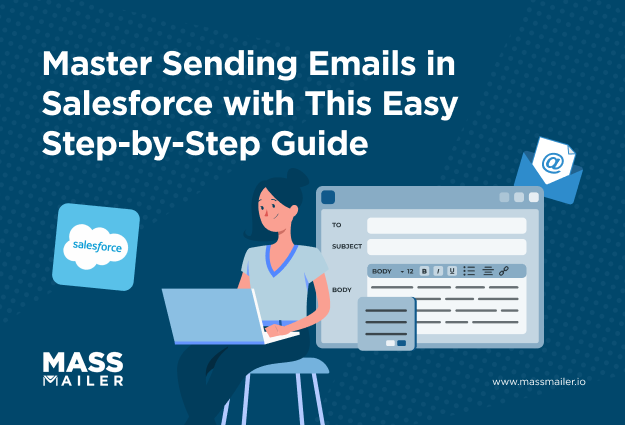
Salesforce gives you five different ways to send an email. Most users get stuck on the first one because a single setting is wrong.
A missing permission, a deliverability toggle left on the default value, or an unverified sender address can block outbound email entirely. None of these are obvious until you go looking for them.
This guide walks through every sending method available in Salesforce, from one-to-one emails and mass sends to automated Flow-based messages and Apex code. It also covers the setup each method depends on and the fixes for the most common issues that prevent emails from going out.
Start with the setup below. Every method needs it.
Set Up Email Sending in Salesforce
Every email method in Salesforce requires three things before it works. You need the right user permissions, Enhanced Email turned on, and a verified sender address. Skip any one of these, and outbound email fails silently.
User Permissions and Feature Access
First, confirm your profile has the “Send Email” permission. Without it, the Send button never appears on records. Go to Setup > Profiles and select the relevant profile. Then check System Permissions and enable “Send Email.”
For mass emails, users also need the “Mass Email” permission. Admins can assign it through the same profile screen or via permission sets.
Enable Enhanced Email and Configure Deliverability
Next, turn on Enhanced Email. Navigate to Setup > Enhanced Email and click Enable. This setting unlocks email tracking, rich text formatting, and activity logging.
Then check your deliverability settings under Setup > Deliverability. Set the access level to “All Email.” Salesforce defaults new orgs to “System Email Only.” That default blocks every user-sent message. This single toggle causes most “email won’t send” issues.
Verify Sender Addresses and Authenticate Your Domain
Salesforce requires a verified sender address before it sends on your behalf. Go to Setup > Organization-Wide Addresses to add and verify each address your team needs.
Beyond that, configure SPF, DKIM, and DMARC at the domain level. These three records protect your sender reputation and inbox placement. Without them, recipient servers may flag your emails as spam. Follow this step-by-stepemail authentication guide to set up all three.
Send an Email from a Salesforce Record
The fastest way to send an email in Salesforce is directly from a record. Open any Lead, Contact, or Opportunity, and the Activity tab lets you compose and send without leaving the page.
Send from a Lead, Contact, or Opportunity
Open the record you want to email. Click the Activity tab at the top of the page. Then select the Email subtab to open the composer.
Enter a subject line and type your message in the body field. Salesforce auto-fills the recipient’s email address from the record. You can also add CC and BCC recipients before sending.
Once you hit Send, Salesforce logs the email as an activity on that record. This keeps a full history of every message tied to the Lead, Contact, or Opportunity. Your sales reps can review these logs anytime under the Activity Timeline.
One thing to note: emails sent this way count as individual emails, not mass emails. They follow a separate daily limit (5,000 per org per day in most editions). This distinction matters when your team sends high volumes from records throughout the day.
Use Email Templates to Save Time
Typing the same message repeatedly slows your reps down.Email templates let you save prewritten messages and reuse them across records.
To insert a template, click the template icon inside the email composer. Salesforce shows your available templates in a list. Pick one, and the subject line and body populate instantly.
Templates also support merge fields. These pull data like the contact’s name or company directly into the message. Each email feels personal without any manual editing. You can also share templates across your org so every rep sends consistent messaging.
Send Mass Email in Salesforce
Salesforce lets you send one email to multiple recipients at once using its built-in mass email features. Lightning Experience uses List Email. Salesforce Classic offers the Mass Email wizard.
To use List Email, create a list view of the contacts or leads you want to reach. Select the records and click “Send List Email” from the actions menu. Choose a template, review your recipients, and hit Send.
Each List Email send caps at 200 recipients. Salesforce also enforces a dailymass email limit that varies by edition. Enterprise starts at 1,000 per day. These limits apply org-wide, not per user.
The Classic Mass Email wizard follows a similar flow. It lives under Setup > Mass Email Contacts (or Leads). If your org still uses Classic for bulk sends, the recipient caps remain the same.
Automate Emails with Salesforce Flow
Salesforce Flow lets you send emails automatically when a record meets specific conditions. It removes the need to remember follow-ups or manually send routine messages.
Flow works best for emails tied to a specific event. A new lead comes in, and Flow sends a welcome email. A case stays open past 48 hours, and Flow notifies the account owner. An opportunity moves to Closed Won, and Flow triggers a thank-you message. Each of these runs without anyone clicking Send.
You build the logic once in Setup > Flows using a visual, drag-and-drop interface. No code is needed. Flow also replaces Workflow Rules and Process Builder, both now retired. So if your team still relies on those, migration to Flow is already overdue.
For the full setup process, including choosing between the Send Email andEmail Alert actions, start with a Record-Triggered Flow and build from there.
Send Email Using Apex Code
Apex is Salesforce’s programming language for custom email logic that goes beyond what clicks and Flow can handle. This is a developer route, not an admin one.
Consider Apex when your email needs involve:
- Attaching files generated on the fly, like invoices or contracts
- Sending different messages based on conditions too complex for Flow
- Triggering emails from custom apps or external integrations
If Flow covers your use case, stick with Flow. Apex adds flexibility but also adds maintenance. Every code change needs a developer, a sandbox test, and a deployment.
Apex emails use the Messaging class and go through Salesforce’sSend Email API. They count against the same daily org limits as every other sending method. Keep that in mind when planning high-volume sends through code.
When Native Sending Isn’t Enough
The methods above cover every native sending option in Salesforce. For marketing emails at scale, most teams add a dedicated platform on top.
Salesforce Marketing Cloud and Account Engagement (formerly Pardot) are the built-in options. Third-party tools like Mailchimp and Brevo also offer directemail integration with Salesforce. These platforms add what native sending lacks:
- Visual drag-and-drop email builders
- A/B testing and audience segmentation
- Campaign-level analytics and reporting
If your needs go beyond one-to-one and transactional emails, a dedicated platform is the usual next step.
Salesforce Email Sending Limits
Salesforce caps outbound email at 5,000 single emails per organization per day. Mass email limits depend on your edition. Professional allows 250 per day. Enterprise and Unlimited allow up to 5,000.
Both pools share one org-wide daily count. Every user, Flow, and Apex trigger draws from it. One aggressive automation can drain the limit before your sales team starts their morning outreach.
Each edition enforces differentemail sending limits for both mass and individual sends. If your org regularly hits these caps, MassMailer bypasses them. It routes email through its own sending infrastructure, so your sends don’t count against Salesforce’s daily allocation.
Troubleshooting: Emails Not Sending
The most common reason Salesforce email fails is the deliverability access level. Salesforce defaults it to “System Email Only,” which blocks all user-sent and automated messages. Change it to “All Email” under Setup > Deliverability.
If email worked before and then stopped, the issue is usually one of these:
- Daily limit hit: The org exhausted its daily cap. All sends pause until the limit resets at midnight GMT.
- Emails landing in spam: Messages leave Salesforce but never reach the inbox. This usually points toemail deliverability issues like failed SPF, DKIM, or DMARC records.
- Bounce-backs: The recipient address is invalid or their mail server rejected the message. Check Activity History on the lead or contact record for bounce details.
- Flow emails not firing: The Flow is active, but emails don’t go out. Verify the trigger conditions and confirm the email alert has a valid template assigned.
If sends fail across all users at once, start with the daily limit and deliverability access. For orgs that run into these problems often, MassMailer’s built-in deliverability monitoring catches issues before they reach recipients.
Start Sending: Your Next Steps
You now have every native method Salesforce offers for outbound email. The difference between emails that go out and emails that don’t almost always comes down to setup.
Go back to the deliverability and permission settings before you try anything else. Get one successful test email from a record. Then build from there, whether that’s List Email for batch sends or a Flow for automated triggers.
If your org outgrows Salesforce’s native sending caps, MassMailer removes those limits entirely. It sends directly from Salesforce without routing through the daily allocation.Book a free walkthrough to see how it works inside your org.
Frequently Asked Questions
1. Does Salesforce track email opens and clicks?
2. Can you schedule emails to send later in Salesforce?
3. What email address do Salesforce emails come from?
4. Can you attach files to emails sent from Salesforce?
5. Can you send HTML emails from Salesforce?
6. Can you use Gmail or Outlook to send email through Salesforce?
Start Your Free Trial Today
Experience MassMailer the easiest way to send personalized emails from Salesforce.
Related Blogs
Inbox Placement Rate: The Full Guide for Salesforce Teams
MassMailer Resources


MassMailer Glossary
About the Author

Siva Devaki 
Siva Devaki is the founder of MassMailer Inc., a tool that helps Salesforce users optimize email marketing. A passionate advocate for email marketing, Siva writes and hosts podcasts on the topic, sharing insights to help businesses drive revenue and enhance customer engagement through Salesforce email automation and tracking.