Table of Contents
Why does your Setup menu still read Salesforce Engage License Assignment when Salesforce Help lists no such product? Salesforce renamed Salesforce Engage to Sales Emails and Alerts, and the rename stopped halfway.

The AppExchange listing still carries the old title, so teams keep buying under one name and configuring under another. Meanwhile, Salesforce lists the add-on at$50 per user per month, with Account Engagement starting at $1,250 per org.
Both prices require an annual contract. This guide covers what Salesforce Engage does, how it compares with Pardot and with Sales Engagement, the full license stack and its real cost, the setup steps that fail silently, and when a Salesforce Engage alternative fits better.
What Is Salesforce Engage?
Salesforce Engage is a per-seat Salesforce add-on that gives sales reps access to Account Engagement (formerly Pardot) marketing data and one-to-one email tools inside Sales Cloud. It requires an active Account Engagement license and costs $50 per user per month.
If the marketing content is worth surfacing to reps, Engage puts it one click from the Lead record. If it is not, you are paying $50 per seat per month for reps to stare at empty dashboards.
Salesforce Engage Components: Alerts, Campaigns, Reports, and Inbox Plugins
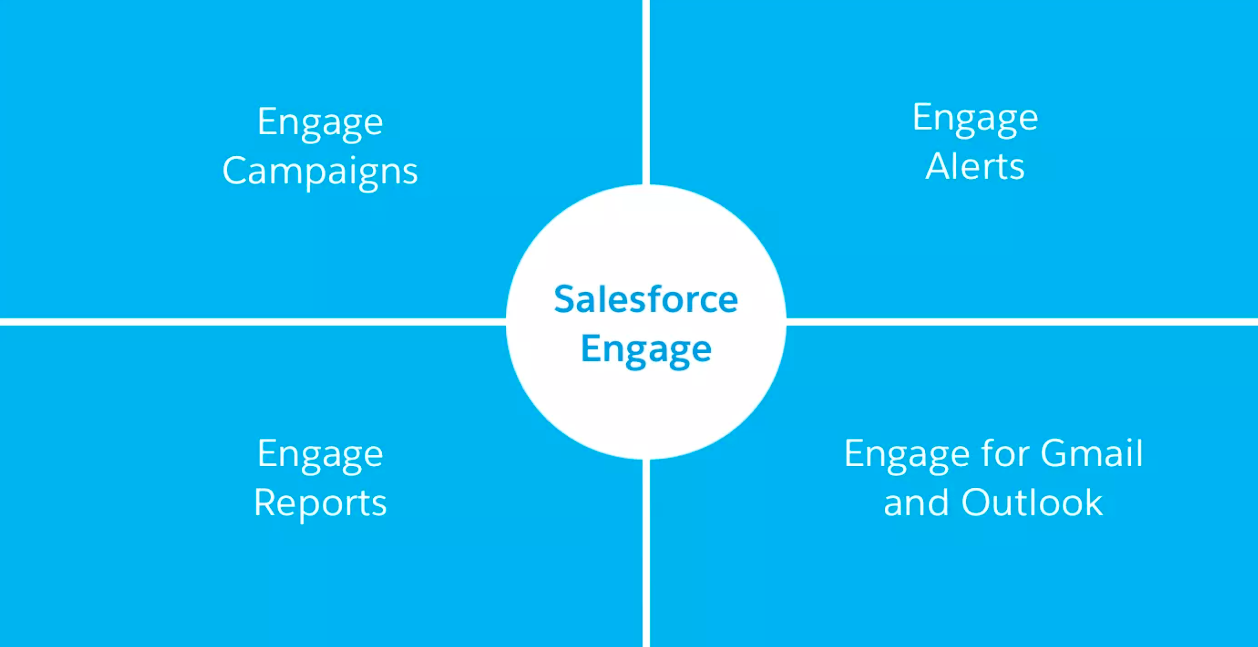
Salesforce Engage has four components. Each surfaces a different slice of Account Engagement data on a Salesforce record:
| Component | Data it surfaces | Rep workflow |
|---|---|---|
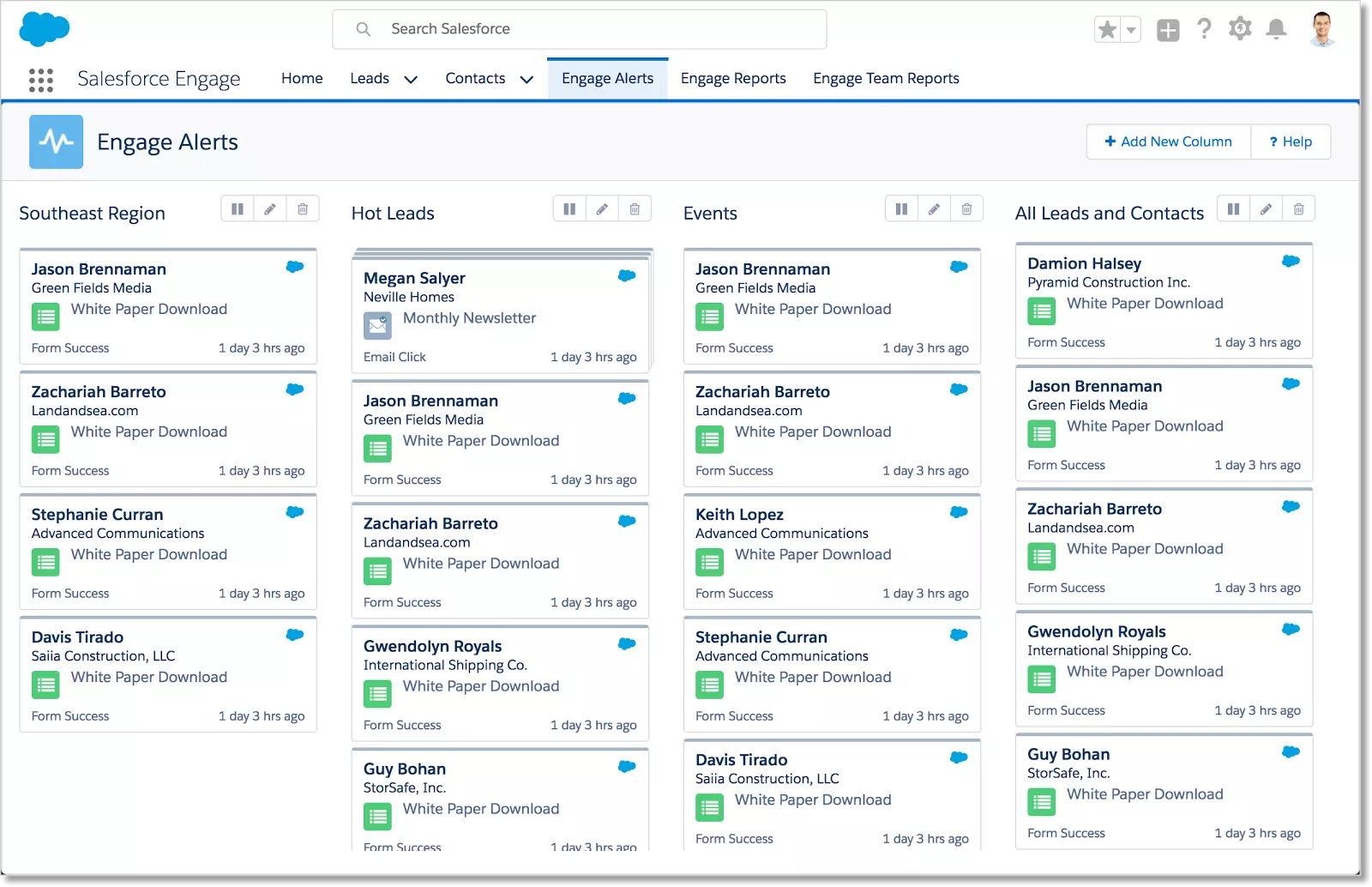
| Engage Alerts | Prospect cards: opens, clicks, form submissions, page visits, with timestamp and score change | Time outbound to when the prospect is active |
| Engage Campaigns | Marketing-approved templates sent one-to-one or one-to-many from Lead, Contact, and Campaign records | Follow up from the rep's own address |
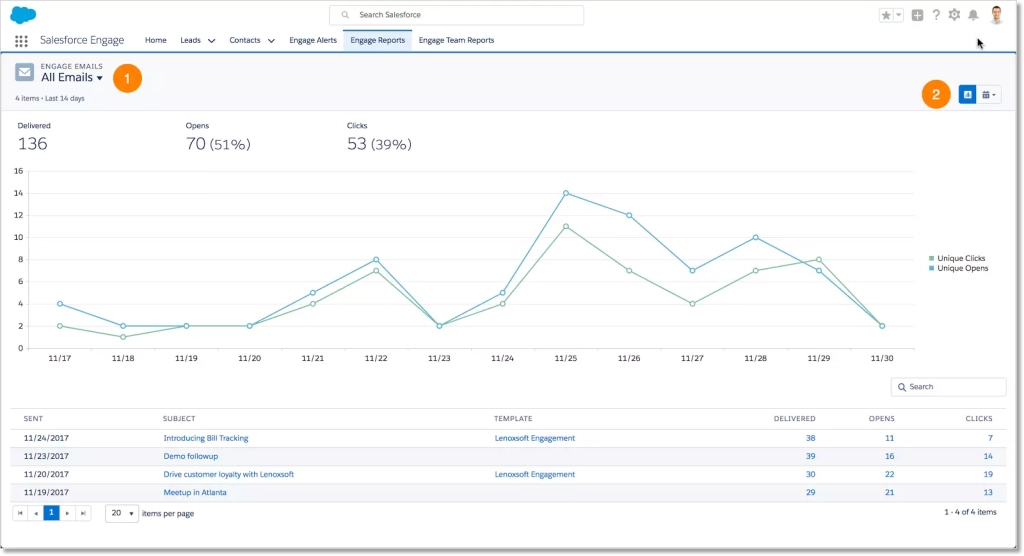
| Engage Reports | Template performance and per-rep sends, opens, and clicks | Check what a prospect read before the call |
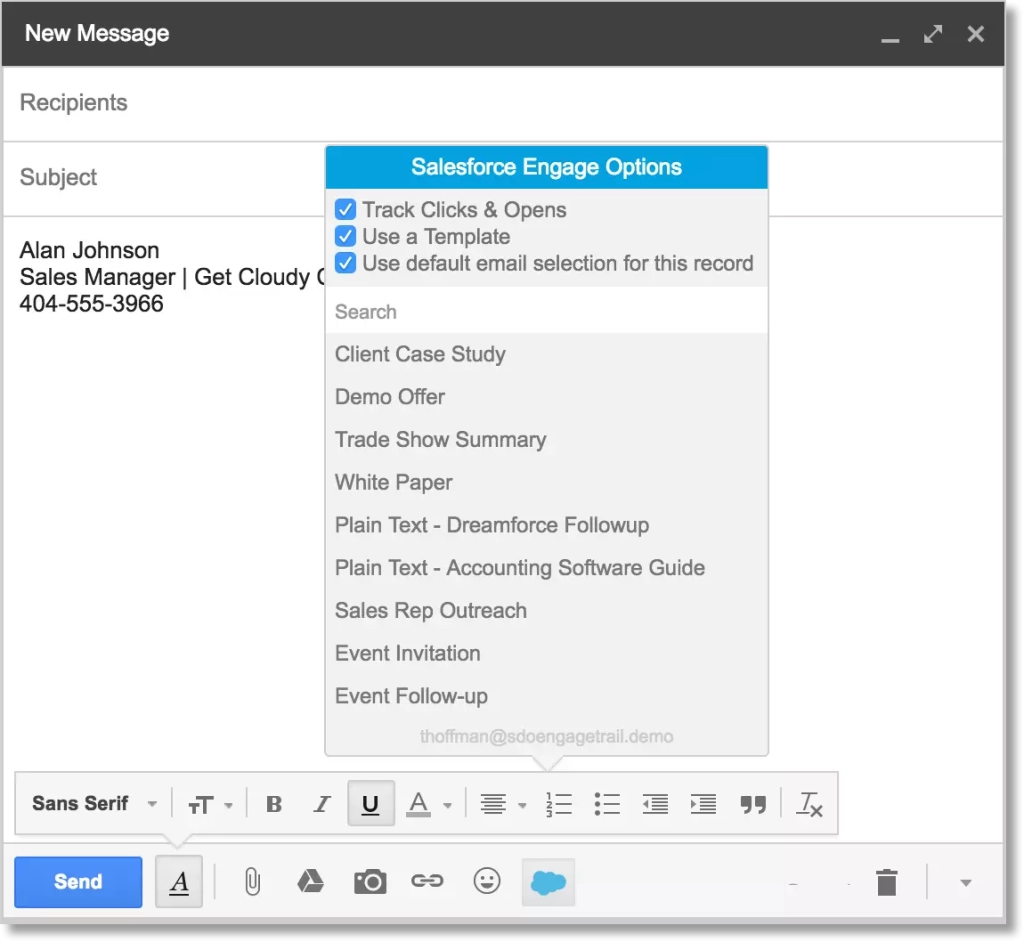
| Engage for Gmail and Outlook | Tracked sending and prospect history inside the inbox | Sent from Gmail; activity syncs back |
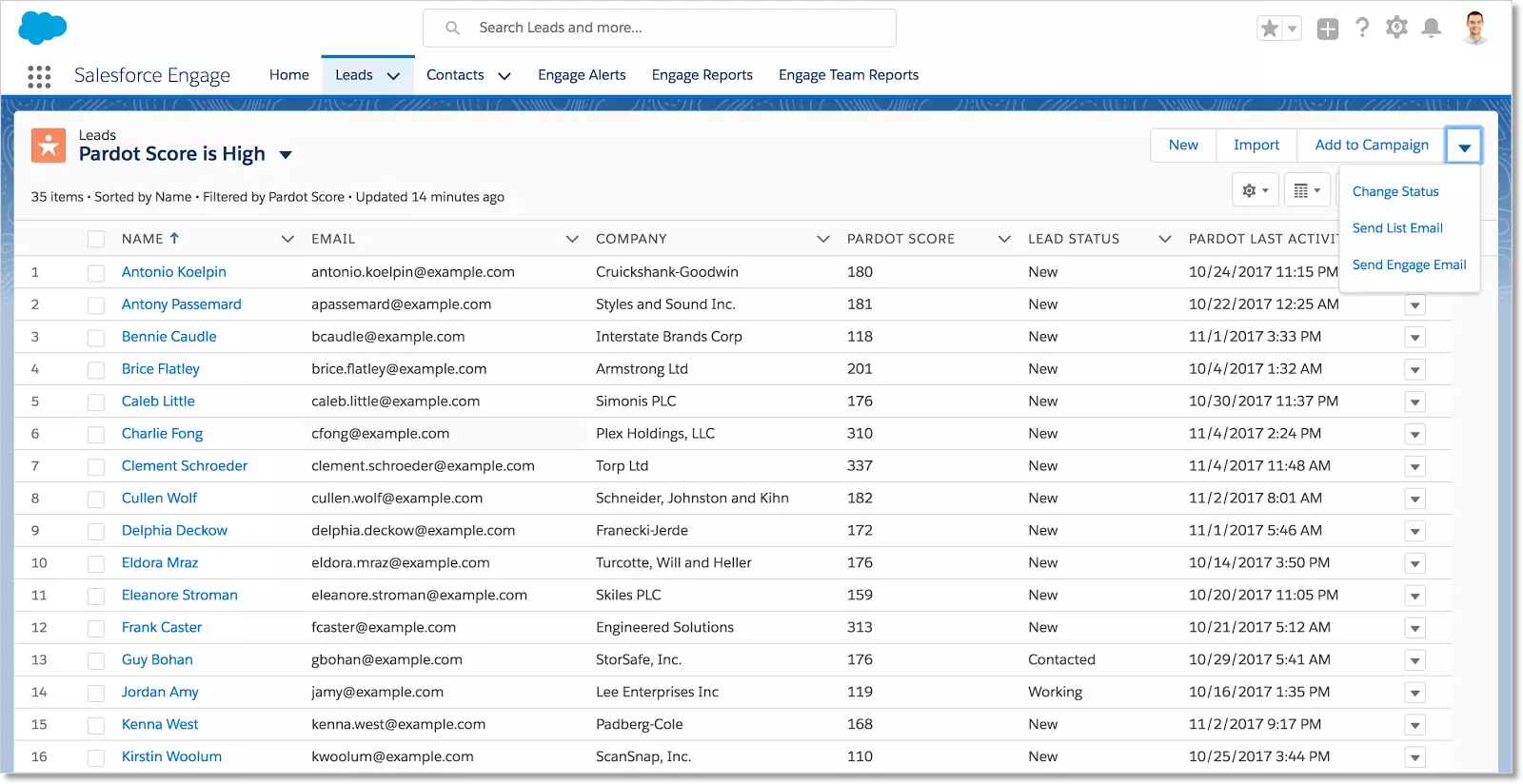
The Engage Alerts tab holdsup to 100 activities from the last four days, and each card shows seven days of history. Cards show only activity after the prospect was assigned to the current rep, so reassign an account, and the new owner starts blind. Engagement Alerts notify the rep, unlike record-triggeredSalesforce email alerts that fire on field changes.
Where Salesforce Engage Fits in the Account Engagement (Pardot) Stack
Salesforce Engage runs on top of Account Engagement (Pardot) as a sales-side add-on. Its value ceiling is set by how much current marketing automation content there is to consume. A stale template library and paused nurture programs leave reps with nothing to send.
When that gap opens, a Salesforce-native alternative like MassMailer runs email from live Lead and Contact records inside Salesforce, with no Account Engagement license required.
Salesforce Engage Renamed to Sales Emails and Alerts
Yes, Salesforce renamed Salesforce Engage to Sales Emails and Alerts. It is the same product with the same four components, the same licensing, and the same pricing. Salesforce Help publishes every current article under the new name, so searches for the old Engage documentation return nothing useful.
The rename followed the wider Pardot-to-Account Engagement rebrand. Engage was a Pardot add-on, so it moved with it. Salesforce did not finish the switch. TheAppExchange listing still reads "Salesforce Engage", and the Setup tab still shows "Salesforce Engage License Assignment," which is why admins keep buying under one name and configuring under another.
What Changed When Salesforce Renamed Engage
When Salesforce renamed Engage, only the product name changed. Features, licensing, pricing, and existing configurations stayed identical. Salesforce updated Help article titles, permission set labels in newer orgs, and API documentation to reflect the new name.
Here is what carries the new name and what still carries the old one:
| Surface | Name shown today |
|---|---|
| Salesforce Help articles | Sales Emails and Alerts |
| Setup > Permission Sets | Sales Emails and Alerts permission set |
| Setup > License Assignment tab | Salesforce Engage License Assignment |
| AppExchange listing | Salesforce Engage |
| Older org configurations | Salesforce Engage (until Salesforce updates the label) |
Salesforce Help states directly that "Salesforce Engage is now known as Sales Emails and Alerts." That is your search key. Any current documentation lives under the new phrase; anything under the old name is dated and may reflect features or setup steps that have since moved.
Salesforce Engage Features That Carried Over
All Salesforce Engage features were carried over to Sales Emails and Alerts. The four components (Alerts, Campaigns, Reports, Inbox Plugins) work as they did before; the licensing stack is identical, and campaigns already running continue firing on their original schedule. No org needs reconfiguration.
Three items to confirm after the rename:
- Existing Salesforce Engage campaigns continue firing on their original schedule;email templates and prospect lists are untouched
- The permission set assigned to your reps still grants the same access, whether the label reads Sales Emails and Alerts or Salesforce Engage
- Send limits, 10-plus recipient unsubscribe injection, and prospect sync behavior are unchanged
When briefing a new admin or searching internal documentation, use "Sales Emails and Alerts" first. Anything you cannot find under that phrase, fall back to "Salesforce Engage." The two names point to the same feature, but Salesforce's current documentation index only surfaces under the new one.
Salesforce Engage vs Pardot (Account Engagement)
Salesforce Engage and Pardot (Account Engagement) are not competing products. Pardot is the marketing automation platform. Salesforce Engage is the per-seat add-on that lets sales reps read Pardot data and send from marketing-approved templates inside Sales Cloud.
Once that split is clear, the useful question is who works on which product, what each side can actually do, and where the trade sits when you evaluate the license stack.
Who Uses Salesforce Engage vs Who Uses Pardot
Sales reps use Salesforce Engage. Marketing ops teams use Pardot. Sales managers work in both, checking campaign performance in Pardot and per-rep coaching in Engage Reports.
The split changes how you license. Pardot bills at the org level; Engage bills per seat. Ten reps who need Engage mean ten add-on seats layered on the Pardot fee. Before you buy, count the reps who actually work alerts-driven, inbound accounts. Three reps working live signals justify three seats; the other seven often work outbound-first and see no value from the Alerts feed.
Feature Comparison: Salesforce Engage vs Account Engagement
Salesforce Engage and Account Engagement split into three lanes: what marketing creates in Pardot, what reps consume through Engage, and what only exists on one side. Templates, scoring models, and nurture programs live only in Pardot. Real-time prospect Alerts and per-rep engagement dashboards live only in Engage.
| Capability | Account Engagement (Pardot) | Sales Emails and Alerts (Engage) |
|---|---|---|
| Primary audience | Marketing ops | Sales reps |
| Email type | Mass and list sends, engagement studio automation | One-to-one, one-to-many from marketing templates |
| Lead scoring | Create and edit models | View scores on prospects |
| Nurture programs | Build and modify | Enroll prospects in published programs |
| Templates | Create and manage | Use marketing-approved templates only |
| Landing pages | Yes | No |
| Forms | Yes | No |
| Automation rules | Yes | No |
| Real-time prospect alerts | No dedicated feed | Engage Alerts tab with activity cards |
| Per-rep engagement reports | No | Yes |
The evaluation gap: Engage's value ceiling is set by how much marketing content actually exists to consume. If your Pardot instance runs three templates and has no active nurture, Engage hands your reps three templates and no active nurture.
Teams that needdirect email from Salesforce without depending on marketing's content pipeline typically evaluate a Salesforce-native tool that ships with its own templates and dedicated sending infrastructure.
Salesforce Engage vs Salesforce Sales Engagement: Key Differences
Both are different products with similar names. Salesforce Engage (now Sales Emails and Alerts) is a Pardot add-on for rep-side marketing email. Salesforce Sales Engagement (formerly High Velocity Sales) is a Sales Cloud-native cadence tool for outbound sequences. Engage requires an Account Engagement license; Sales Engagement does not.
The names collide in search. "Sales Cloud Engage," "Sales Engage," and "Salesforce Sales Engagement" all point to different products, so the wrong documentation reaches the wrong buyer.
| Attribute | Salesforce Engage (Sales Emails and Alerts) | Salesforce Sales Engagement |
|---|---|---|
| Former name | Salesforce Engage | High Velocity Sales |
| Built into | Account Engagement (Pardot) add-on | Sales Cloud |
| Requires Account Engagement (Pardot)? | Yes | No |
| Primary use | Send marketing-approved emails from a Salesforce record and track prospect activity | Run outbound sales cadences (call steps, email steps, LinkedIn steps) with a work queue |
| Licensing | Per-seat add-on to Account Engagement | Extra-cost add-on to Enterprise, Performance, or Unlimited Sales Cloud editions |
| Best fit | Inbound-driven teams working live marketing signals | Outbound-driven teams running structured cadences with a rep work queue |
If you already run Pardot, Salesforce Engage extends what marketing has built. If you run Sales Cloud without Pardot, Engage is off the table, and Salesforce Sales Engagement is thesales engagement platform that fits.
How to Use Salesforce Engage for Sales and Marketing
To use Salesforce Engage, sales reps work three rep-side moves (alerts, drips, pre-briefs), and marketing runs two publishing-and-tracking jobs. The value depends on both sides: stale marketing content kills alerts, and silent reps leave marketing rewriting blind.
How Sales Reps Use Salesforce Engage Day to Day
Reps use Salesforce Engage for three repeatable moves: timing outbound to live prospect signals, running approved drip sequences from Lead records, and pre-briefing before a call.
Time an outbound to a live signal. The rep opens the Engage Alerts tab, sees a card showing a prospect just clicked the pricing page and opened the last nurture email, and calls within the hour. The card carries activity type, timestamp, and score change.
Run a one-to-one drip. The rep opens the Send Engage Email button on the Lead record, picks a sequence from Marketing's template library, and adds the prospect. Emails ship from the rep's Salesforce email address; replies land in the rep's inbox. Add 10 or more recipients, and Salesforce injects the %%unsubscribe%% tag automatically.
Pre-brief before a call usingprospect engagement tracking inside Engage Reports. Pull the prospect's opens, clicks, and current score so the opening line targets what actually engaged them.
How Marketing Teams Manage Engage Templates and Adoption
Marketing runs two jobs in Engage: publishing templates reps can find quickly, and reading the reports to see which templates reps actually send.
Publish templates by rep motion. Marketing builds and approves templates in Account Engagement; reps see the list through Engage. An unfolded list of 40 templates buries the top three reps need for outbound, so reps write their own emails outside Engage. Group templates by motion (post-demo, cold outbound, event follow-up, renewal) and rename in plain rep language.
Track adoption and iterate. Team reports show send, open, and click rates by template, and templates that sat unused for a quarter. If a template ships weekly under a 10 percent open rate, rewrite the subject. If a flagship never ships, ask reps: usually too long, too formal, or hidden in the wrong folder.
Marketing content can stall for months, and some reps route around Engage by runningSalesforce drip campaigns through MassMailer, which sends from Lead and Contact records without an Account Engagement dependency.
Salesforce Engage Pricing and Licensing Requirements
Salesforce Engage costs$50 per user per month on top of an Account Engagement license, both billed annually. Account Engagement starts at $1,250 per org per month (Growth+ tier) and runs up to $15,000 per month (Premium+). Every Engage rep also needs a Sales Cloud, Service Cloud, or CRM license underneath.
The real cost question is the full stack, not the add-on price. For a 15-rep team on Growth+ with Sales Cloud Enterprise, the annual math:
| Line item | Annual cost |
|---|---|
| Account Engagement Growth+ | $15,000 |
| Sales Emails and Alerts, 15 seats × $600/year | $9,000 |
| Sales Cloud Enterprise, 15 seats × $2,100/year | $31,500 |
| Total | $55,500 per year |
Sales Cloud is usually already in place, so the incremental cost of turning on Engage is $24,000 per year at 15 seats, before connector setup and admin hours.
Required Licenses for Salesforce Engage
Salesforce Engage requires four licenses at once. Missing any one block setup:
- Salesforce edition: Professional, Enterprise, Performance, or Unlimited
- Account Engagement (Pardot) license: any edition, Growth+ through Premium+
- Sales Emails and Alerts (Engage) license: per-seat, one per rep
- User license: Sales Cloud, Service Cloud, or CRM for each Engage user
Sandbox orgs are not supported. Sales Emails and Alerts run only in production, so testing hits real prospect data.
Salesforce Engage Permission Set and API Requirements
The Sales Emails and Alerts permission set is assigned to each Engage user separately from the license. Assigning the license alone shows no interface and fires no error. When a license and permission set are set together, Salesforce grants the API permissions automatically, so no manual API Enabled toggle is needed on the user profile.
Two silent failures catch teams during rollout:
- Permission set skipped, the most common rollout failure. Rep has the license; no permission set. The Engage panel never appears on the Lead layout, and no error fires.
- User not linked to Account Engagement. Rep has a license and permission set but is not mapped to an Account Engagement user. The panel loads empty. Fix by linking through Salesforce User Sync, individual mapping, or bulk import.
For the send-and-track use case alone, MassMailer runs at$219 per month for 10,000 emails on volume-based pricing, one line item against the $24,000 incremental Engage line above. Compare it to your own send volume before committing to the full stack.
How to Set Up Salesforce Engage (Sales Emails and Alerts)
Salesforce Engage setup runs in three steps that must happen in this order: verify the Salesforce-Account Engagement connector, link Salesforce users to Account Engagement user records, and then assign the Sales Emails and Alerts permission set. Skipping the order does not throw an error. It just leaves reps with an empty Engage panel.
Setting Up the Salesforce-Account Engagement Connector
Verify the connector first. Navigate to Setup > Account Engagement > Connectors, open the Salesforce connector, and confirm the status reads "Verified." Every downstream step depends on this status.
Once verified, link each rep who will use Engage to an Account Engagement user record. Salesforce documents four methods, and the right one depends on org size:
| Method | Use when |
|---|---|
| Salesforce User Sync | Every Salesforce user needs Account Engagement access; simplest for a full-team rollout |
| Individual mapping | Only a subset of Salesforce users needs Engage |
| Create and map | New Account Engagement users need to be created and linked in the same step; deselect Send Activation Email to keep them out of the Pardot UI |
| Bulk import with Role column | Large teams require SSO to be enabled first |
If the connector status is anything other than Verified, user linking fails silently, and setup halts here without an error message.
How to Assign the Sales Emails and Alerts Permission Set
Navigate to Setup and open the Salesforce Engage License Assignment tab (the tab still uses the old product name). From the Action Type dropdown, select Assign. Pick the users who need Engage access and click Add License.
Once assigned, the Engage panel appears on the rep's Lead and Contact layouts within a few minutes. Alerts, Campaigns, and Reports become active immediately. The Gmail and Outlook plugins install separately from the user's inbox after this step.
Setup is complete when the connector reads Verified, every Engage rep is linked to an Account Engagement user, and the Engage panel loads on a test rep's Lead record. If any of the three fail, do not roll out to the full team.
When the three-step setup feels heavier than the send-and-track use case demands, MassMailer takes the shorter route: an AppExchange install that reads existing Salesforce roles and sends from Lead and Contact records the same day, with no connector to verify or user records to link.
Salesforce Engage Alternatives
Teams look for a Salesforce Engage alternative when the license stack costs more than the send-and-track use case earns back, when the org has no Account Engagement (Pardot) investment to build on, or when volume runs past what Engage's marketing-team-driven templates can absorb.
A team without Pardot cannot use Engage at all. Also, a team sending 20,000 emails a month cannot get there through Engage's one-to-one design. A team paying $55,500 a year for a 15-rep stack often just needs a lighter tool.
When to Consider a Salesforce Engage Alternative
Four scenarios flag Engage as the wrong fit:
- No existing Account Engagement (Pardot) license, and no budget to add one
- The marketing team is too small to keep a template library and nurture programs current
- Sending volume that hits Salesforce's 5,000-emails-per-day external cap
- Sales-only send-and-track need without the marketing automation platform underneath
Match the scenario to the alternative type. No Pardot means standalone in Salesforce. High volume means dedicated sending infrastructure. Cost pressure means volume-based pricing over per-seat pricing.
What Salesforce-Native Email Tools Offer Instead
Salesforce-native email tools give sales the send-and-track capability without the Engage license stack. Five criteria separate a real Salesforce-native tool from an external platform wearing a Salesforce integration:
- Runs entirely inside the Salesforce org, no external database or data sync
- Uses live Lead, Contact, or custom object records directly
- Engagement data (opens, clicks, bounces) is written back to the record
- Sends past Salesforce's 5,000-per-day external cap on its own infrastructure
- Prices by send volume, not per seat plus platform fee
MassMailer meets every criterion. It sends from live Lead, Contact, and custom object records, records open and clicks on the Salesforce record itself; clears the 5,000/day cap on dedicated IP infrastructure with warm-up support, and prices by monthly volume from $219 for 10,000 emails. Templates live inside Salesforce, so marketing and sales work in the same builder without a Pardot instance underneath.
For a team on the $55,500-per-year Engage stack that mainly sends trackable one-to-one and one-to-many emails, that math collapses to a single volume-billed line.
Salesforce Engage or a Salesforce-Native Alternative
Salesforce Engage earns its stack when Account Engagement already runs an active template library and nurture program reps want to work from. Without that content pipeline, the $50-per-seat add-on plus $1,250-per-month Pardot license sits idle.
The alternative path: MassMailer runs entirely inside your existing Salesforce org, sends from live Lead and Contact records past the 5,000-per-day cap, and prices by monthly volume from $219. No Pardot underneath, no per-seat multiplication, no connector to maintain.
Book a MassMailer demo on your own Salesforce data. Walk out with a real cost comparison, a live send from a Lead record, and a decision you can defend to finance in one meeting.
Frequently Asked Questions
1. Can you buy Salesforce Engage without Pardot?
2. Is Salesforce Engage part of Sales Cloud?
3. Does Salesforce Engage work in Salesforce Lightning?
4. How long does Salesforce Engage setup usually take?
5. Is there a Salesforce Engage free trial or sandbox?
6. How do you remove a Salesforce Engage license from a user?
Start Your Free Trial Today
Experience MassMailer the easiest way to send personalized emails from Salesforce.
MassMailer Resources