


Table of Contents
How many closed-won deals in your Salesforce pipeline have zero Contact Roles attached? Salesforce Contact Roles capture every person who influenced a deal, and most orgs leave the field empty.
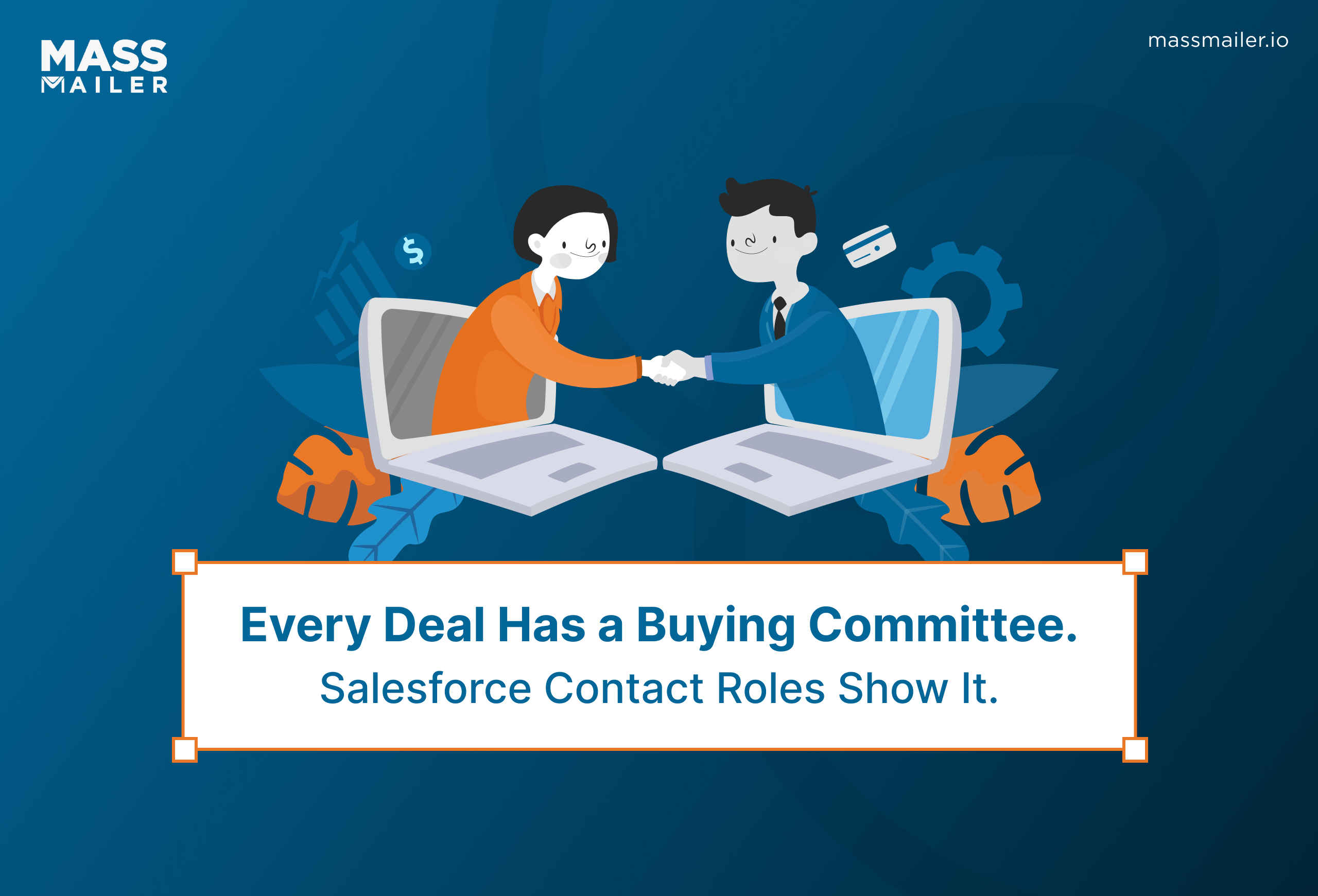
They sit on Opportunities, Accounts, Cases, and Contracts. Each Role tags a Contact as the Decision Maker, the Evaluator, or the Influencer. Without them, your Campaign Influence reports miss half the buying committee, and your reps cannot email by role.
This guide covers what Salesforce Contact Roles are, where they live in the object model, the standard role types like Decision Maker and Influencer, how to set them up, and how to use them for role-based email segmentation.
What Salesforce Contact Roles are (and how they differ from Contacts)
Salesforce Contact Roles are junction records. They link a Contact to a parent record and label the part that Contact played. Salesforce stores them on four objects: OpportunityContactRole, AccountContactRole, CaseContactRole, and ContractContactRole. Each row holds the ContactId, the parent record ID, the Role picklist value, and a primary flag.
A Contact alone belongs to one Account through the AccountId field, one link per person org-wide. That ceiling breaks the moment the same person plays a different part on different records. Contact Roles remove it. One Contact can hold a Decision Maker Role on one Opportunity and an Influencer Role on another. A Business User Role can sit on a related Case at the same time.
Here is where Contacts and Contact Roles part ways:
| Aspect | Contact | Contact Role |
|---|---|---|
| Stores | Identity: name, email, phone, address | Context: which record, what part played, primary flag |
| Object | Standard Contact | Junction (OpportunityContactRole, AccountContactRole, CaseContactRole, ContractContactRole) |
| Cardinality | One record per person | One per Contact per parent record |
| Deletion | Independent of any deal | Removed when the parent record or the Contact is deleted |
| Powers | Opt-outs, communication history, mailing lists | Campaign Influence, role-based reports, targeted outreach by role |
Two things fall out of that split. Reports built off the Contact object show who exists in the CRM. Reports built off Contact Roles show who moved the deal. They feedSalesforce Campaign Influence attribution back to marketing. A pipeline without Contact Roles has full names in Salesforce and empty buying committees on every Opportunity.
Where Contact Roles appear in Salesforce (Opportunity, Account, Case, and Contract)
Contact Roles appear on four Salesforce objects, and each one uses them for a different job. Opportunities use Contact Roles to track the buying committee. Accounts use them to record the working relationship between people and companies. Cases use them to log everyone affected by a support issue. Contracts use them to record signatories and billing owners.
Opportunity Contact Roles
Opportunity Contact Roles track who influenced a specific deal, from the first champion to the final signer. However, only one Contact per Opportunity carries the primary flag. Salesforce reads that flag to populate the Opportunity Contact field and feed Campaign Influence attribution.
Beyond that, the primary Contact becomes the default recipient when a rep usesSend Email in Salesforce from the Opportunity. To find and edit these Roles in Lightning, open the Related tab on any Opportunity.
Account Contact Roles
Account Contact Roles record the working relationship between a Contact and an Account. However, Salesforce delivers this through a separate object called AccountContactRelation, and the feature stays off by default. To turn it on, go to Setup → Feature Settings → Sales → Account Settings → Allow users to relate a contact to multiple accounts. Once enabled, AccountContactRelation uses a multi-select Roles field.
Every other junction (OpportunityContactRole, CaseContactRole, ContractContactRole) still uses a single-value Role field. It also carries an IsDirect flag that marks the Account tied to the Contact through AccountId.
Case Contact Roles
Case Contact Roles log every Contact affected by or involved in a Case. This goes beyond the single primary Contact stored on the ContactId field. A ContactId names one person. However, a support incident often touches several people at once: the reporter, the impacted user, the internal escalation owner.
Salesforce includes Case Contact Roles on the Case object by default, but hides the related list on most page layouts. To surface it, open Setup → Object Manager → Case → Page Layouts and add the related list.
Contract Contact Roles
Contract Contact Roles record the people attached to a specific Contract. The typical Roles here are the signatory, the billing owner, and the legal contact. In practice, most orgs never surface this object.
Still, legal and finance teams rely on it to keep a per-Contract record separate from Account-level relationships.
Standard Contact Role types in Salesforce
Salesforce Contact Role types are the standard picklist values that label a Contact's part on an Opportunity, Account, Case, or Contract. The eight standard values on Opportunity Contact Roles are Business User, Decision Maker, Economic Buyer, Evaluator, Executive Sponsor, Influencer, Technical Buyer, and Other. Admins can edit, rename, or extend these values on each object's Role field.
| Role | What it names |
|---|---|
| Decision Maker | The person who signs off on the purchase and holds final budget authority |
| Economic Buyer | The person whose budget the purchase comes from, often the CFO or department head |
| Evaluator | Someone assessing the product against requirements, usually in IT or the team that will use it |
| Executive Sponsor | The senior internal advocate, typically at VP or C-level |
| Influencer | A Contact whose opinion shapes the decision but who does not approve the purchase |
| Technical Buyer | The person judging fit against technical requirements, often in IT or security |
| Business User | The end user who will actually use the product day-to-day |
| Other | Any role outside the standard set, used sparingly |
The other Contact Role objects carry their own picklists. AccountContactRelation, CaseContactRole, and ContractContactRole each hold a Role field with its own values, though the standard set overlaps heavily with the Opportunity list. To edit any of them, open Setup → Object Manager → the target object → Fields & Relationships → Role → Values.
Beyond the standard set, most orgs add role types tied to their own sales motion. Product-led teams add Champion and Power User. Regulated industries add Compliance Reviewer and Legal Approver.
Teams runningaccount-based marketing programs add extra buyer variants for their target accounts. Keep the list short. A picklist with 20 role types splinters reporting and forces reps to guess at the right value.
How to set up and add Contact Roles in Salesforce
To add a Contact Role in Salesforce, open the target record, expand the Contact Roles related list on the Related tab, click Add Contact Roles, select the Contact, pick a Role from the picklist, and save. The path is the same on Opportunities, Cases, and Contracts. Accounts require an extra one-time setup step to enable Account Contact Relationships.
Adding a Contact Role to an Opportunity
To add a Contact Role to an Opportunity, it takes seven clicks from the Related tab of the record.
- Open the Opportunity record in Lightning.
- Go to the Related tab and find the Contact Roles related list.
- Click Add Contact Roles.
- Search for and select one or more Contacts.
- Assign a Role from the picklist for each Contact.
- Mark exactly one Contact as Primary.
- Click Save.
Adding an Account Contact Relationship
Account Contact Relationships need one Setup toggle turned on before any Role can be added.
- In Setup, go to Feature Settings → Sales → Account Settings and enable Account Contact Relationships.
- Open the Account record in Lightning.
- Go to the Related tab and find the Related Contacts related list.
- Click Add Relationship.
- Select the Contact.
- Pick one or more Roles from the multi-select Roles field.
- Set start and end dates if the relationship is time-bound.
- Click Save.
Case and Contract Contact Roles follow the Opportunity pattern. Add the related list to the page layout first if it is not visible, then add each Contact with their Role.
Enforcing Contact Roles
Reps forget Contact Roles at scale, and Salesforce ships three features that prevent that.
- Prompt setting. Turn on "Prompt users to add contacts to opportunities" in Setup → Feature Settings → Sales → Opportunity Settings. Salesforce prompts a rep to add a Contact Role every time they save an Opportunity without one.
- Flow-based block. Build a record-triggered Flow on Opportunity that fires when Stage becomes Closed Won. Query related OpportunityContactRole records. If none exist, use the Custom Error element to block the save.
- Opportunity Path. Add a Contact Roles requirement to the Path steps so reps see the missing Role in the guidance panel while moving the Opportunity forward.
Pick the lightest option that closes the gap in your org. The prompt catches oversight. The Flow usesSalesforce workflow automation to block Closed Won without a Role. Path guidance nudges reps at every Stage change.
How to use Contact Roles for role-based email segmentation and outreach
Role-based email segmentation filters outreach lists by the Role each Contact holds on a specific record. A single Salesforce report pulls every Contact with Role = Decision Maker on Opportunities in Stage = Negotiation in one query. The list runs on live Salesforce data and refreshes every time it opens.
Building the list from a Salesforce report
Every segmentation starts with a report on the Contact Role junction.
- Create a new report from the "Opportunities with Contact Roles" report type, or "Accounts with Contact Relationships" for ACR.
- Add a filter on Contact Role: Role equals Decision Maker.
- Add a filter on Opportunity: Stage equals Negotiation/Review.
- Add columns for Contact name, email, and any personalization fields.
- Save and run.
The output is a live list of every Contact holding a Decision Maker Role on a Negotiation-stage Opportunity. This report feeds the outreach tool that sends the email.
The role-based sends most teams run
A handful of segmentation patterns show up across every B2B org.
- Decision Makers on stalled deals. Contacts with Role = Decision Maker on Opportunities where Stage has not changed in 30 days. Nudge from the exec or the account owner.
- Influencers on closed-lost deals. Contacts with Role = Influencer on Opportunities marked Closed Lost in the last 90 days. Bring them back into the funnel.
- Executive Sponsors during renewal cycles. Contacts with Role = Executive Sponsor on Opportunities where CloseDate falls in the next quarter. QBR outreach.
- Business Users after go-live. Contacts with Role = Business User on Opportunities marked Closed Won in the last 60 days. Onboarding sequences.
Each list is a saved report, refreshed live from Salesforce data.
Where native Salesforce hits the wall
Salesforce's built-in mass email caps out fast on role-based sends. The mass email tool in Lightning limits a single send to 500 external recipients, and the org-wide cap sits at 5,000 external mass emails per rolling 24 hours.
A campaign to 3,000 Decision Makers takes six sends to clear the 500-recipient ceiling, and eats three-fifths of the daily 5,000-email budget in one round. Contact Role fields also do not appear as native filters in the mass email builder, so the recipient list has to come from a report that a rep filters manually before every send.
To clear both limits from inside Salesforce, teams switch to a Salesforce-native email app. MassMailer is one such tool. It reads directly from a Contact Role report, lifts the 500-recipient ceiling, and sends past the 5,000-per-day cap. Reps segment by Role, personalize with merge fields, and send without exporting the list. Engagement data returns to the Contact and Opportunity records forcontact segmentation and next-touch reporting.
Reporting on Contact Role engagement
To report on Contact Role engagement, build a Salesforce report that joins the Contact Role junction to Task and EmailMessage records, then group by Role. The output shows opens, clicks, and replies split by Decision Maker, Influencer, Executive Sponsor, and every other Role in the picklist.
Standard reports to build
Salesforce ships one standard Contact Role report type. Any deeper reporting comes from a Custom Report Type.
- Opportunities with Contact Roles. The out-of-the-box report type. Lists every Contact Role tied to an Opportunity. Add columns for Role, Contact email, and any activity fields.
- Activities with Contact Roles (custom). Salesforce does not ship this one. Build a Custom Report Type that joins Opportunity → OpportunityContactRole → Task where Task. Type = 'Email'. This surfaces the Contact Role behind every logged email.
Fields worth exposing
Email engagement lives on Task and EmailMessage records. Add these fields to the report.
- HtmlEmailStatus. Tracks Sent, Delivered, Opened, and Bounced on standard mass emails.
- Task.LastModifiedDate. Marks the last activity date per Contact.
- Task.WhoId and Task.WhatId. Confirm the email hit both the Contact and the Opportunity.
- EmailMessage.Status. Captures reply state for emails logged through Einstein Activity Capture or Send Email.
Once the fields are in, group the report by OpportunityContactRole.Role. The totals split by role bracket, so a Decision Maker open rate above the Influencer open rate signals where the next follow-up belongs.
Making Salesforce Contact Roles work for your outreach
Contact Roles turn Salesforce into a system that knows who moves your deals. Once every Opportunity carries its full buying committee and every Role feeds a live report, targeting the next touch by Role becomes routine. That is where role-based sending starts paying back.
See it on your own pipeline. Book a MassMailer demo. Watch it pull every Contact Role from a saved Salesforce report into a single clean send, without exports, without the 500-recipient split, and without the 5,000-per-day juggle.
Frequently Asked Questions
1. Do Contact Roles work in Salesforce Classic and Lightning?
2. Can Leads have Contact Roles in Salesforce?
3. How do Contact Roles differ from the Opportunity Team?
4. Are Contact Roles created automatically when a Lead converts?
5. Can I bulk import or mass update Contact Roles?
6. Do Contact Roles sync to Pardot or Marketing Cloud Account Engagement?
Start Your Free Trial Today
Experience MassMailer the easiest way to send personalized emails from Salesforce.
Related Blogs
CRM Email Marketing: How CRM Data Drives Every Campaign Decision
8 Salesforce Marketing Cloud Alternatives Worth Your Budget
B2B Email Marketing Examples That Actually Work
MassMailer Resources




MassMailer Glossary
About the Author

Siva Devaki 
Siva Devaki is the founder of MassMailer Inc., a tool that helps Salesforce users optimize email marketing. A passionate advocate for email marketing, Siva writes and hosts podcasts on the topic, sharing insights to help businesses drive revenue and enhance customer engagement through Salesforce email automation and tracking.