


Table of Contents
You have to be kidding. Three weeks of writing. Two rounds of legal review. Half the sales team asking when it goes out. And it's sitting in spam.
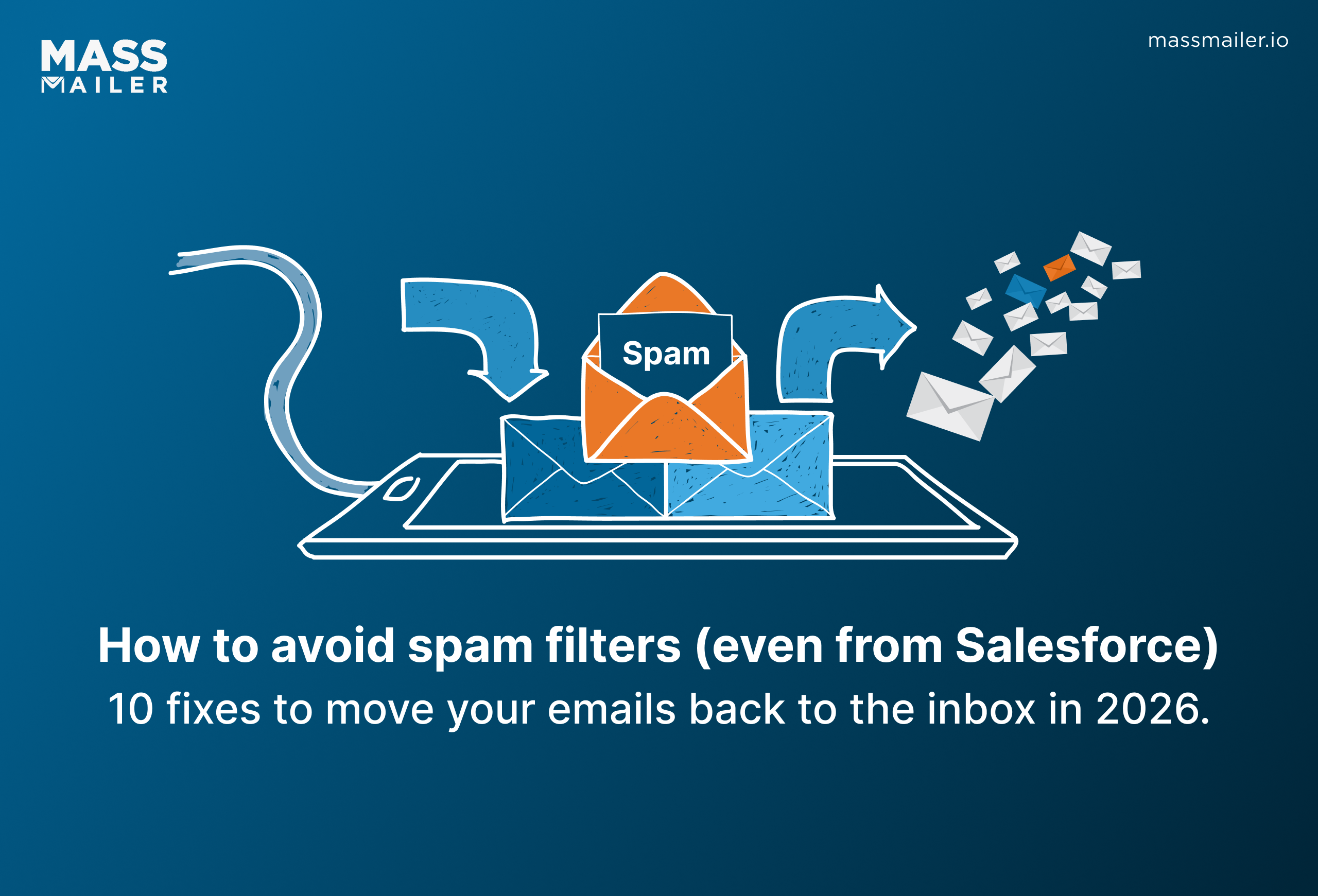
Not a few, but all of it. Every send, every reminder, every "just checking in" follow-up. Filtered before a subject line got read. Monday's 0.4% open rate suddenly makes horrible sense.
Worse if you send from Salesforce. You can't tell if it's your list, your content, your authentication, or something Salesforce is doing to headers before the send even leaves.
Learning how to avoid spam filters isn't complicated once you know what filters check. It's four layers, in a specific order. Diagnose which one is failing first, then fix it.
Key Takeaways
- Spam filters check four layers: authentication, sender reputation, content, and engagement. Find the failing one before you fix anything.
- Authentication is the fastest fix. Set up SPF, DKIM, and DMARC properly, and roughly 30% of deliverability problems disappear on their own.
- Gmail, Yahoo, and Microsoft now enforce bulk-sender rules: one-click unsubscribe, DMARC alignment, and a spam-complaint rate under 0.3%.
- Salesforce's default org-wide address quietly wrecks deliverability. Configure a dedicated sending domain in Salesforce and authenticate it separately from your Salesforce login.
- Content triggers matter less than engagement now. A dirty list with 3% inactive recipients hurts inbox placement more than any subject-line word.
Why your emails go to spam: the 4 layers filters check
Your emails go to spam because they fail one of four sequential checks: authentication, sender reputation, content, and engagement. Gmail, Outlook, and Yahoo run every message through all four, and failing any one layer routes the message to spam.
The fix depends entirely on which layer is failing, so diagnose the layer before touching a subject line, a template, or a DNS record.
- Authentication. Proves your domain sent the email. Handled bySPF, DKIM, and DMARC.
- Sender reputation. Tracks your history: complaint rate, bounce rate, sending volume.
- Content. Scans body copy, subject line, HTML, and links for spam patterns.
- Engagement. Measures how recipients respond: opens, replies, deletions, spam reports. Gmail's dominant signal in 2026.
How to tell which layer is failing in 3 minutes
Run three checks in order.
- Send a test to Mail-Tester.com. A score below 8/10 means your authentication or content is failing. A score of 10/10 with emails still going to spam points to reputation or engagement.
- Check Google Postmaster Tools. If your domain reputation is "Low" or "Bad," you have a reputation problem. If it's "High" and mail still hits spam, engagement is the issue.
- Look at your last 30 days of engagement in your ESP. Open rate under 15% on cold sends or under 25% on an opt-in list? Engagement is dragging inbox placement down across the board.
Whichever check fails first tells you where to spend your time.
10 ways to avoid spam filters
Ten fixes cover every layer filters check, ordered from highest-impact to lowest: authentication, sender-requirement compliance, domain hygiene, IP warm-up, dedicated IP scaling, list verification, opt-in consent, subject-line cleanup, body-copy hygiene, and engagement-based segmentation.
Work through them in order, because a broken authentication setup makes every fix below it pointless.
1. Authenticate your domain with SPF, DKIM, and DMARC
Set up SPF, DKIM, and DMARC in your DNS zone so mailbox providers can verify your domain sent the email. Missing or misconfigured records are the single most common cause of spam-folder placement, and fixing them takes an afternoon.
- SPF (Sender Policy Framework): lists every server allowed to send email for your domain. Add Salesforce and every other sending service.
- DKIM (DomainKeys Identified Mail): signs each message with a private key so recipients can verify the message wasn't altered. Enable DKIM signing in your ESP and Salesforce.
- DMARC (Domain-based Message Authentication): ties SPF and DKIM together and tells mailbox providers what to do when authentication fails.
Start DMARC at p=none, review reports for two weeks, then move to p=quarantine, then p=reject.
2. Meet the Gmail, Yahoo, and Microsoft bulk-sender requirements
Gmail, Yahoo, and Microsoft enforce three bulk-sender rules on any domain sending over 5,000 messages a day. Miss any of the three, and mail is filtered by policy before content is even scanned.
- DMARC alignment. Publish a DMARC record at minimum p=none with alignment to SPF or DKIM. Applies to every bulk sender.
- One-click unsubscribe. Add List-Unsubscribe and List-Unsubscribe-Post headers per RFC 8058 so recipients can unsubscribe in one click from the mailbox UI.
- Spam-complaint rate under 0.3%. Track complaint rate in Google Postmaster Tools weekly. A rate above 0.3% triggers throttling, and above 0.5% blocks sending outright.
The 5,000/day threshold counts sends per domain across all sending IPs, so multi-brand domains hit it fast.
3. Send from a business domain, not a free address
Send email campaigns from a company domain like you@company.com. Free-provider addresses like you@gmail.com or you@yahoo.com fail DMARC alignment on bulk platforms because the sending domain doesn't match the from-address domain, and Gmail's own DMARC policy at p=reject bounces them.
- Set up a subdomain for marketing sends. Use mail.company.com or send.company.com so a reputation hit on marketing doesn't drag down transactional or corporate mail.
- Match the from-address domain to the authenticated domain. DKIM and SPF alignment requires the visible from-address domain to match the domain signing the message.
- Update your Salesforce org-wide email address. Salesforce defaults to a free address for many teams. Swap it for your authenticated business domain in Setup.
4. Warm up your sending domain and IP before scaling
Send low volume from a new domain or IP for two to four weeks before ramping to full capacity. Mailbox providers treat sudden spikes from cold domains as spam behavior, and even authenticated mail from a brand-new domain gets throttled or filtered. Warm-up teaches Gmail and Outlook that your sends are legitimate, gradually.
A typical schedule doubles volume every two days, starting at 50 to 100 messages a day to your most engaged recipients and reaching full volume around day 21. Reset the schedule if bounce rate spikes or your spam complaint rate crossesGoogle's 0.3% ceiling for bulk senders.
5. Move to a dedicated IP once you cross 100K sends/month
Dedicated IPs help once you're sending 100,000+ messages a month with consistent volume. Below that threshold, a well-configured shared IP from a reputable ESP outperforms a dedicated one because shared pools are already warmed and have an established reputation with Gmail and Outlook.
The tradeoff flips at high volume. On a shared IP, one bad sender in the pool can drag your deliverability down overnight. On a dedicated IP, your reputation is entirely yours to build and protect. Salesforce senders on MassMailer, the Salesforce-native mass email app built to send high-volume campaigns straight from Salesforce, can request a dedicated IP once their monthly volume justifies the isolation.
6. Verify your list before every campaign
Run your list through a verification service likeMassMailer Verifier before every campaign. Verification catches typos, dead addresses, catch-all domains, role-based inboxes, and known spam traps. Sending to any of these spikes your bounce rate. Mailbox providers read that as a signal that you don't maintain your list, and your sender reputation drops across every domain you send to.
For example, a 5,000-address list with 3% bad addresses generates 150 bounces. Two campaigns of that pattern and your reputation is in "Low" territory in Postmaster Tools. Verification takes minutes and prevents the entire chain.
7. Use double opt-in and stop importing purchased lists
Double opt-in means subscribers confirm their address by clicking a link in a confirmation email before they land on your list. It catches typos, filters bots, and locks out purchased addresses. The last two break sender reputation faster than any content issue.
Purchased lists carry known spam traps: addresses email providers seed onto sale lists specifically to detect senders who bought from them. One hit tanks your sender reputation with that provider, and every message you send after starts going to spam by default. Repeat hits get your domain listed on public blocklists.
The rule is that every address on your list gave explicit, confirmed consent to hear from you.
8. Write subject lines that pass: 2026 spam trigger words list
Spam trigger words carry less weight in 2026 than five years ago because filters now weight engagement more heavily. Stacking them still hurts. Write plain, specific subject lines and avoid these categories:
- Money and urgency: free, cash, earn $$$, 100% free, act now, limited time, urgent, expires today
- Sales pressure: buy direct, click here, order now, no cost, risk-free, satisfaction guaranteed
- Deceptive framing: fake re: or fwd: prefixes, congratulations, you've won, exclusive offer
- Loaded formatting: ALL CAPS, excessive exclamation marks!!!, dollar signs $$$
One trigger word in a clean subject line rarely tips a filter. A subject stacking three or more triggers reads as promotional at best, spam at worst.
For example, "Free!!! Limited time offer, click here to claim your $$$ savings" hits every category and lands in the promotions tab even for perfectly authenticated senders.
9. Clean up body copy, HTML, and links
Filters scan an email's body copy, HTML, and links along with its subject line. Broken HTML, image-only sends, and mismatched link domains carry more weight than trigger words in 2026.
- Structure and rendering. Test HTML in desktop and mobile clients before every send. Broken tags and inline CSS errors read as spam.
- Text-to-image ratio. Keep at least 60% of the email weight as text. Image-only emails hide content from filter scanners.
- Plain-text alternative. Include a plain-text version for every HTML email. Missing alternatives raise the spam score.
- Link hygiene. Every link points to a domain related to your sending domain. Shorteners and mismatched redirects trigger filters.
10. Segment inactive subscribers and test inbox placement
Segment out subscribers who haven't opened or clicked in 90 days, and either send them a re-engagement campaign or drop them from your active list. Inactive subscribers pull down your open rate, which is Gmail's dominant reputation signal. Dead weight on your list drags every campaign down.
Before each major send, run the email through a spam filter checker to catch broken HTML, authentication misses, and content flags. Fix the report before the send goes out.
How to avoid spam filters when sending from Salesforce
Salesforce senders face three deliverability problems specific to the platform: how it routes mail through its shared IP pool by default, where DKIM signing has to be enabled inside Salesforce, and how the 5,000/day cap forces workarounds that damage sender reputation.
Why Salesforce's default org-wide address lands in spam
Even with SPF, DKIM, and DMARC configured correctly on your main domain, Salesforce's default org-wide setup can still fail authentication. Salesforce routes campaigns through its own shared IP pool and rewrites the return-path to a Salesforce-owned domain. The from-address you see (yours) no longer aligns with the return-path Salesforce is using, and DMARC alignment fails.
The fix is Salesforce-specific: enable DKIM signing inside Salesforce Setup (Email Administration >DKIM Keys) so messages carry your DKIM signature regardless of the return-path Salesforce writes. Then set DMARC alignment mode to relaxed to accept the return-path mismatch.
Past the 5,000/day limit without wrecking sender reputation
Salesforce's native email tool caps sends at 5,000 per day. The common workarounds all damage sender reputation: batching across days, splitting sends across users, or scheduling drips create inconsistent volume patterns that filters read as spam behavior.
Route high-volume sends through a Salesforce-native mass email app like MassMailer, which uses your authenticated domain and dedicated IPs while sending campaigns straight from Salesforce with no daily send cap.
How MassMailer fixes deliverability for Salesforce senders
MassMailer bundles the fixes above into a single Salesforce-native install. Authentication, dedicated IPs, list verification through MassMailer Verifier, and reputation tracking throughEmail Monitor run natively inside Salesforce, so contact and lead data never leaves the CRM.
The core difference over native Salesforce email: no 5,000/day cap, DKIM signing configured on your own authenticated domain, and dedicated IPs available for high-volume senders, with warm-up handled for you.
Start afree trial or book alive demo to see how it fits your Salesforce setup.
Frequently Asked Questions
1. Why are my Salesforce emails going to spam?
2. Why do my emails go to spam even with SPF, DKIM, and DMARC set up?
3. Do I need a dedicated IP to avoid spam filters?
4. What's a safe spam complaint rate in 2026?
5. How long does domain warm-up take?
6. How do I get off a blocklist?
Related Blogs
How to Fix Salesforce Emails Going to Spam (2026)
How to Improve Email Deliverability in Salesforce in 2026

10 Best White Label Email Marketing Platforms (2026)
MassMailer Resources

MassMailer Glossary
About the Author

Siva Devaki 
Siva Devaki is the founder of MassMailer Inc., a tool that helps Salesforce users optimize email marketing. A passionate advocate for email marketing, Siva writes and hosts podcasts on the topic, sharing insights to help businesses drive revenue and enhance customer engagement through Salesforce email automation and tracking.