
Table of Contents
You set up a workflow in Salesforce years ago. It still runs. But does Salesforce still support it?
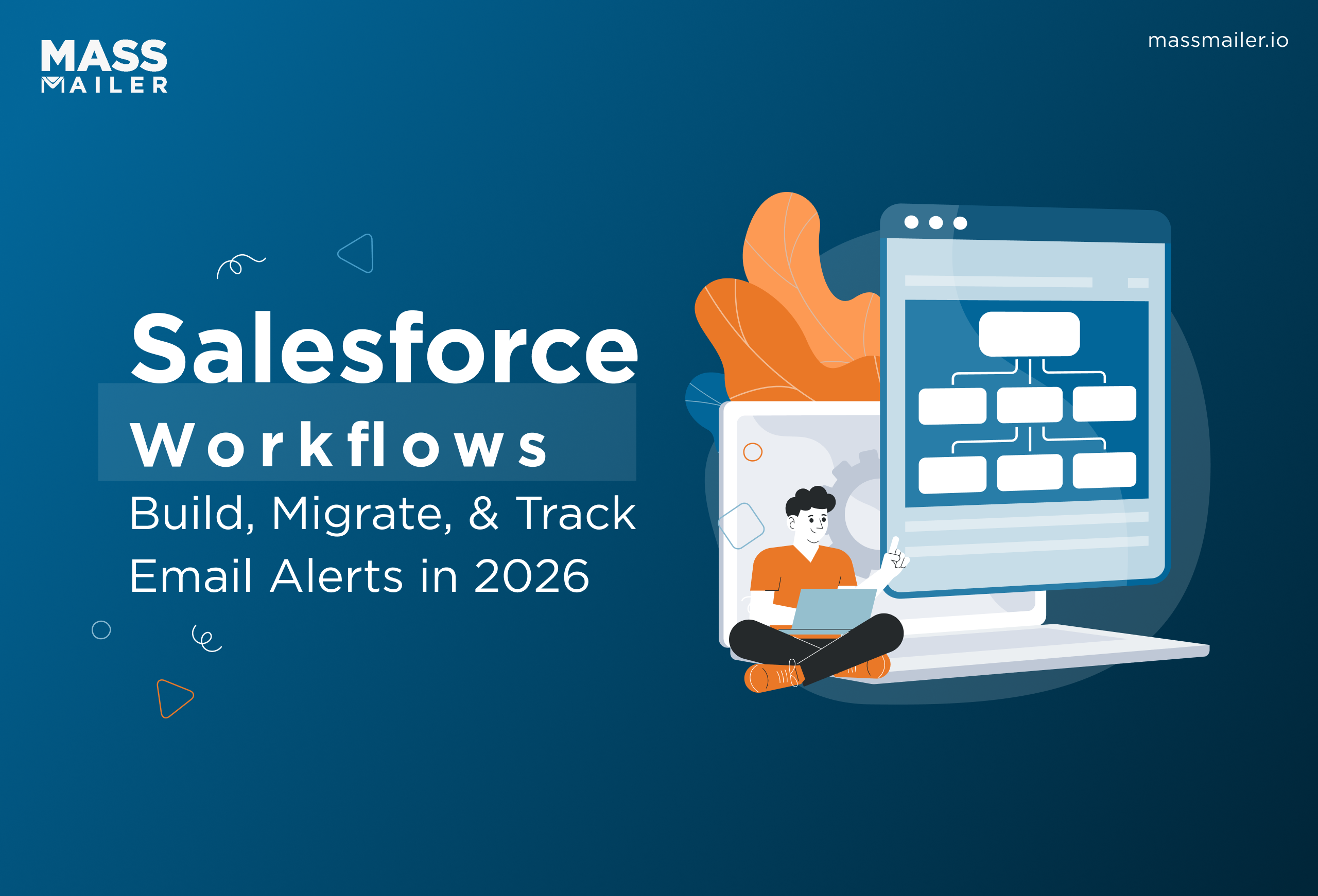
If you built it with Workflow Rules or Process Builder, the answer is no. Salesforce pulled support for both tools at the end of 2025. They still execute, but nobody's fixing bugs or shipping updates for them anymore.
Flow Builder is what Salesforce wants you to use now. It handles everything the older tools did, and quite a bit more. But it also comes with its own blind spots, particularly around email alerts, where you lose visibility the moment a message leaves Salesforce.
This guide walks you through how Salesforce workflows actually work in 2026. You'll learn what changed, how to build automation in Flow Builder, how to migrate without breaking things, and where the gaps still show up.
What Is a Salesforce Workflow?
A Salesforce workflow triggers actions automatically when a record meets conditions you define. A lead hits "Qualified" status, and Salesforce sends an email alert. A case gets escalated, and a field updates. An opportunity closes, and a task gets assigned to the account manager.
Salesforce originally handled this through Workflow Rules, a point-and-click tool that supported four actions: email alerts, field updates, tasks, and outbound messages. That tool lost support in December 2025.
Flow Builder is now the only way to build new workflow automation, and it covers everything Workflow Rules did, plus multi-step logic, screen interactions, and API calls.
Workflow Rules vs Process Builder vs Flow Builder
If your org has been on Salesforce for more than a couple of years, you probably have automation spread across all three tools. Here's the quick breakdown of what still works and what doesn't.
| Capability | Workflow Rules | Process Builder | Flow Builder |
|---|---|---|---|
| Salesforce support status | Ended Dec 2025 | Ended Dec 2025 | Active, receiving updates |
| Create new automations | No | No | Yes |
| Email alerts | Yes | Yes | Yes |
| Field updates | Yes | Yes | Yes |
| Cross-object updates | No | Yes | Yes |
| Multi-step logic | No | Limited | Yes |
| Screen interactions | No | No | Yes |
| Bulk processing | Partial | No (record-by-record) | Yes (native) |
| Before-save updates | No | No | Yes |
| Email open/click tracking | No | No | No |
Workflow Rules and Process Builder still execute if they're already active in your org. But Salesforce won't fix anything that breaks. No bug patches, no security updates, no platform compatibility guarantees when future releases roll out.
The practical risk shows up in Process Builder first. It runs record-by-record, not in bulk. Update 200 contacts through a data load, and Process Builder fires 200 separate times. That's where governor limit errors and timeout failures come from in most orgs that still rely on it.
Flow Builder handles the same automation in a single bulk execution. It also supports before-save updates, which means field changes happen before the record commits to the database, skipping extra DML operations entirely. That alone eliminates a whole category of limit errors that Process Builder was known for.
One gap stays consistent across all three tools: none of them track what happens after an email alert is sent. Salesforce logs the alert as "sent" and stops. No open rates, no click data, no bounce detection. If your workflows rely on email alerts, that blind spot matters. We'll get into how to close it later in this guide.
How to Set Up Workflow Email Alerts in Flow Builder
There are two ways to send email alerts from Flow Builder. They serve different purposes, so it's worth understanding both before you build.
Using the Send Email Alert Action
This is the closest equivalent to how Workflow Rules handled email alerts in Salesforce. You create a reusable Email Alert object in Setup, attach a template and recipients to it, then call it from your Flow.
Start by creating the Email Alert:
- Go to Setup, search "Email Alerts," and click New Email Alert.
- Choose the object (Lead, Contact, Case, Opportunity, or any custom object).
- Select the email template. Make sure it has "Available for Use" checked, or Flow won't find it.
- Add recipients: users, roles, public groups, the record owner, a related contact email field, or up to five hardcoded external addresses.
- Set the From address using the Default Workflow User or an Org-Wide Email Address.
- Save the alert.
Then connect it to a Flow:
- Open Flow Builder and create a Record-Triggered Flow on your object.
- Set the trigger to "After the record is saved" so all field values are final before the alert fires.
- Add entry conditions based on specific field changes (for example, "Case Priority equals High"). Avoid broad triggers like "any field changes" since those generate unnecessary sends at scale.
- Add an Action element, search "Send Email Alert," and select the alert you created.
- Map the Record ID from the triggering record.
- Save and debug in a sandbox before activating.
Each Email Alert's Setup page shows every Flow, Workflow Rule, and Approval Process that references it. That makes auditing simple when you need to trace which automation triggers which notification.
Using the Send Email Action (Flow-Native)
This approach skips the Email Alert object entirely. You configure the recipients, subject, body, and sender directly inside the Flow element. Use this when different branches of your Flow need tosend different emails based on record data or when the message content changes dynamically.
The tradeoff is visibility. There's no centralized Setup page showing where this email gets triggered. Once your org has 20 or 30 Flows sending emails through this method, tracing which Flow sends what requires opening each one individually.
Which Approach to Pick
Use Send Email Alert when the same notification goes to the same recipients every time, and you need easy auditing across automations. Use Send Email when the message or recipients change dynamically based on record values.
Most orgs end up using both. Standardized alerts like case escalations, opportunity stage changes, and approval notifications work better as Email Alert objects. One-off conditional messages work better as Flow-native Send Email actions.
One thing to watch, regardless of approach: Salesforce pools all workflow-triggered emails into an org-wide daily limit(5000 emails per day). The exact cap depends on your edition and license count, but most orgs land somewhere around 1,000 to 5,000 emails per day. Once that limit is hit, additional alerts get silently dropped with no retry and no error notification. If your workflows send high volumes, you'll hit this ceiling before you expect to.
What Salesforce Doesn't Track After an Email Alert Fires
Salesforce doesn't track opens, clicks, bounces, spam complaints, or unsubscribes on workflow email alerts. The alert fires, Salesforce logs it as delivered, and that's the last data point you get.
Let's go through each one:
Open tracking: Salesforce doesn't embed a tracking pixel in workflow-triggered emails. You can't tell if the recipient read the alert or if it sat untouched in their inbox.
Click tracking: If your template includes links like a case portal URL, a document link, or a scheduling page, Salesforce doesn't wrap those links or record clicks. You won't know if anyone acted on the message.
Bounce detection: When an alert bounces because the recipient's address is invalid or their mailbox is full, Salesforce doesn't flag the failure on the record. The alert still appears as delivered even though it never arrived. Over time, repeated bounces to bad addresses damage your email deliverability and sender reputation, and native alerts give you no way to catch it before the damage is done.
Activity History logging: Workflow-triggered alerts don't automatically create a record in Activity History on the related Lead, Contact, or Case. Without a separate Flow action to log a Task alongside every alert, there's no visible trail of what was sent and when.
Unsubscribe and spam reporting: If a recipient marks your alert as spam or opts out through their email client, that signal never reaches Salesforce.
For internal team notifications, these gaps are manageable. You can check in with a colleague to confirm they got the alert.
How to Get Email Tracking Data Inside Salesforce
For customer-facing alerts, the stakes change. If onboarding instructions bounce, nobody in your org finds out unless the customer calls. If a renewal reminder lands in spam, the opportunity expires silently. This is why many Salesforce teams add a native AppExchange email tool that handles delivery and tracking within the CRM itself, without pushing data to an external platform.
MassMailer is one such tool. It replaces native alert delivery with its own sending layer while staying fully inside Salesforce. Every alert creates a MassMailer Email Status record on the triggering object that logs delivery, opens, clicks, bounces, and unsubscribes as permanent CRM data.
You can build standard Salesforce reports on email tracking data the same way you report on any other object.
How to Migrate Workflow Rules and Process Builder to Flow
Salesforce provides a built-in Migrate to Flow tool that converts existing Workflow Rules and Process Builder processes into Flow Builder equivalents.
Using the Migrate to Flow Tool
The tool does a one-to-one conversion. It takes your existing criteria, actions, and scheduled actions and recreates them as a record-triggered Flow.
To use it:
- Go to Setup and search "Workflow Rules."
- Select the rule you want to migrate.
- Click "Migrate to Flow."
- Review the generated Flow in Flow Builder.
- Click "Switch Activations" to deactivate the old rule and activate the new Flow.
- Test with a real record in the sandbox before doing this in production.
Where the Tool Falls Short
The tool copies logic but doesn't consolidate it. If your org has 15 Workflow Rules on the same object built over several years by different admins, the tool creates 15 separate Flows instead of one efficient Flow with branching logic.
It also struggles with:
- Cross-object field updates that reference fields outside the triggering object
- Time-based actions with complex date calculations
- Entry criteria using formulas that reference related records
- Process Builder processes that call Apex classes or chain into other processes
For those, rebuild directly in Flow Builder instead of converting.
Migrating Email Alerts Specifically
Email Alert objects don't need migration. They're independent of the automation tool that triggers them. If a Workflow Rule currently fires an Email Alert, you can point a new Flow at that same Email Alert without recreating the template, recipients, or sender configuration.
Create a record-triggered Flow with the same entry conditions as your old rule, add a Send Email Alert action, select the existing Email Alert, and activate. The alert setup stays identical. Only the trigger changes.
Many orgs have alerts that were created years ago and still fire on every record update, sending notifications nobody reads. Teams that handleSalesforce workflow automation across multiple objects often find that half their legacy alerts can be retired outright during this process.
Conclusion
Flow Builder is the only automation tool Salesforce supports going forward. Migrating your existing Workflow Rules and Process Builder logic is worth doing now, before a platform update breaks something nobody will fix.
Email alerts are usually the fastest place to start because the setup in Flow Builder is straightforward, and your existing Email Alert objects carry over without changes.
The one thing migration won't fix is tracking. Salesforce still doesn't tell you whether those alerts get opened, clicked, or bounced. For customer-facing communication, that's a gap worth closing.
MassMailer tracks all of it natively inside Salesforce, on the same records your team already works with.
Book a demo with MassMailer and see how it works in your org.
Frequently Asked Questions
1. Can I use Salesforce workflows with custom objects?
2. Do existing Workflow Rules stop working after the end of support?
3. Can the Flow Builder send email alerts to external email addresses?
4. What happens when the org-wide daily email limit is reached?
5. Do Salesforce email alerts count toward API call limits?
6. Can I schedule email alerts to send at a specific time in Flow Builder?
Start Your Free Trial Today
Experience MassMailer the easiest way to send personalized emails from Salesforce.
Related Blogs

MassMailer Resources



MassMailer Glossary
About the Author

Siva Devaki 

Siva Devaki is the founder of MassMailer Inc., a tool that helps Salesforce users optimize email marketing. A passionate advocate for email marketing, Siva writes and hosts podcasts on the topic, sharing insights to help businesses drive revenue and enhance customer engagement through Salesforce email automation and tracking.