

Table of Contents
Mass email in Salesforce Lightning is sent through the native List Email feature. Each recipient gets a personalized copy of the same message. It uses merge fields and templates and works with Contacts, Leads, or Person Accounts.
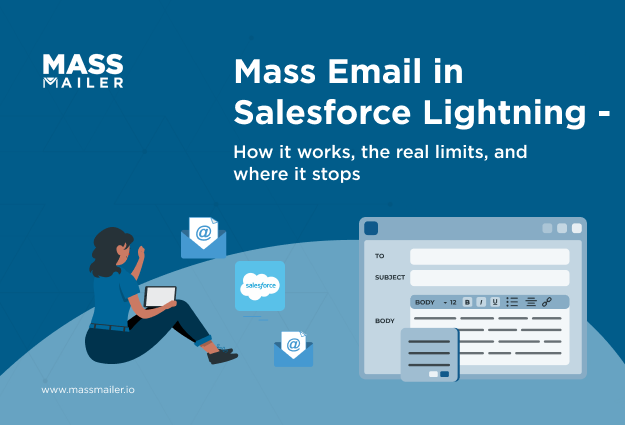
Key facts and limits:
- Daily cap: 5,000 external recipients per org, per day (Developer and Trial editions: 10).
- Per send: 500 recipients with "Select All," 200 if selected manually.
- Required permission: "Allow sending of List Emails."
- Apex option: MassEmailMessage API, up to 250 target IDs per call.
- Automation: one-time scheduling only. Recurring sends need a Flow with an invocable action or a Salesforce-native app.
You have built a clean list of 6,200 contacts and clicked send. Salesforce delivers 5,000, then stops for the day. Your CMO wants a weekly recurring send, but the scheduler only handles one date. Half your leads live on a custom object that List Email can't see.
These are the real limits of native sending, and they rarely show up during setup. They surface mid-campaign, when a workaround costs you a day.
This guide gives you what you need to plan around them from the start. You will get the setup steps, the exact permission name, and every daily and per-send limit for 2026. It also covers the Apex path, Flow-based automation, and the fix teams use when native sending stops keeping up.
What is mass email in Salesforce Lightning?
Mass email in Salesforce Lightning is the practice of sending one email to many recipients at once. Each copy is personalized per record. Salesforce handles it through the native List Email feature. Every recipient gets an individually generated message with their own merge fields resolved. Recipients never see each other's addresses.
The feature was designed to support CRM communication. Marketing automation is handled by other Salesforce products, which come with higher sending limits.
Mass Email vs List Email vs Campaign Email
Mass Email is the legacy Salesforce Classic term, and List Email is its Lightning replacement. Campaign Email is shorthand for sending a List Email to Campaign Members through a Campaign record. Salesforce's documentation still distinguishes between mass email and list email in older articles, which is where the confusion starts. In practice, if you're on Lightning today, you're using List Email.
| Term | What it refers to | Where you'll see it |
|---|---|---|
| Mass Email | Legacy bulk email feature in Salesforce Classic | Classic docs, older tutorials |
| List Email | Native Lightning feature for sending personalized emails to Contacts, Leads, or Person Accounts | Salesforce Lightning Experience |
| Campaign Email | Informal term for sending List Emails to Campaign Members through a Campaign | Salesforce teams, community discussions |
| Salesforce email blast / bulk email | Colloquial names for the same List Email feature | Marketing and admin conversations |
Which objects mass email in Salesforce Lightning supports
List Email natively supports three objects: Contacts, Leads, and Person Accounts. Salesforce treats Person Accounts as contacts for this feature, so you build your list view on any of the three. Custom objects are the gap. If your recipients live on Applications, Event Registrations, or Donors, native List Email can't send to them directly.
The same applies to any object you built yourself. You'd have to export the records and match them to Contacts first. That workaround holds up until your list grows past a few hundred rows.
How to enable the mass email permission in Salesforce
To enable mass email in Salesforce Lightning, grant the "Allow sending of List Emails" permission to your user profile. You can also assign it through a permission set. Without this permission, the Send List Email button doesn't appear in list views. It stays hidden even when the feature is turned on for your org.
The path in Setup:
- Go to Setup → Users → Profiles, then click the profile you want to update.
- Under App Permissions (or General User Permissions on some editions), find Allow sending of List Emails.
- Check the box, click Save, and refresh your list view.
For admins managing multiple teams, a permission set works better than editing profiles directly. Create a permission set named "List Email Access" and assign the permission to it. Then grant the set to users who need it.
How to send mass email in Salesforce Lightning (step-by-step)
To send mass email in Salesforce Lightning, open a Contact or Lead list view and select up to 500 recipients. Click Send Email, choose Sales List Email, compose your message, and either send or schedule.
Confirm the "Allow sending of List Emails" permission is enabled before you begin. The full flow, step by step:

Step 1 - Build the list view
Start with a Contact or Lead list view, or a Campaign containing the Members you want to reach. If you're working from Contacts or Leads, apply filters that match your target audience (lead status, owner, industry, campaign membership). Avoid the default Recently Viewed list. It shows records you've opened recently, which rarely reflects your intended audience.
Step 2 - Select recipients and start a List Email
Once your audience looks right, select the recipients. Salesforce allows up to 500 recipients with Select All from a list view, or 200 if you pick records manually. For larger audiences, split the send into multiple batches. Click Send Email, then choose Sales List Email. The List Email composer opens.
Step 3 - Compose or choose a template
In the composer, write a new email or pick an existing Lightning email template. Templates help maintain consistent branding while cutting repetitive work. You can edit the subject, body, and supported fields before sending. If you're using merge fields, preview the email before moving on. Blank values usually mean the field is empty for that recipient.
Step 4 - Personalize and review attachments
Merge fields let each email pull data from the recipient's record, such as first name or company. Every recipient still receives the same email body, personalized with their own field values. Salesforce attaches files as downloadable links, keeping each email lightweight. Confirm the attached files are current and that recipients have access to any Salesforce Files.
Step 5 - Review, schedule, and send
Use the Review page to check how the email will appear to recipients. Verify that merge fields resolve, links work, attachments are included, and content matches your audience. When everything looks correct, send immediately, schedule for later, or save as a draft. If you schedule, re-check the recipient list before the send time. Underlying records may have changed since you set it up.
Mass email limits in Salesforce Lightning (2026)
Mass email in Salesforce Lightning has three core limits. Daily cap: 5,000 external recipients per org, per day. Per send: 500 recipients with Select All, or 200 if selected manually. Developer and Trial editions are further limited to 10 recipients per day.
Salesforce runs mass email through shared sending infrastructure designed for CRM use. Single emails, List Email, and API sends each draw from separate daily pools.
The full breakdown for 2026:
| Limit | Value | Notes |
|---|---|---|
| Daily mass email cap | 5,000 external recipients per org, per day | Resets at midnight GMT |
| Per-send with Select All | 500 recipients | Applies to List Email from a list view |
| Per-send with manual selection | 200 recipients | If you tick records one by one |
| Developer / Trial edition cap | 10 external recipients per org, per day | Mass and List Email combined |
| MassEmailMessage Apex API | 250 target IDs per call, 10 sendEmail() invocations per transaction | For programmatic sends |
| Single Email cap | 5,000 per user, per day | Separate pool from List Email |
The daily cap is org-wide. Every user's List Emails and test sends draw from the same pool.
What happens when you hit the daily cap
Salesforce blocks any further Mass or List Email sends when your org hits the 5,000-recipient daily cap. Sending resumes when the counter resets at midnight GMT. GMT reset means your daily window may not align with your local time zone.
Sending mass email in Salesforce via Apex (MassEmailMessage)
To send mass email in Salesforce via Apex, use the Messaging.MassEmailMessage class with Messaging.sendEmail(). Each call accepts up to 250 target object IDs, and a single transaction allows up to 10 sendEmail() invocations. The org-wide daily cap of 5,000 external recipients still applies to Apex sends.
MassEmailMessage requires an email template ID and a list of Contact, Lead, or User record IDs. It won't accept free-form subject or body content. A minimal example:
| Messaging.MassEmailMessage mail = new Messaging.MassEmailMessage(); mail.setTemplateId(templateId); mail.setTargetObjectIds(recipientIds); // up to 250 per call Messaging.sendEmail(new Messaging.MassEmailMessage[] { mail }); |
For lists over 250, batch the recipient IDs into groups of 250. Call sendEmail() up to 10 times per Apex transaction. Anything beyond that requires a Queueable or Batch Apex pattern to chain further transactions.
Automating mass email in Salesforce Lightning with Flow
To automate mass email in Salesforce Lightning, use Flow with the built-in Send Email action or a custom invocable action. An invocable action lets Flow call a mass-sending Apex class or a Salesforce-native app. Native List Email supports only one-time scheduled sends, so recurring or event-driven campaigns need Flow to run on their own.
Flow gives you three trigger types that fit mass email use cases:
- Record-triggered flows fire when a record is created or updated (a lead status change, a subscription renewal).
- Scheduled-triggered flows run on a set cadence (daily, weekly) against a selected record set.
- Scheduled paths run a delayed action within a record-triggered flow.
The built-in Send Email action handles a single recipient. For batch sends with merge fields and tracking, use an invocable Apex action or a Salesforce-native app. Both plug into Flow Builder as a callable step.
What mass email in Salesforce Lightning cannot do natively
Native List Email cannot send to custom objects, run recurring campaigns, or fire actions from engagement data. It also can't send from a shared brand address without extra configuration. Most teams run into these limits within their first few campaigns.
- Tracking is basic: List Email logs delivery data and shows basic opens and clicks. Engagement data doesn't feed downstream automation on its own.
- Scheduling is one-shot: You can set a single future send date and time. Recurring cadences, drip sequences, and record-triggered sends fall outside its scope.
- Sender identity defaults to the user who initiated the send: To send from a shared or branded address, an admin has to set up anOrganization-Wide Email Address. Then users need explicit access to it.
- Engagement automation requires deliberate setup: Native tracking data won't move records forward, assign tasks, or trigger new sends. Someone has to build those flows and connect them to the events.
How MassMailer removes the 5,000/day cap on mass email in Salesforce
MassMailer removes the 5,000/day mass email cap in Salesforce by routing sends through its own dedicated sending infrastructure. The Salesforce-native app also adds custom object recipients, recurring or triggered sends, engagement-to-Flow automation, and multi-step approvals. It runs entirely inside Salesforce, so sends, opens, clicks, and bounces log directly to the recipient's record.
Flow Builder gets a ready-made invocable action called "Email via MassMailer." You wire a list view and a template to a scheduled path or a record-triggered flow. Recurring or event-based sends fire on their own.
Practical changes:
- Sending volumes go up. Campaigns aren't split across multiple days to fit under 5,000 external recipients.
- Custom object recipients work directly. Teams tracking Applications, Event Registrations, or Donors send to those records without exporting to Contacts first.
- Recurring and event-driven sends run through Flow. A weekly nurture or a re-engagement trigger fires without anyone opening a list view.
- Engagement data writes back to records and feeds Flow. Reps see opens, clicks, and bounce history in-line. Flow can use the same data to update records, assign tasks, or send follow-ups.
Native List Email vs MassMailer
| Capability | Native List Email | MassMailer |
|---|---|---|
| Daily sending limit | 5,000 external recipients per org | Removed via dedicated sending infrastructure |
| Open and click tracking | Basic delivery data | Recipient-level engagement, logged to Salesforce records |
| Send scheduling | Manual, one-time only | Scheduled or triggered from Flow Builder |
| Engagement-based automation | Not supported | Invocable Apex Action for any flow type |
| Custom object support | Contacts, Leads, Person Accounts only | Any standard or custom object |
Scale mass email in Salesforce Lightning without hitting the 5,000/day cap
Native List Email in Salesforce Lightning handles small, one-off sends well. It stops working the moment a campaign crosses one of four thresholds. Sends over 5,000 per day, recurring cadences, custom object recipients, or engagement-triggered follow-ups all push past what native supports.
Those aren't edge cases. They're the shape of most real campaigns after the first month of use. Splitting sends across days or exporting records to work around custom objects costs time no team should be spending. A send split across three days delays the whole follow-up cycle by a week.
MassMailer solves each of those constraints inside Salesforce. Your data model stays the same, and send infrastructure stays inside the CRM. If your team is already running into the cap,book a demo, and we'll walk through it in your org.
Frequently Asked Questions
1. Why isn't the "Send List Email" button showing in Salesforce Lightning?
2. Can you send a mass email in Salesforce via Apex?
3. Does Salesforce List Email respect Email Opt Out?
4. Can you send a List Email directly from a Salesforce report?
5. Does Salesforce List Email support file attachments?
6. Can you cancel a scheduled List Email in Salesforce Lightning?
Related Blogs
MassMailer Resources


About the Author

Siva Devaki 
Siva Devaki is the founder of MassMailer Inc., a tool that helps Salesforce users optimize email marketing. A passionate advocate for email marketing, Siva writes and hosts podcasts on the topic, sharing insights to help businesses drive revenue and enhance customer engagement through Salesforce email automation and tracking.