




Table of Contents
Introduction
Most email teams send their campaigns without knowing what happens after the send, which links were clicked, which visits converted, and which campaigns actually moved the needle. Tracking emails with Google Analytics 4 (GA4) fixes this. Simply connect your campaigns to GA4, and you'll have a complete understanding of traffic, clicks, and conversions driven by every email you send.
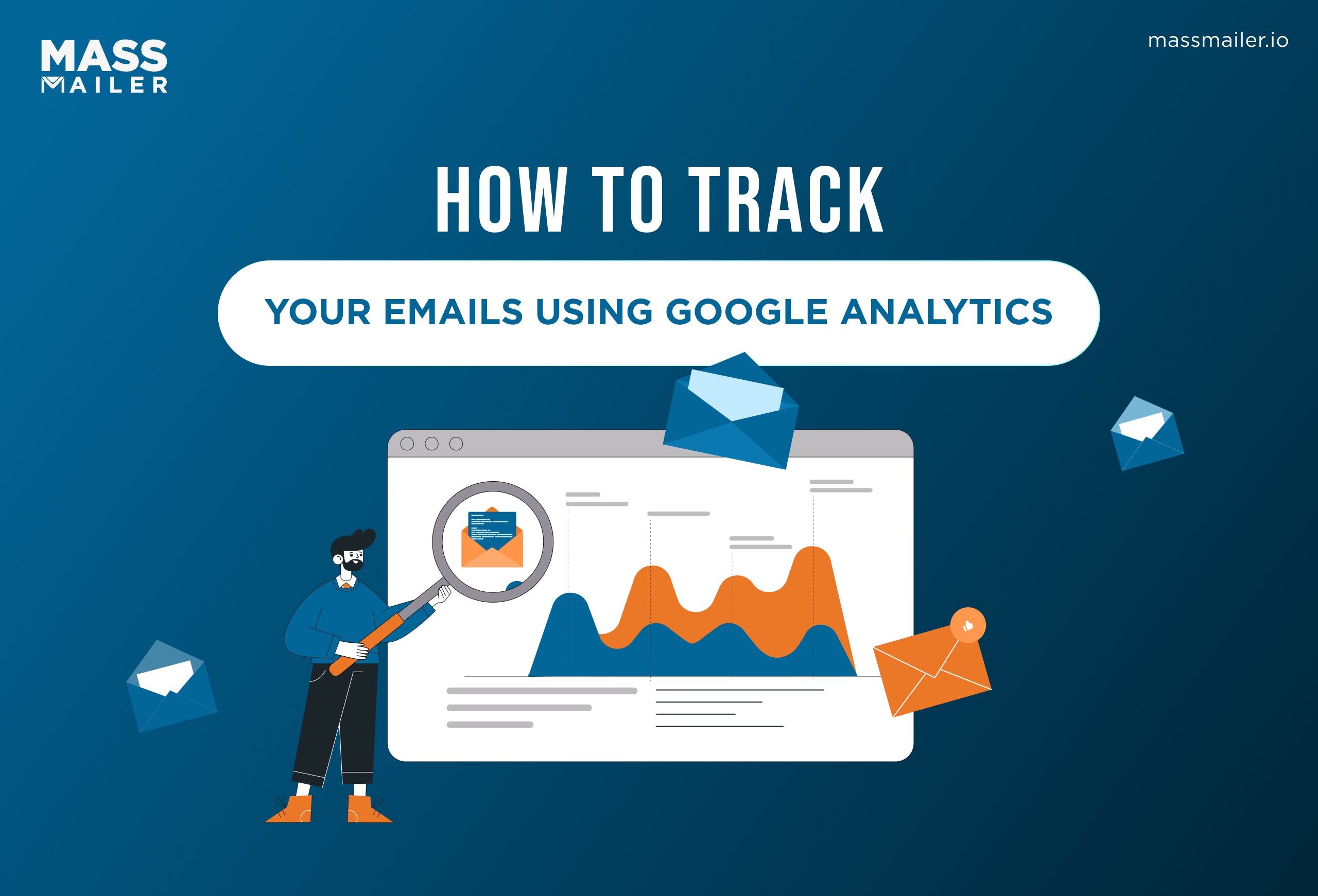
But accurate tracking begins on the sending side. MassMailer, which is a Salesforce-native email platform, makes sure that every campaign is sent with consistent UTM parameters, unbroken links, and complete CRM data, so the data entering GA4 is accurate from the start. This guide will take you through the entire process.
Can You Use Google Analytics to Track Email Campaigns?
Yes, and it’s one of the most powerful (and free) ways to see the downstream effects of your email campaigns. But here’s the key: Google Analytics does not track emails on its own. GA4 exists on your website, not in your email inbox. It does not have the ability to automatically detect that a user came from an email to your website unless you tell it to.
That’s where UTM parameters come in. UTM parameters are little bits of code that get tacked onto the URLs in your emails. When a user clicks on a link, GA4 picks up on these parameters and tags the session as coming from your email campaign, rather than “direct” or “unknown” traffic.
Here is what GA4 can track for email campaigns:
- Traffic to your website from each email campaign
- Clicks on links to landing pages or product pages
- Behavior on your website: pages visited, time on site, engagement rate
- Conversions: form submissions, purchases, demo requests
Here is what GA4 cannot track:
- Email opens (which require pixel tracking, handled by your email service provider)
- Bounce rates, unsubscribes, or spam reports at the inbox level
- For the complete official list of what GA4 can track, see Google's GA4 documentation.
MassMailer makes this process effortless. Rather than having to programmatically build and append UTM parameters to each link in each campaign, MassMailer enables Salesforce teams to standardize UTM parameters at the template level, so each campaign goes out properly tagged, and GA4 gets clean, consistent data without any additional work. See exactly how this is done in the UTM parameters section below.
How to Track Email Campaign Traffic in Google Analytics Using MassMailer
The process of tracking the traffic of your email campaign in GA4 is a four-step process: GA4 setup, adding UTM parameters to your campaign links, sending your campaign via MassMailer, and finally, analyzing the results in GA4. Here’s how each step is done.
1. Prepare GA4 to Track Email Traffic
Before any email data can flow into Google Analytics, you will need to set up your Google Analytics 4 (GA4) account correctly. Skip this section if your account is installed and has been verified.
- Go to Google Analytics, click on "Start Tracking" to create a new web property, and input your website address.
- To install the GA4 tag with your measurement ID (G-XXXXXXXXXX), use:
- Google Tag Manager (Best Option)
- The gtag.js tag in the section is your global site tag
- To verify that you have created a tag, use the Realtime Report or Google Tag Assistant.
This process will be a one-time setup. After your setup is complete, all MassMailer email campaigns will send their metrics directly into GA4 without any email configuration.
2. Apply UTM parameters automatically with MassMailer
UTM parameters are the link between your email campaigns and GA4. Without them, GA4 is not able to tell the difference between email traffic and direct visits, but with UTM parameters, every click is identifiable as to which campaign, source, and content the visit originated from. The five standard parameters are:
- utm_source (e.g., newsletter),
- utm_medium (always email),
- utm_campaign (e.g., february_product_update),
- utm_content (e.g., header_cta vs footer_cta), and
- optional utm_term for audience segments.
UTM parameters can be created using Google’s Campaign URL Builder, but manual tagging of large Salesforce lists often results in errors that break down GA4 data. MassMailer removes this problem by standardizing UTM parameters at the template level within Salesforce.
3. Send Salesforce-native email campaigns using MassMailer
With GA4 set up and UTM parameters added, the next step is to send your campaign, which is where MassMailer has a huge advantage over third-party software. The daily email limits set by Salesforce will inevitably cause teams to break up large sends, resulting in GA4 data that is fragmented at best (view Salesforce’s official documentation on email limits).
MassMailer gets around these email limits, allowing for a single, unified send of your campaign.
It also has great deliverability, so that properly tagged emails land in the inbox rather than the spam folder. This leads to cleaner, more accurate GA4 data.
More delivered emails + proper UTMs = better insights and decisions: that’s the MassMailer advantage.
4. Verify and analyze email traffic in GA4
Once your campaign is launched and you start seeing clicks, you can check your campaign performance in GA4 by navigating to Reports > Acquisition > Traffic Acquisition.
Here, you can filter your results by session medium = email to view all UTM-tagged traffic.
You can use the Campaign Name dimension to compare individual MassMailer campaigns and see which offers or segments are driving the most value.
By using MassMailer’s email reporting (opens, clicks, bounces, and unsubscribes) in conjunction with GA4, you can gain additional insights that would not be possible with GA4 alone.
How to Track Email Clicks from MassMailer Campaigns in GA4
GA4 has an event-based data model, which means that every significant action, such as arriving from an email click, is recorded as a separate event. This allows you to go beyond page views to understand which links, CTAs, and landing pages are really driving engagement. By default, GA4 tracks events such as session_start, page_view, and outbound clicks.
MassMailer provides a strong second layer of tracking: it tracks exactly who clicked which link within Salesforce, while GA4 reveals what those people did after they landed on your site. You get both contact-level click data and post-click behavior insights, a level of visibility that is rare in most email configurations.
Track Website Click Events Originating from MassMailer Email Traffic
For most teams, the automatically tracked events in GA4 will suffice. However, to track specific CTAs such as “Book a Demo” as separate events, you can utilize Google Tag Manager. To test, simply send yourself an email with a UTM parameter, and then view Reports > Realtime or Admin >DebugView to ensure events are being triggered as expected.
To set up a custom event, create a GA4 Event tag in Google Tag Manager, create a click trigger for the button, and then publish and test in DebugView. The reason why GTM triggers work so well and do not have the same redirect and tracking problems that come with using external email services is that MassMailer keeps its link structure organized within Salesforce.
How to Measure Email Conversions in Google Analytics from MassMailer Traffic
Click tracking is important, but conversion tracking is where GA4 really adds value. A conversion, or “key event,” is any action that has value, such as a form submission, demo request, or purchase. To track it, go to Admin > Events and turn on “Mark as conversion” for the event (such as form_submit), and GA4 will assign it to its traffic source, including your MassMailer UTMs.
To see the data, go to Reports > Acquisition > Traffic Acquisition and filter Session medium = email, adding Campaign Name to compare campaigns.
MassMailer enhances this reporting by ensuring maximum deliverability and overcoming the Salesforce sending limits, which means more properly tagged emails actually arrive in users’ inboxes, providing more accurate GA4 conversion tracking.
Why MassMailer Improves the Accuracy and Value of Google Analytics Email Tracking
The preceding sections have outlined the process of tracking emails via Google Analytics. This section will discuss why MassMailer, in particular, enhances the process of tracking emails and makes it more valuable than other configurations. It all boils down to three factors: consistency in UTM parameters, link integrity, and CRM campaign context.
Eliminating UTM Inconsistencies Across Email Campaigns
- UTM inconsistencies are a common and costly analytics issue.
- Small human errors like “February_Campaign” vs “february_campaign” or “Email” vs “email” split GA4 data into multiple traffic sources.
- This results in messy, fragmented reports instead of a clear, unified campaign view.
- MassMailer solves this by standardizing UTM values at the Salesforce template level.
- This ensures consistent naming conventions across team members and campaigns.
- As a result, GA4 receives clean, organized data that reflects true performance.
.
Preserving Link Integrity for Reliable Attribution
- Many email marketers are unaware that some email platforms wrap outgoing links through their own tracking servers.
- This replaces your original UTM-coded URL with a redirect via the software’s tracking domain.
- As a result, UTM parameters can be stripped or modified before reaching GA4.
- The outcome? Email traffic gets reported as “direct”, with no proper campaign attribution.
- MassMailer is built to integrate natively with Salesforce, not as an add-on.
- Link handling is clean, direct, and attribution-safe from the start.
- The UTM parameters sent from Salesforce are the same ones that reach GA4.
- No redirects, no stripped parameters, and no unexplained “direct” traffic later.
Maintaining Campaign Consistency Inside Salesforce
- Using external email software with Salesforce often leads to data fragmentation.
- Contact data stays in Salesforce, campaign performance lives in the email tool, and web interactions sit in GA4.
- This forces teams to manually export reports and piece data together.
- With MassMailer, a native Salesforce application, all list, template, send, and engagement data is stored in one place.
- When conversions appear in GA4, you can immediately attribute them to specific contacts, segments, or opportunities.
- This creates full-funnel visibility: GA4 shows what happened on your site, and Salesforce (via MassMailer) shows who made it happen.
Conclusion
Google Analytics 4 is one of the most robust, free tools available to help you understand the downstream effects of your email campaigns. But it requires proper setup on the sending side: consistent use of UTM parameters, click-through tracking that preserves attribution, and a sending platform that can handle scale without leaving holes in the data.
.
If you’re sending email campaigns from Salesforce and want to understand which ones are driving traffic, clicks, and conversions on your website, MassMailer makes the whole process easier, from creating UTM-tagged campaigns to sending at scale without hitting Salesforce limits. Start your free trial today and see exactly how your emails are performing.
Want to see MassMailer in action before starting your free trial? Schedule a personalized demo here.
Frequently Asked Questions
1. Does GA4 track email activity across multiple devices?
2. How long does it take for email campaign data to appear in GA4?
3. Can GA4 track revenue generated from email campaigns?
4. What attribution model does GA4 use for email campaigns?
5. Is it possible to compare email performance against other channels in GA4?
6. Do privacy regulations affect GA4 email tracking?
Start Your Free Trial Today
Experience MassMailer the easiest way to send personalized emails from Salesforce.
Related Blogs

MassMailer Resources




MassMailer Glossary
About the Author

Siva Devaki 

Siva Devaki is the founder of MassMailer Inc., a tool that helps Salesforce users optimize email marketing. A passionate advocate for email marketing, Siva writes and hosts podcasts on the topic, sharing insights to help businesses drive revenue and enhance customer engagement through Salesforce email automation and tracking.