




Table of Contents
Introduction
Salesforce workflow email alerts automate critical notifications when records change, but many teams still treat them as a “set it and forget it” feature inside Salesforce Workflow Rules. That approach breaks down quickly as data volumes grow, workflow email alert limits are reached, and reporting gaps surface. For Salesforce administrators and CRM operators, understanding exactly how Salesforce workflow email alerts behave is no longer optional. It directly affects operational reliability, compliance, and customer experience.
At their core, Salesforce workflow email alerts are automated email notifications triggered by workflow rules when record criteria are met. This guide explains how they work, when to use them, where they fall short, and how limits, templates, metadata, and real-world examples impact day-to-day administration, so you can design alerts that scale safely in Salesforce.
What are Salesforce workflow email alerts?
Salesforce workflow email alerts are automated email notifications sent when a record meets defined criteria in Salesforce. Email alerts are a reusable email action that can be invoked by legacy Workflow Rules and by modern Flow automation, using a predefined email template and recipient configuration.
In practice, Salesforce administrators use workflow email alerts to notify users, customers, or external stakeholders immediately when specific data changes occur.
How they work in Salesforce today
- A record change triggers an automation, most commonly a record-triggered Flow.
- Salesforce evaluates configured entry conditions against the record.
- When conditions are met, an email alert action sends an email using a selected template.
For example, when a Case priority changes from Medium to High, an alert notifies the on-call support queue as soon as the record is saved.
- Recipients can include internal users, roles, record owners, contacts, or external email addresses.
- The email is sent by Salesforce as a transactional message tied directly to the triggering record.
What they are commonly used for
- Lead assignment and qualification notifications.
- Opportunity stage, value, or ownership changes.
- Case status updates and escalations.
- Internal operational alerts on custom objects.
Important limitations to understand early
- Workflow email alerts count toward org-wide daily email limits.
- Salesforce does not retry emails that fail due to limit exhaustion.
- Non-delivery can occur without visible errors at the user level.
- Reporting is limited to basic send activity, with no native engagement analytics.
- High-volume data updates can trigger brittle behavior if limits are not monitored.
Understanding these constraints upfront is critical for teams that rely on time-sensitive alerts or operate at scale, and it informs when to extend beyond basic email alerts in later sections.
How to create Salesforce workflow email alerts using Flow Builder
To create Salesforce workflow email alerts in Flow Builder, configure a record-triggered Flow that evaluates record changes and invokes an Email Alert action. This is the recommended approach for new automation because Flow replaces legacy Workflow Rules while continuing to use the same email alert mechanism.
1. Configure the record-triggered flow
Start by defining when the Flow should run and which records qualify for email notification.
- Open Flow Builder and create a record-triggered Flow for the relevant object.
- Choose when the flow runs, typically after the record is saved, to ensure field values are final.
- Define trigger conditions based on specific field changes, not broad “any update” logic.
- Limit entry to records that require notification to avoid unnecessary sends.
For example, run the Flow only when the Opportunity Stage changes to Negotiation, not on every update. Always include at least one field-change condition. Flows that run on every update are the most common cause of email limit exhaustion.
2. Add the email alert action
Next, configure the Flow to send an email only after the criteria are confirmed.
- In the flow canvas, add an Email Alert action.
- Select an existing email alert that references a supported Salesforce email template.
- Confirm the related object matches the flow’s object context.
- Place the action after the decision logic, not directly after the trigger.
For example, send a notification to the sales manager only after the deal value exceeds a defined approval threshold. Email alerts invoked by Flow still rely on Salesforce email infrastructure and count toward org-wide limits.
3. Define recipients and entry conditions
Finally, ensure the email reaches the right people under the right conditions.
- Configure recipients through the email alert, not directly in the Flow.
- Use record-based recipients such as owner, related contact, or a lookup field when possible.
- Avoid hard-coded external email addresses unless required for operational or compliance reasons.
- Test with real records to confirm merge fields resolve correctly.
Misconfigured recipients and loose entry conditions are the leading causes of silent non-delivery in Salesforce orgs.
In a podcast discussing how OCP Capital addressed Salesforce email limits, the team described how transactional email alerts became harder to manage as volume increased. The conversation highlights why some organizations reassess bulk email tools like MassMailer once notification frequency, deliverability visibility, and monitoring requirements exceed what native workflow email alerts are designed to support, as explored in OCP Capital Overcomes Email Limits Using MassMailer’s Salesforce Integration.
This approach keeps Flow-based email alerts predictable and maintainable while making it clear where native automation begins to show strain as usage scales.
Salesforce workflow email alert templates and configuration best practices
Salesforce workflow email alert templates control the content, personalization, and reliability of automated notifications triggered by workflows or Flow. Choosing the correct template type and configuring merge fields properly determines whether alerts render correctly, reach recipients, and scale without errors.
This section focuses on how workflow alert templates behave in production, not just how to create them.
1. Choose the correct email template type
Workflow email alerts support only specific Salesforce email template types, and choosing the wrong one is a common cause of failed or unavailable alerts.
For workflow and Flow-based alerts, Salesforce supports:
- Text templates
- HTML with classic letterhead
- Custom HTML templates
Use a text template for internal escalation alerts to avoid rendering issues across email clients. Visualforce email templates are not supported and will not appear as selectable options.
Best-practice guidance for template selection:
- Use HTML with letterhead for branded internal or customer-facing alerts.
- Use text templates for system notifications where deliverability matters more than formatting.
- Avoid over-designed layouts that increase rendering inconsistencies across email clients.
- Confirm the template’s related object matches the object used in the workflow or Flow.
If the template’s object does not align with the automation context, workflow alerts may fail silently or omit merge field values.
This issue commonly surfaces in searches related to Salesforce workflow email alert template errors.
2. Personalize content using merge fields
Merge fields allow workflow alerts to dynamically insert record-specific data, but only when that data is available at send time.
Recommended merge field practices
- Use merge fields from the primary record that triggers the alert.
- Reference related objects only through supported relationships.
- Keep merge field usage minimal to reduce null-value risk.
- Test templates using real records, not sample data.
Common causes of broken personalization
- Merge fields from unrelated objects.
- Fields populated after the alert fires.
- Conditional logic that updates data later in the Flow.
If a Flow updates a field after the email alert fires, the merge field appears blank in the email. When a merge field fails to resolve, Salesforce sends the email without warning or leaves the value blank. This explains why many Salesforce workflow email alert examples shared by administrators show incomplete or confusing messages.
When native templates stop scaling:
As notification volume increases, teams often need more visibility into template rendering, delivery outcomes, and email deliverability monitoring than native workflow alerts provide. In those cases, teams often evaluate Salesforce-native tools like MassMailer to extend template validation, merge-field verification, and delivery monitoring while keeping email execution inside Salesforce.
Configured correctly, templates make workflow email alerts predictable and trustworthy. Understanding their limits helps teams decide when native alerts are sufficient and when additional tooling becomes necessary.
Salesforce workflow email alert limits and delivery constraints
Salesforce workflow email alerts are subject to strict org-wide email limits, and once those limits are reached, emails stop sending without retries. These constraints apply whether alerts are triggered by legacy Workflow Rules or modern Flow automation, and they are one of the most common causes of silent non-delivery.
Understanding these limits is critical before relying on alerts for time-sensitive or high-volume notifications.
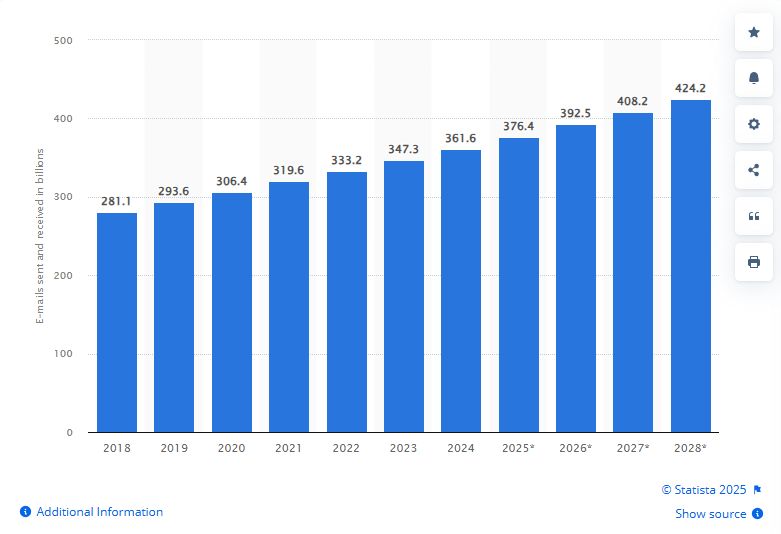
As global email volume continues to rise, with an estimated 376.4 billion emails sent and received each day worldwide in 2025, even modest increases in automated notifications can place unexpected pressure on transactional email systems and platform-level limits.
1. Daily email limits that affect workflow alerts
Salesforce counts workflow email alerts toward daily outbound email limits and enforces those limits at the org level, not per user or per automation.
Key behaviors administrators must account for:
- Workflow and Flow-triggered email alerts share the same daily limits as other Salesforce-generated emails.
- Limits reset every 24 hours and do not queue or defer excess sends.
- When teams exceed limits, Salesforce drops additional emails without retrying them.
- End users typically see no error message when an alert fails due to limits.
For example, a nightly data import updates thousands of records and exhausts limits before morning alerts trigger.
Why does this create risk in real orgs
- High-volume record updates can exhaust limits quickly.
- A single data load or bulk update can suppress unrelated alerts for the rest of the day.
- Operational teams may assume alerts were sent when they were not.
What Salesforce does not provide natively
- No automatic throttling for workflow email alerts.
- No built-in warning when limits are close to exhaustion.
- No delivery log that clearly distinguishes “not sent due to limits” from other failures.
Where teams add safeguards:
When workflow alerts become business-critical, teams often look for Salesforce-native ways to add delivery visibility and basic throttling without replacing existing automation. In those cases, tools like MassMailer are evaluated to provide email logging and deliverability monitoring while keeping email execution inside Salesforce.
This distinction matters as automation usage grows inside Salesforce, especially for organizations that rely on workflow alerts for operational or customer-facing notifications.
Common problems with Salesforce workflow email alerts and how to fix them
This section addresses fixable setup and logic issues that prevent workflow email alerts from behaving as expected. These problems occur even when Salesforce email limits are not involved.
1. Emails are not sending or are delayed
Misconfigured Flow timing or trigger conditions cause alerts to fail or arrive later than expected.
Check for these issues.s
- The record-triggered Flow runs before save, so required fields are incomplete.
- The trigger runs on every edit, causing multiple executions in the same transaction.
- The Email Alert action appears before decision logic.
- Multiple paths in the Flow can fire the same alert.
What to do
- Change the Flow to run after save.
- Add a field-change condition so the alert runs only on meaningful updates.
- Move the Email Alert action after decision elements.
- Ensure only one path can invoke the alert.
For example, if an alert sends multiple times when users edit a record, restrict the trigger to run only when a specific status or stage changes.
2. Incorrect recipients or missing data
Alerts reach the wrong recipients or contain blank values when recipient resolution or data timing is incorrect.
Check for these issues.
- The Flow populates recipient lookup fields later in the process.
- The alert references inactive users, roles, or queues.
- Merge fields rely on related records that are not available at send time.
- Teams hard-code external email addresses and fail to keep them updated.
What to do
- Resolve recipients from fields that the Flow has already populated when it runs.
- Use record owner or role-based recipients instead of static addresses.
- Limit merge fields to the triggering record where possible.
- Test alerts using real records, not previews.
For example, if a later Flow step sets the recipient field, move the email alert to run after that update or adjust the Flow logic accordingly.
How teams verify behavior without guessing:
When alerts appear to fire correctly, but results are inconsistent, administrators often need a clearer way to confirm what happened during execution. Salesforce-native tools like MassMailer are sometimes used to review alert execution details alongside existing automation, helping teams validate configuration changes without altering their Flow logic.
Fix these configuration issues first. If alerts still fail under normal conditions, revisit delivery constraints or monitoring considerations covered earlier.
Conclusion
Salesforce workflow email alerts remain effective for transactional notifications, but only when configured with clear intent and realistic expectations. Flows must run at the right time, templates must align with the automation context, and teams must design around limits instead of discovering them after failures occur.
For Salesforce administrators and CRM operators, most alert issues stem from loose entry conditions, unclear recipient logic, or incorrect execution timing, not from missing functionality. Tight configuration and disciplined testing prevent silent failures before they affect operations.
As automation volume grows, teams should periodically reassess whether native workflow email alerts still provide enough visibility and control to support business-critical notifications.
Review your existing workflow and Flow-based email alerts, then explore how MassMailer supports Salesforce-native email verification, delivery monitoring, and alert visibility to help teams evaluate gaps before scaling further.
Frequently Asked Questions
1. What are Salesforce workflow email alerts used for?
2. How do Salesforce workflow email alerts work with Flow Builder?
3. Why are Salesforce workflow email alerts not sending?
4. Do Salesforce workflow email alerts have daily limits?
5. Which email templates are supported by workflow email alerts?
6. How can administrators verify workflow email alerts are working?
Start Your Free Trial Today
Experience MassMailer the easiest way to send personalized emails from Salesforce.
Related Blogs
A Step-by-Step Guide to Email Alerts in Salesforce
Salesforce Flow Email Alert: Setup, Tracking, and Best Practices
MassMailer Resources

MassMailer Glossary
About the Author

Siva Devaki 

Siva Devaki is the founder of MassMailer Inc., a tool that helps Salesforce users optimize email marketing. A passionate advocate for email marketing, Siva writes and hosts podcasts on the topic, sharing insights to help businesses drive revenue and enhance customer engagement through Salesforce email automation and tracking.