




Table of Contents
If Salesforce emails are showing the wrong “From” address, replies are going to the wrong inbox, or “sent on behalf of” appears unexpectedly, the issue is almost always the Salesforce email sender setup.
Salesforce uses a specific hierarchy to choose the sender based on organization-wide addresses, user settings, permissions, and verification rules. If any part of this is misconfigured, sender behavior becomes unpredictable.
This guide shows you how Salesforce chooses the email sender, how to set it correctly, and how to fix the issues that affect deliverability, replies, and governance.
Quick answer:
Salesforce selects the email sender based on organization-wide email addresses, user email settings, sender permissions, and the email context (manual vs automated). To control the From address consistently, you must verify shared senders, restrict access, and explicitly set the sender in automation and alerts.
How to set the Salesforce email sender address
To control the Salesforce email sender, you typically add and verify an organization-wide email address, set a default sender, and then restrict who can use it. This setup determines which email address appears in the From field and prevents common issues like “sent on behalf of” or replies going to the wrong inbox.
Below is the exact configuration flow enterprise teams follow to keep sender behavior predictable and governed.
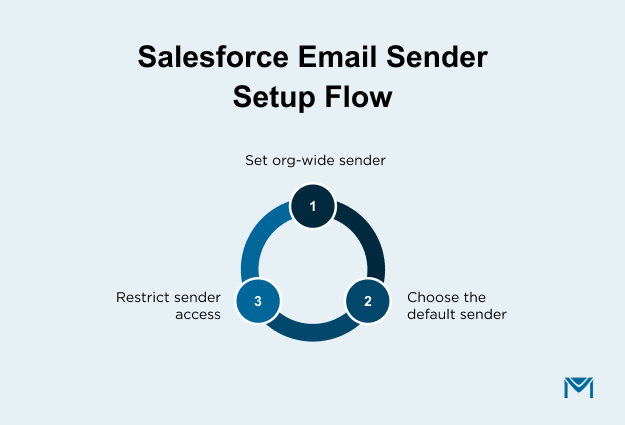
1. Organization-wide email addresses set up
Organization-wide email addresses allow Salesforce to send emails from shared addresses such as support@, billing@, or sales@ instead of individual user inboxes. Salesforce requires verification before these addresses can be used as senders.
How to set them up
- Go to Setup and search for Organization-Wide Addresses.
- Add a new address with:
- A clear display name
- A monitored mailbox or alias
- Complete the verification email sent by Salesforce.
What admins commonly run into
- Verification emails are missed because the alias is not monitored.
- Too many org-wide addresses are created without clear ownership.
- Similar-looking senders confuse users and lead to the wrong choice
Keep the list small and purposeful. Each sender should have a clear use case and owner.
2. Choosing the default email sender behavior
Salesforce does not have one universal, global default email sender. Sender behavior depends on how and where an email is sent.
How Salesforce typically selects a sender
- User-sent emails default to the user’s email address unless the user selects an organization-wide address.
- Automated emails, such as workflow or process alerts, usually require the sender to be defined within the alert or rule itself.
- Some features enforce the use of an organization-wide address, while others allow user choice.
How admins reduce inconsistency
- Define organization-wide email addresses first
- Explicitly select the sender in automation and alert configurations.
- Avoid assuming one default applies across all Salesforce features
Operational implication:
When teams assume a single default sender exists, Salesforce appears inconsistent. In reality, sender logic varies by feature, and clarity comes from explicit configuration.
3. Controlling email sender access by user profile
Sender control breaks down when too many users can send from too many addresses. Salesforce allows admins to limit which users can use specific organization-wide email addresses.
Best-practice controls
- Grant access only to teams that need the sender
- Restrict shared senders for high-risk or high-volume use cases.
- Review access regularly as roles and teams change.
Without access controls, the platform still works, but governance becomes manual. That is when mistakes surface as brand inconsistency, misrouted replies, or compliance concerns during audits.
Some enterprise Salesforce teams use tools such as MassMailer to standardize sender usage and reduce configuration drift across managed email workflows.
Salesforce email sender types and when each is used
Salesforce supports two primary Salesforce email sender types. It chooses between them based on how an email is sent, who sends it, and which permissions apply. Knowing when each sender type applies helps admins avoid sender confusion and reply-handling issues.
Below is how each sender type works in real Salesforce environments.
1. Organization-wide email addresses
Organization-wide email addresses are shared sender addresses that multiple users or automated processes can use. They usually represent a team or function, not an individual.
When Salesforce uses them
- Automated emails, such as workflow email alerts or process notifications, are explicitly configured
- User-sent emails, when a user selects an organization-wide address and has permission
- Scenarios where replies must route to a shared inbox
Why admins rely on them
- Consistent sender identity across teams
- Centralized reply handling
- Clear ownership for compliance and audits
Common failure mode:
If access is too broad, users select the wrong shared sender. This causes reply confusion and weakens sender governance.
2. User email addresses
User email addresses are the individual email addresses stored on Salesforce user records. Salesforce often defaults to these in manual sending scenarios.
When Salesforce uses them
- One-to-one emails sent by users from records
- Situations where no organization-wide sender is selected or enforced
- Sales or service interactions that require a personal sender
Trade-offs to understand
- Replies go directly to the individual user
- Sender consistency depends on user behavior.
- Offboarding users requires cleanup to avoid broken reply paths
Enterprise teams commonly restrict when user addresses can act as senders to reduce operational risk.
3. Organization-wide vs user email senders at a glance
| Attribute | Organization-wide email address | User email address |
|---|---|---|
| Sender identity | Shared team or function | Individual user |
| Common use cases | Automation, support, billing, renewals | One-to-one sales or service emails |
| Reply handling | Shared inbox | User mailbox |
| Governance level | High when access is restricted | Lower without controls |
| Risk if misused | Brand confusion | Missed replies during absences |
4. How Salesforce chooses one email sender over another
Salesforce does not apply a single, universal sender rule. Sender selection depends on context and permissions.
Salesforce typically evaluates sender choice based on
- The email context, such as user-sent versus automated
- Whether an organization-wide email address is explicitly defined for that action
- Whether the user has permission to use the selected sender
- Fallback to the user’s email address when no shared sender applies
When teams assume Salesforce will automatically choose the right sender, behavior appears inconsistent. In practice, clarity comes from explicitly defining sender usage and limiting options.
Some enterprise Salesforce teams use tools such as MassMailer to monitor email sender reputation and standardize sender usage, which helps reduce sender-related failures across high-volume Salesforce email workflows.
Salesforce email sender options in MassMailer
Salesforce allows multiple sender configurations, but it does not enforce consistency across users, campaigns, or automation. As email volume grows, sender behavior often drifts. Different users select different From addresses, and reply handling becomes harder to govern.
MassMailer adds structured sender defaults on top of Salesforce to make sender behavior more predictable in bulk and campaign-based email, without changing Salesforce’s underlying sender rules.
If you want to see how default sender options are configured in practice, this short walkthrough shows how admins set From name, From email, and reply-to defaults in MassMailer:
MassMailer supports three sender default patterns:
- Logged-in user defaults: Emails use the sender name, email address, and reply-to of the user running the campaign. This mirrors native Salesforce behavior and works best for relationship-driven outreach where replies should go back to the sender.
- Common sender defaults: Multiple users send from the same shared address, such as support@ or operations@. This standardizes the From name and reply-to across campaigns and reduces “sent on behalf of” confusion when teams share inboxes.
- Custom sender defaults per campaign: Sender details are defined at the campaign level. Teams use this when different campaigns require different sender identities, while still staying within verified Salesforce sender options.
Teams typically rely on MassMailer sender defaults when multiple users send high-volume emails, shared inboxes must be enforced, or sender behavior needs to remain consistent as automation and teams scale.
Common Salesforce email sender issues and how to fix them
Most Salesforce email sender issues come from misaligned sender rules, permissions, or defaults. Salesforce usually behaves as designed, but the logic is easy to misinterpret. Once you know where to look, the fixes are straightforward.
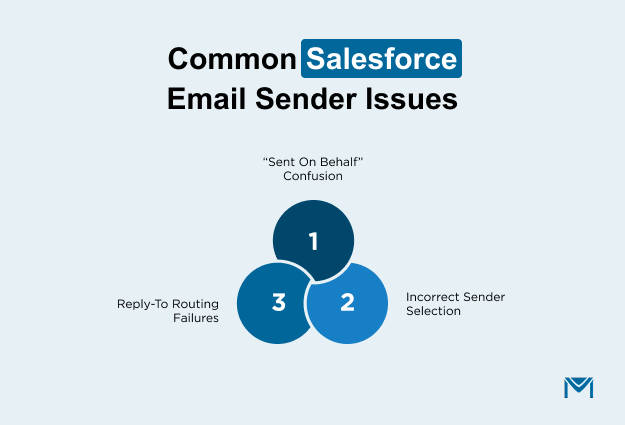
1. “Sent on behalf of” showing incorrectly
“Sent on behalf of” appears when Salesforce sends an email from an address the user does not directly own.
Why this happens
- A user sends from an organization-wide email address without clear ownership.
- The sender domain differs from the user’s email domain.
- Sender permissions allow use, but do not enforce consistency
How to fix it
- Use organization-wide email addresses for shared senders
- Restrict access so only the intended teams can use each sender.
- Align display names with the sender's purpose
Recipients often distrust these emails, even when delivery succeeds.
2. Wrong email sender appearing on outbound emails
Admins often expect Salesforce to choose the same sender everywhere. It does not.
Common causes
- No sender is explicitly defined for automation or email alerts.
- Users default to personal addresses instead of shared senders.
- Multiple organization-wide addresses exist without clear rules.
What to check
- Review sender settings at the automation or alert level.
- Confirm which senders users can select.
- Remove unused or duplicate organization-wide addresses.
Trade-off: More sender options increase flexibility, but also increase inconsistency.
3. Reply-to mismatches and lost responses
Emails can be sent correctly, while replies still go to the wrong place.
Why replies get lost
- Reply-to is not defined on the organization-wide email address.
- Shared senders route replies to individual inboxes.
- Automation defines a sender but not a reply-to address.
How to fix it
- Always define a reply-to when using shared senders
- Test reply behavior for automation, not just delivery
- Use monitored inboxes for customer-facing emails
Customers respond, but no one sees the message. This creates support gaps and audit risk.
This pattern is not unique to one organization. In AppExchange reviews for MassMailer, Salesforce admins often describe a similar progression. Email sending works well early on, but as volume increases and automation expands, sender ownership and reply-to handling become harder to track.
Reviews frequently point to missed replies, inconsistent From addresses, or confusion during audits as signals that governance did not scale with usage.
If sender issues only appear after volume grows, the fix is rarely another setting. It is usually a sign that sender standards, ownership, and validation checks were not designed for scale. Teams that recognize this early tend to formalize sender rules and monitoring before problems surface in customer-facing workflows.
Salesforce email sender issues at a glance
| Issue | Root cause | Practical fix |
|---|---|---|
| “Sent on behalf of” appears | Shared sender without clear ownership | Use org-wide addresses with restricted access |
| Wrong sender used | Sender not defined at feature level | Explicitly set the sender per automation or alert |
| Replies go missing | Reply-to not configured | Define reply-to for every shared sender |
Some enterprise Salesforce teams rely on platforms such as MassMailer to help standardize sender and reply-to behavior and keep outbound email deliverability consistent as email volume and automation grow.
Salesforce email sender vs reply-to address
The Salesforce email sender controls what appears in the From field, while the reply-to address controls where responses go. These two settings often differ, and Salesforce does not always keep them aligned unless you configure them explicitly.
This distinction explains why replies sometimes land in unexpected inboxes.
1. How the reply-to address is determined
Salesforce determines the reply-to address based on the email context and configuration used at send time. It does not always default to the sender address.
Salesforce typically sets the reply-to based on
- The reply-to value is defined on an organization-wide email address when one is used.
- The user’s email address, when a user sends an email without a shared sender
- The email alert or automation configuration, when replies are defined at the rule level
When Salesforce does not have an explicit reply-to address, it routes replies based on the sending context. Depending on the feature, Salesforce sends replies either to the sender's address or to the individual user’s email.
For example, Salesforce may send replies from a support@company.com email to an individual user’s inbox if the admin does not explicitly define the reply-to address.
2. Common reply-to configuration mistakes
Reply handling issues rarely come from email delivery. They usually come from misaligned settings.
Enterprise teams commonly run into
- Using a shared sender but forgetting to set a shared reply-to inbox
- Allowing users to send from organization-wide addresses while replies route to personal inboxes
- Assuming reply-to behavior stays consistent across manual emails and automation
When the reply-to is wrong, customers respond, but nobody sees the message. This creates support gaps, missed opportunities, and audit risk, even when the email sender looks correct.
The fix is simple but deliberate. Treat sender and reply-to as separate controls and configure both every time a shared sender is used.
Salesforce email sender domain ownership and verification rules
Salesforce controls which domains you can use as a Salesforce email sender to protect recipients from spoofing and impersonation. In practice, sender eligibility depends on domain ownership and whether Salesforce can confirm control of the sending address. These rules determine which addresses Salesforce allows in the From field.
1. Sending emails from a domain you own
Owning the sending domain gives you more flexibility, but Salesforce still enforces verification at the sender level.
How Salesforce typically handles owned domains
- You can create organization-wide email addresses using your domain
- Salesforce sends a verification email to each address before it becomes usable
- Verified senders are available based on permissions and email context
Where enterprise teams slip
- Verifying one address and assuming others under the same domain are covered
- Using aliases that are not actively monitored, so verification never completes
Domain ownership supports scale, but sender-level verification remains mandatory for consistent behavior.
2. Sending emails from a domain you do not own
Salesforce applies stricter controls when the sending domain is external.
What Salesforce enforces
- Verification must occur at the individual email address level
- Certain partner or consumer domains may be restricted
- Sender and reply-to behavior may change to reduce impersonation risk
What commonly fails
- Partner or vendor inboxes cannot complete verification
- Salesforce blocks the sender or substitutes a different From address
Using non-owned domains limits sender control and increases compliance risk. Salesforce prioritizes recipient trust over flexibility in these cases.
3. Salesforce email sender verification requirements
Verification governs how a sender can be used operationally, not just whether it exists.
What verification controls are in practice
- Whether an address can appear in the From field
- Whether Salesforce allows the sender to automate or send higher-volume emails
- How downstream mail systems evaluate sender legitimacy
What admins need to manage over time
- Remove verified senders that no longer have clear ownership
- Re-verify addresses when inbox routing or responsibility changes
- Test sender behavior after org changes, not only during initial setup
Verification failures rarely surface as clear errors. They show up later as fallback senders, missed replies, or delivery issues during audits or peak send periods.
Some enterprise Salesforce teams use platforms such as MassMailer to support Salesforce email verification and validation workflows, helping reduce the risk of invalid or misconfigured sender addresses as domains, teams, and email volume evolve.
Best practices to ensure Salesforce emails are sent from the correct address
To keep the Salesforce email sender consistent and trusted, admins need clear standards and ongoing controls. In Salesforce, the email sender determines which address appears in the From field and where customers expect responses to go. Most sender issues emerge over time as teams, automation, and permissions change.
The practices below focus on prevention, not troubleshooting.
Avoiding deliverability and compliance issues
Sender-related deliverability issues usually come from inconsistency, not technical failure.
What enterprise teams should standardize
- Use organization-wide email addresses for shared and automated emails
- Align Salesforce email sender domains with approved business domains only
- Define a reply-to address whenever a shared sender is used
- Remove sender addresses that no longer have a clear owner
Where teams get exposed
- Automation sends from personal user addresses
- Legacy senders remain active after reorganizations or system changes
- Shared senders route responses unpredictably
Even when Salesforce delivers the email, inconsistent sender behavior can reduce trust, trigger internal reviews, or slow customer responses.
Maintaining consistent email sender behavior over time
Salesforce email sender configuration is not a one-time task. It requires ongoing oversight as the org evolves.
Practices that prevent drift
- Keep the number of active Salesforce email senders intentionally small
- Assign ownership for each organization-wide sender
- Review sender access during role changes and offboarding
- Re-test sender behavior after automation updates
For example, a sales ops team may add a new automation using an existing shared sender. Months later, ownership changes, replies go unmonitored, and the issue only becomes visible after customers follow up through other channels.
Greater user flexibility increases the risk of inconsistency. Clear ownership and periodic review reduce errors, but they require disciplined admin processes.
Conclusion
Controlling the Salesforce email sender is an ongoing operational decision that affects deliverability, compliance, customer trust, and response handling. Salesforce gives admins the tools to manage senders, but consistency breaks down quickly as teams grow, automation expands, and ownership changes.
If your org relies on shared senders, high-volume automation, or multiple teams sending from Salesforce, manual controls alone often struggle to keep pace. This is where many teams start looking for ways to standardize sender behavior, validate addresses, and monitor deliverability without adding admin overhead.
If you want a practical next step, explore how MassMailer helps Salesforce teams manage outbound email more reliably by supporting sender governance, email verification, and deliverability monitoring directly inside Salesforce. It is a natural fit for teams that need more control and visibility without leaving the Salesforce environment.
If you want sender behavior to stay consistent as volume grows, explore how MassMailer works inside Salesforce with a free trial or demo.
Frequently Asked Questions
1. How do I set the email sender in Salesforce?
2. What is the sender type in Salesforce?
3. Why does Salesforce show “sent on behalf of” in emails?
4. How does Salesforce choose which email address to send from?
5. Why are replies going to the wrong inbox in Salesforce emails?
6. Do I need to verify an email address before using it as a Salesforce email sender?
Start Your Free Trial Today
Experience MassMailer the easiest way to send personalized emails from Salesforce.
Related Blogs

MassMailer Resources



MassMailer Glossary
About the Author

Siva Devaki 

Siva Devaki is the founder of MassMailer Inc., a tool that helps Salesforce users optimize email marketing. A passionate advocate for email marketing, Siva writes and hosts podcasts on the topic, sharing insights to help businesses drive revenue and enhance customer engagement through Salesforce email automation and tracking.