
Table of Contents
Introduction
You set everything up correctly, or so you thought. Then a Salesforce email notification lands in someone’s inbox from an address nobody recognizes, or worse, from noreply@salesforce.com.

The automation fires. The Flow succeeds. The approval moves forward. Yet the email behaves inconsistently. Replies go nowhere, trust drops, and teams assume the notification itself is broken.
The problem is not the alert or the automation. It is how Salesforce evaluates sender eligibility, deliverability, and email limits after the automation runs. If any enforced rule fails, Salesforce overrides the sender or blocks the email without stopping the process that triggered it.
This guide explains how Salesforce enforces email notifications, why failures happen silently, and how to fix them without rewriting Flows, approvals, or case logic.
What are Salesforce email notifications (and what they are not)
Salesforce email notifications are automated emails that Salesforce sends in response to system events or automation. Salesforce enforces how these emails are sent and who they come from, regardless of individual user preferences or templates. These rules apply consistently across environments.
Salesforce email notifications are:
- Emails are sent when a record changes, a Flow or Workflow runs, or an approval or system action occurs
- Evaluated and sent by Salesforce using predefined delivery and sender rules
- Subject to org-wide deliverability, sender verification, and security controls
Salesforce email notifications are not:
- Marketing or campaign emails
- Emails where the sender is freely chosen per Flow or template
- Fully controlled by user email preferences.
- Guaranteed to use the running user’s email address
This distinction matters because many admins assume the automation defines email behavior. In reality, Salesforce applies and overrides sender and delivery rules after the automation logic runs. This is why changes to Flows, templates, or user settings often do not affect how notifications are sent.
In larger or high-volume Salesforce orgs, some teams use tools like MassMailer to monitor sender reputation, manage email authentication (SPF, DKIM, DMARC), and track delivery behavior for Salesforce-driven notifications, alongside native Salesforce controls.
These definitions explain why some emails cannot be disabled by users, why sender changes appear ignored, and why Salesforce falls back to platform-managed senders like noreply@salesforce.com. Understanding what Salesforce enforces here prevents misconfiguration before troubleshooting even begins.
How Salesforce decides whether an email notification is sent
Salesforce decides whether an email notification is sent by evaluating enforced controls in a fixed order, not by the Flow, email alert, or template alone. If Salesforce blocks the email at any step, the automation can still run successfully, but no email is delivered.
Quick diagnostic checklist
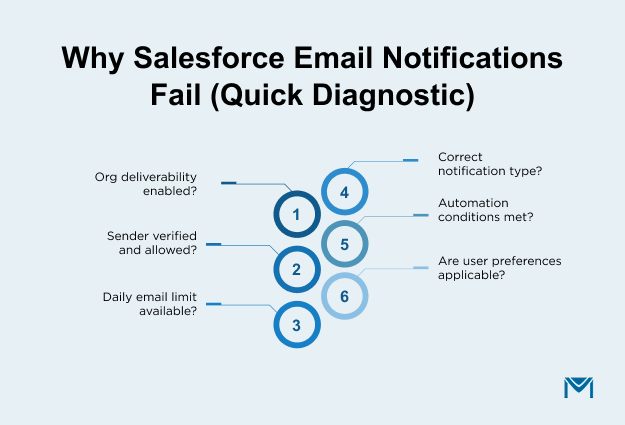
If a Salesforce email notification did not send, check the following in order:
- Is email deliverability enabled for the org?
Confirm in Setup → Deliverability that Salesforce is allowed to send outbound emails. - Is the sender verified and permitted?
Check Setup → Org-Wide Email Addresses to ensure the sender is verified, active, and allowed for this notification type. - Are email limits available?
Review Setup → Company Information to confirm the org has not exceeded its daily email limit. - Does the notification type allow sending?
Verify whether the email is a system, approval, case, or automation notification, since each type follows different enforcement rules. - Did the automation logic meet its conditions?
Confirm the Flow, Workflow Rule, or approval action evaluated to true and attempted to send the email. - Do user notification preferences apply here?
In most automation, approval, and case notifications, user preferences are ignored and do not block sending.
If any earlier check fails, Salesforce ignores everything that follows.
The enforcement order Salesforce applies
1. Org-wide deliverability:
Salesforce first checks whether the org is allowed to send emails in Setup → Deliverability. If Salesforce restricts email access, most automation-driven notifications do not send, although Salesforce may still deliver some system emails, such as password resets. Salesforce continues to run Flows, approvals, and record updates even when it blocks email sending.
2. Sender eligibility and verification:
Salesforce then evaluates whether the configured sender is allowed for that notification in Setup → Org-Wide Email Addresses. Org-wide email addresses must be verified and active, and if sender validation fails, Salesforce overrides the sender or suppresses the email. The email template and the Flow running user do not determine the sender.
3. Notification type rules:
Salesforce applies enforcement rules based on the notification type. System emails follow platform rules, approval emails follow approval-specific settings, case emails follow support and routing configuration, and automation emails follow email alert rules. User opt-out settings are usually ignored for system, approval, and case notifications.
4. Email limits enforcement:
Salesforce checks whether email limits are available at send time in Setup → Company Information. Limits apply across Flows, approvals, cases, and user-triggered emails, and Salesforce does not queue emails once limits are exceeded. Automation execution continues even if the email is blocked.
5. Automation execution and user preferences:
Only after all enforcement checks pass does Salesforce evaluate whether the automation sends the email. User notification preferences are evaluated last and do not block most system, approval, or automation-driven notifications.
To diagnose issues reliably, trace the decision order above before changing automation. Some teams use tools like MassMailer to monitor sender validation and delivery outcomes, which helps teams understand whether email delivery failed due to sender validation or Salesforce enforcement rather than automation logic.
How sender email addresses and deliverability work in Salesforce
Salesforce controls sender email addresses and deliverability through enforced verification and authentication rules, not through Flows or templates alone. If a sender fails validation, Salesforce overrides it or suppresses the send, even when automation runs successfully.
1. How Salesforce determines the sender
- Salesforce evaluates the sender type first, such as org-wide email address, default workflow user, or Salesforce-managed sender.
- Salesforce requires verification for org-wide email addresses before they can be used.
- If verification or policy checks fail, Salesforce typically falls back to a platform-managed sender like noreply@salesforce.com.
2. What deliverability settings actually enforce
- Deliverability access (Setup → Deliverability) controls whether most outbound emails can be sent.
- Salesforce enforces email authentication requirements, including SPF, DKIM, and DMARC alignment, based on the sender domain.
- System emails may still send when deliverability is restricted, but automation-driven emails often do not.
3. What this does not affect
- The email template content does not override sender rules.
- The Flow running user does not guarantee the “From” address.
- User opt-out settings do not control sender selection.
4. Common sender and deliverability failure modes
- An org-wide email address exists but is unverified or inactive, causing sender override.
- Multiple org-wide addresses are configured, and Salesforce selects one based on sender type precedence, not admin intent.
- Authentication fails after domain changes or DNS updates, leading to bounces or spam filtering.
- Sandbox and production differ in verified senders, causing behavior to change after deployment.
When teams need clearer visibility into sender authentication and delivery outcomes, some use tools like MassMailer to monitor sender reputation, manage SPF, DKIM, and DMARC alignment, and track delivery behavior for Salesforce-driven notifications, alongside native controls in Salesforce.
If a Salesforce email does not send from the address you expect, check sender verification and deliverability enforcement before changing automation.
Types of Salesforce email notifications
Salesforce email notifications fall into a small number of system-defined categories, and each category follows different enforcement rules. Identifying the notification type is the fastest way to understand why Salesforce email notifications are sent, who they come from, and which settings are ignored.
1. System and user notifications
System and user notifications are platform-generated emails tied to security, access, and monitoring.
- Common triggers include password resets, login alerts, report subscriptions, and system monitoring.
- Salesforce controls when these emails are sent and which sender is used.
- User preferences and automation settings do not apply.
Salesforce prioritizes platform security and stability. These notifications cannot be disabled or customized at the user or automation level.
2. Email alerts from workflow rules and flows
Email alerts from Workflow Rules and Flows are automation-driven notifications tied to record changes.
- Triggered by record-based criteria.
- Sender selection depends on the email alert configuration and applicable org-wide email address.
- Salesforce enforces sender verification and daily email limits at send time.
Salesforce does not choose the sender based on the Flow or template alone. If the sender is invalid or limits are exceeded, Salesforce overrides or suppresses the send.
Users cannot opt out of these emails if the automation is active.
3. Approval process notifications
Approval process notifications support internal approval workflows.
- Sent for approval requests, reassignment, and final decisions.
- Salesforce defines sender behavior using approval email settings and then evaluates it against org-wide sender rules.
- Salesforce ignores user email preferences.
Changes in Flows or email templates do not affect these notifications. Users cannot disable these notifications.
4. Case, task, and activity notifications
Case, task, and activity notifications support service and operational workflows.
- Common triggers include case assignment, escalation rules, auto-responses, and activity updates.
- Sender behavior depends on support settings, routing rules, and verified org-wide email addresses.
- These emails are often high-volume and time-sensitive.
Salesforce applies sender precedence and email limits before sending. User preferences are typically ignored.
These notification gaps appear because Salesforce did not design these emails for sustained, real-time delivery at scale, not because the automation is incorrect. In a healthcare use case documented by MassMailer, missed case notifications occurred when email limits and deliverability issues surfaced, highlighting the need for clearer sender governance and redundancy alongside native controls in Salesforce.
Understanding which notification type is in play tells you which sender rules Salesforce will enforce and which settings it will ignore. This step alone resolves most confusion around why emails are sent from unexpected addresses or stop sending under load.
Salesforce email notification limits and enforcement rules
Salesforce enforces email notification limits at send time, not when automation runs. It blocks the email without retrying or queuing it when the org reaches a limit, even though Flows, approvals, and case rules continue to execute.
1. Key Salesforce email notification limits
| Limit | Applies to | Where to check | What happens when it is hit |
|---|---|---|---|
| Daily email limit | Flows, approvals, cases, user-triggered emails | Setup → Company Information | Emails stop sending until reset |
| Org-wide deliverability | Most outbound notifications | Setup → Deliverability | Emails blocked |
| Sender validation during enforcement | Org-wide email senders | Setup → Org-Wide Email Addresses | Sender overridden or email suppressed |
For many orgs, Salesforce limits external emails to around 5,000 per day, with effective limits varying by edition and license count, as documented in Salesforce Help.
2. What to know
Salesforce shares limits across teams and automation within the same org.
Automation can run successfully even when Salesforce blocks email sending.
Salesforce does not queue or retry notifications after it exceeds email limits.
If Salesforce email notifications stop without errors, check limits and deliverability before changing automation. In practice, a single high-volume case escalation Flow can exhaust the daily limit, silently blocking approval and workflow emails across the org.
How to enable or disable Salesforce email notifications
You can enable or disable Salesforce email notifications at several enforced control points, and Salesforce evaluates them in a fixed order. Changing the wrong setting often does not affect whether Salesforce sends emails or which email sender it uses.
1. Where Salesforce actually controls email sending
- Org-wide deliverability:
Setup → Deliverability controls whether Salesforce can send most outbound emails. When Salesforce restricts deliverability, it usually stops automation-driven emails but still sends some system emails, such as password resets and security alerts. - Org-wide email addresses:
Salesforce enforces sender verification. If an org-wide address is unverified, inactive, or disallowed, Salesforce falls back to platform-managed senders. - Automation-level controls:
Email alerts in Flows, Workflow Rules, approval processes, and case rules must be disabled individually. Salesforce does not offer a global switch to stop all automation emails. - User-level email settings:
Users can disable personal notifications, such as task reminders or report subscriptions. These settings do not apply to system, approval, or most case notifications.
2. What can and cannot be turned off
- Users can opt out of discretionary notifications they subscribe to.
- Users cannot disable security-related system emails.
- Salesforce continues to send approval and case notifications until teams change the underlying automation, regardless of user notification preferences.
3. Common, verified failure patterns
- Notifications keep sending after users opt out because the email is automation-driven.
Salesforce stops emails unexpectedly when teams tighten deliverability settings during security or compliance reviews.
Salesforce applies sender precedence rules after automation runs, which override sender changes.
When notifications must remain enabled but sender behavior and oversight need tighter control, some teams use MassMailer to manage verified sender domains, monitor notification sends, and enforce consistent sender policies across Salesforce-driven emails without modifying existing Flows or approval logic in Salesforce.
The most reliable approach is to identify the notification type first, then enable or disable it at the level Salesforce actually enforces.
How to configure email alerts in Salesforce
Salesforce email alerts trigger predefined notification actions when automation meets specific conditions. Salesforce enforces sender eligibility, deliverability settings, and email limits when it sends the email, regardless of how the alert is configured.
1. Key parts of email alert configuration
- Email alert actions: An email alert defines the template, sender type, and recipients. Salesforce may override the sender if verification or policy checks fail.
- Recipient types: Alerts can go to users, roles, related record owners, or specific email addresses. User opt-out settings usually do not apply to automation-driven alerts.
- Triggering alerts with Flow: Flows trigger email alerts based on record changes or logic paths. A Flow running successfully does not guarantee the email sends.
- Workflow vs Flow alerts: Workflow email alerts are legacy but still active in many orgs. Teams prefer Flow-based alerts, but Salesforce enforces the same sender, deliverability, and email limit rules for both approaches.
2. What this does not affect
- The email template alone does not control sending.
- The Flow running user does not determine the “From” address.
- User notification preferences do not disable these alerts.
If an email alert does not send as expected, the cause is usually sender validation, deliverability, or limit enforcement rather than the alert or Flow itself.
Common Salesforce email notification issues and fixes
Salesforce email notification problems usually occur because Salesforce enforces delivery, sender, or limit rules before automation completes. Grouping issues this way makes it easier to diagnose the root cause without reworking Flows or alerts unnecessarily.
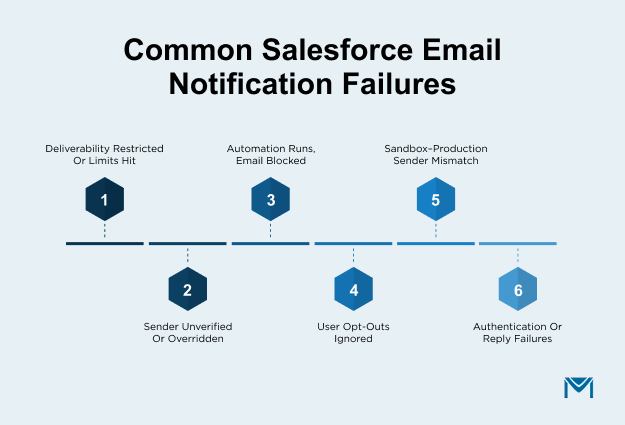
1. Common Salesforce email notification issues
- Salesforce stops sending email notifications when it restricts deliverability or reaches daily email limits, even though automation continues to run.
- Emails sent from noreply@salesforce.com or an unexpected sender when the configured org-wide email address is unverified, inactive, or not allowed for that notification type.
A Flow or approval runs, but Salesforce blocks the email after automation because sender validation fails or the org hits sending limits.
Salesforce continues to send emails even after users disable notifications because user preferences do not apply to system emails, approval emails, or most automation-driven emails.
Email behavior differs between sandbox and production when admins do not align sender verification or deliverability settings across environments.
Replies bounce or fail when teams use unmonitored sender addresses or misconfigure email authentication records such as SPF, DKIM, or DMARC.
2. Salesforce email notification fixes
Go to Setup → Deliverability and confirm Salesforce has not reached the daily email limit before changing any automation.
Make sure the organization-wide email address is verified, active, and allowed for the notification you are sending.
Identify the notification type, because system emails, approval emails, case notifications, and automation emails follow different rules and ignore different settings.
Do not rely on user notification preferences. Disable or change the automation itself if emails must stop.
Match sender verification and deliverability settings between the sandbox and production to avoid inconsistent behavior.
Monitor the sender email address and set up basic email security records correctly.
When emails fail in Salesforce, check limits and sender rules first. In most cases, the automation is working fine and does not need changes.
Conclusion
Salesforce email notifications usually fail for a few predictable reasons. Salesforce applies sender rules before automation runs. Deliverability settings can block emails without showing a clear error. Email limits can stop notifications even when Flows continue to run correctly. Once you understand what Salesforce checks first, these issues stop feeling random and become easier to manage.
The real problem is visibility. Salesforce does not clearly show why an email failed or which sender rules it applied at send time. As a result, teams spend time troubleshooting automation that is actually working fine. Important messages get missed, and fixes are applied in the wrong place.
If your org depends on high-volume or business-critical notifications, better visibility helps. Some teams use MassMailer to track sender behavior, authentication status, and delivery results after Salesforce sends the email. This helps teams catch sender or enforcement issues before users or customers feel the impact.
Book a demo to see how teams gain clear visibility into Salesforce email notifications, sender behavior, and delivery outcomes without changing existing automation.
Frequently Asked Questions
1. Why are Salesforce email notifications not sending?
2. Why do Salesforce email notifications come from noreply@salesforce.com?
3. Can users turn off Salesforce email notifications?
4. How do I enable Salesforce email notifications?
5. Does Salesforce automatically send emails from Flows?
6. Why does automation run, but the Salesforce email notification does not send?
Start Your Free Trial Today
Experience MassMailer the easiest way to send personalized emails from Salesforce.
Related Blogs
Salesforce Email Studio: A Practical Guide for Marketers and Admins
Send Better Emails in Salesforce: Proven Tips to Boost Engagement
MassMailer Resources

MassMailer Glossary
About the Author

Siva Devaki 

Siva Devaki is the founder of MassMailer Inc., a tool that helps Salesforce users optimize email marketing. A passionate advocate for email marketing, Siva writes and hosts podcasts on the topic, sharing insights to help businesses drive revenue and enhance customer engagement through Salesforce email automation and tracking.